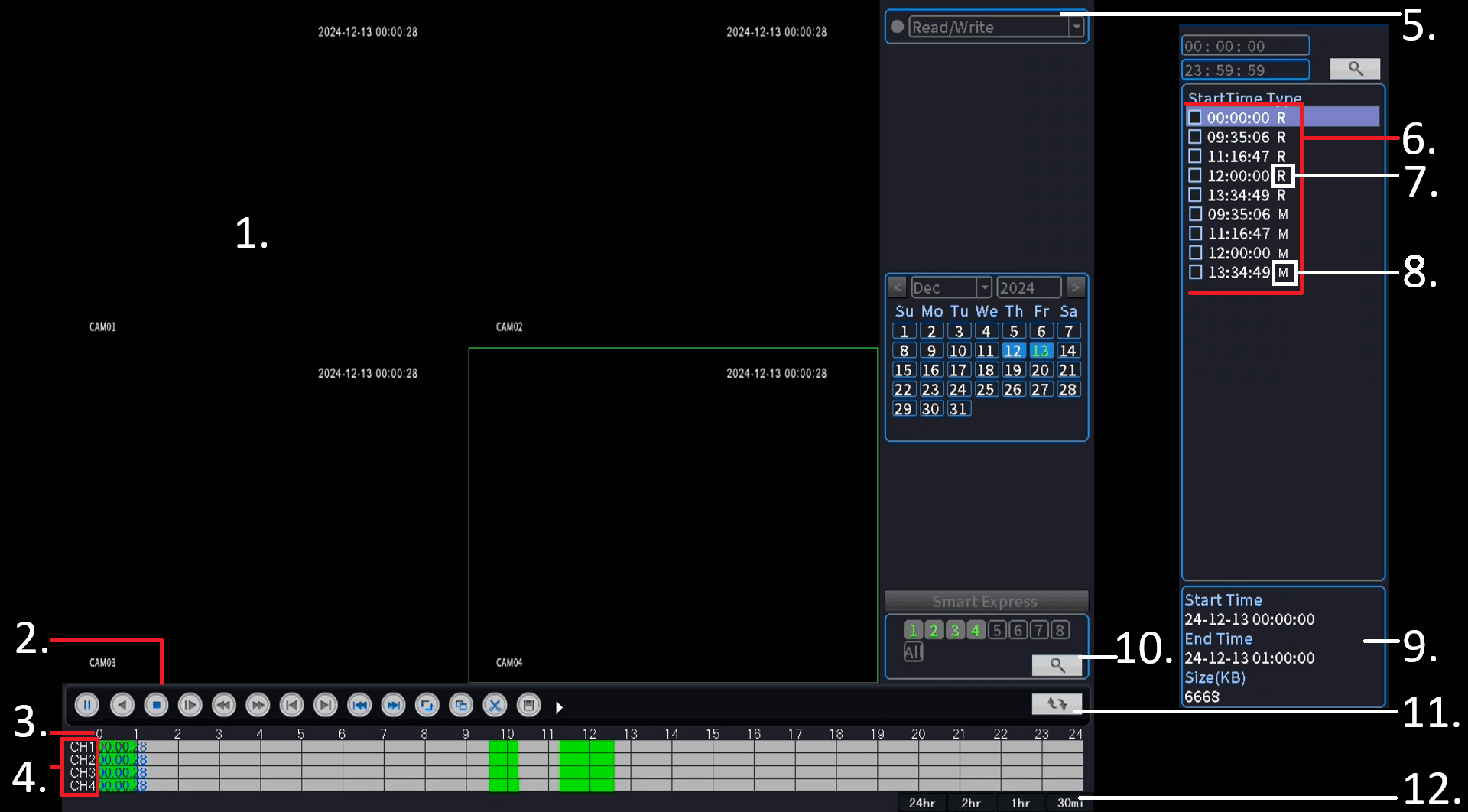
1. Area for Video Playing
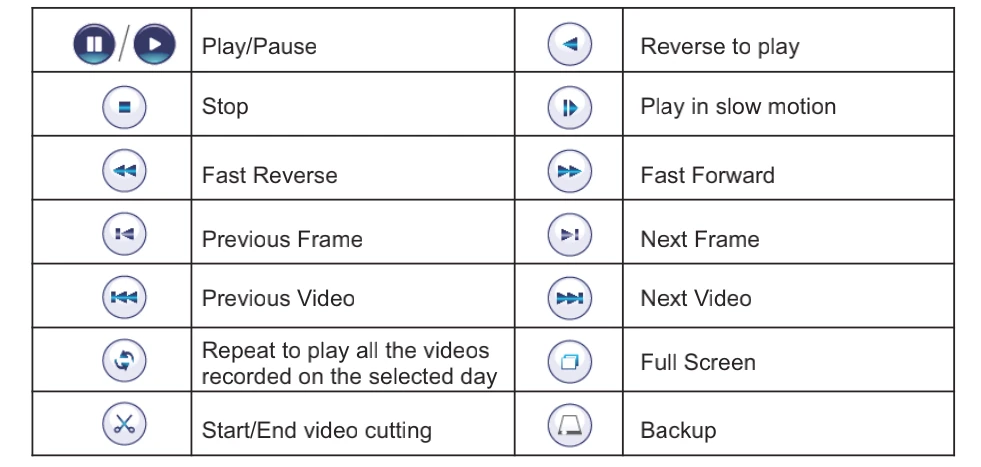
2. Playback Buttons
3. Timeline
4. Channel
5. Filters
6. Filtered Videos List
7. R: Standard Videos
8. M: Videos recorded when the camera detects motion or human shape.
9. Detailed Info. of the Selected Video
10. Search
11. Show/Hide Filtered Videos List
12.Timeline by Hour/Minute
Requirements
- Ensure Hard Drive is installed
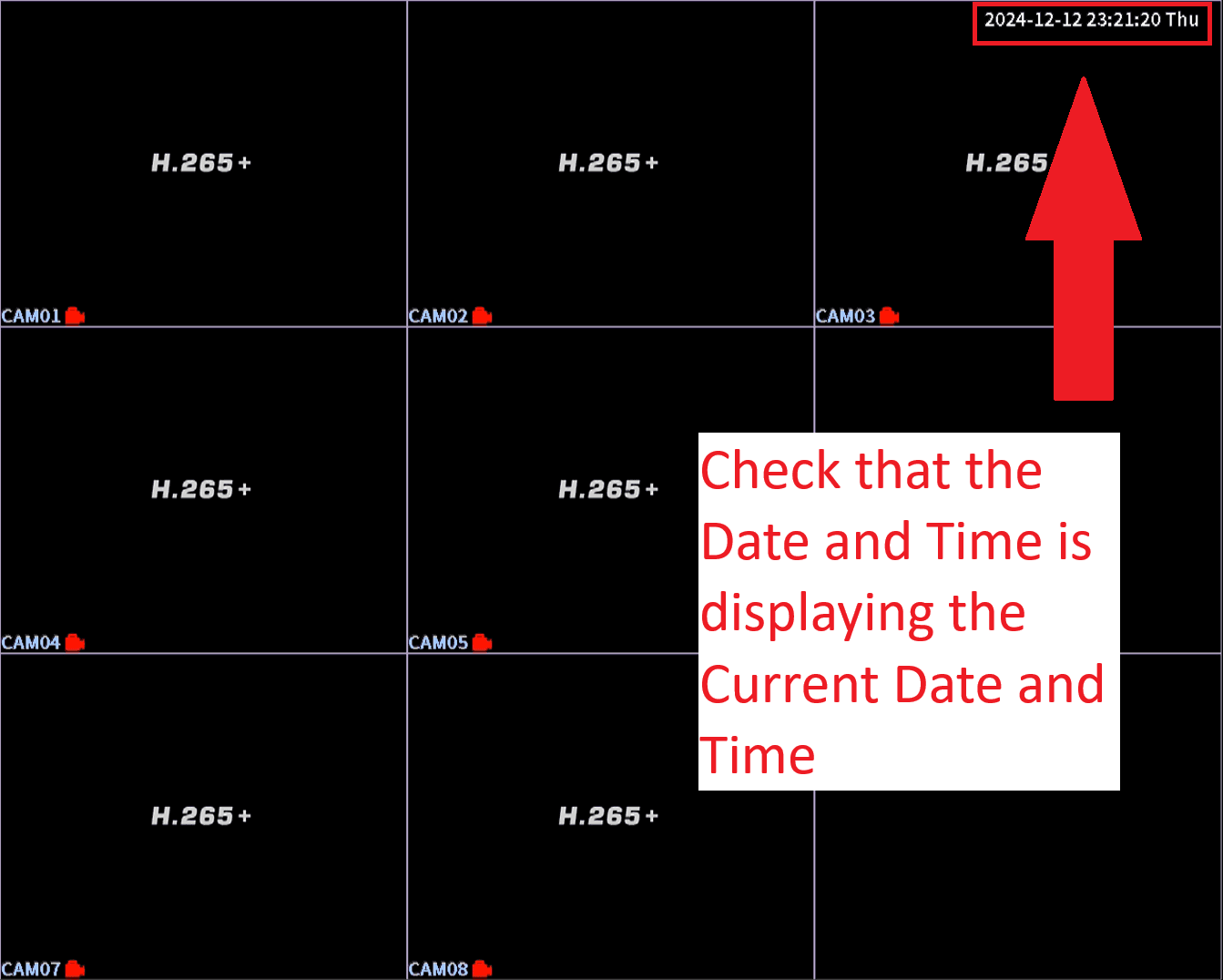
- Check that the Date and Time is showing the current Date and Time
- Important! If the date and time are incorrect, the playback will not work properly because recordings will be saved with the wrong date and time.
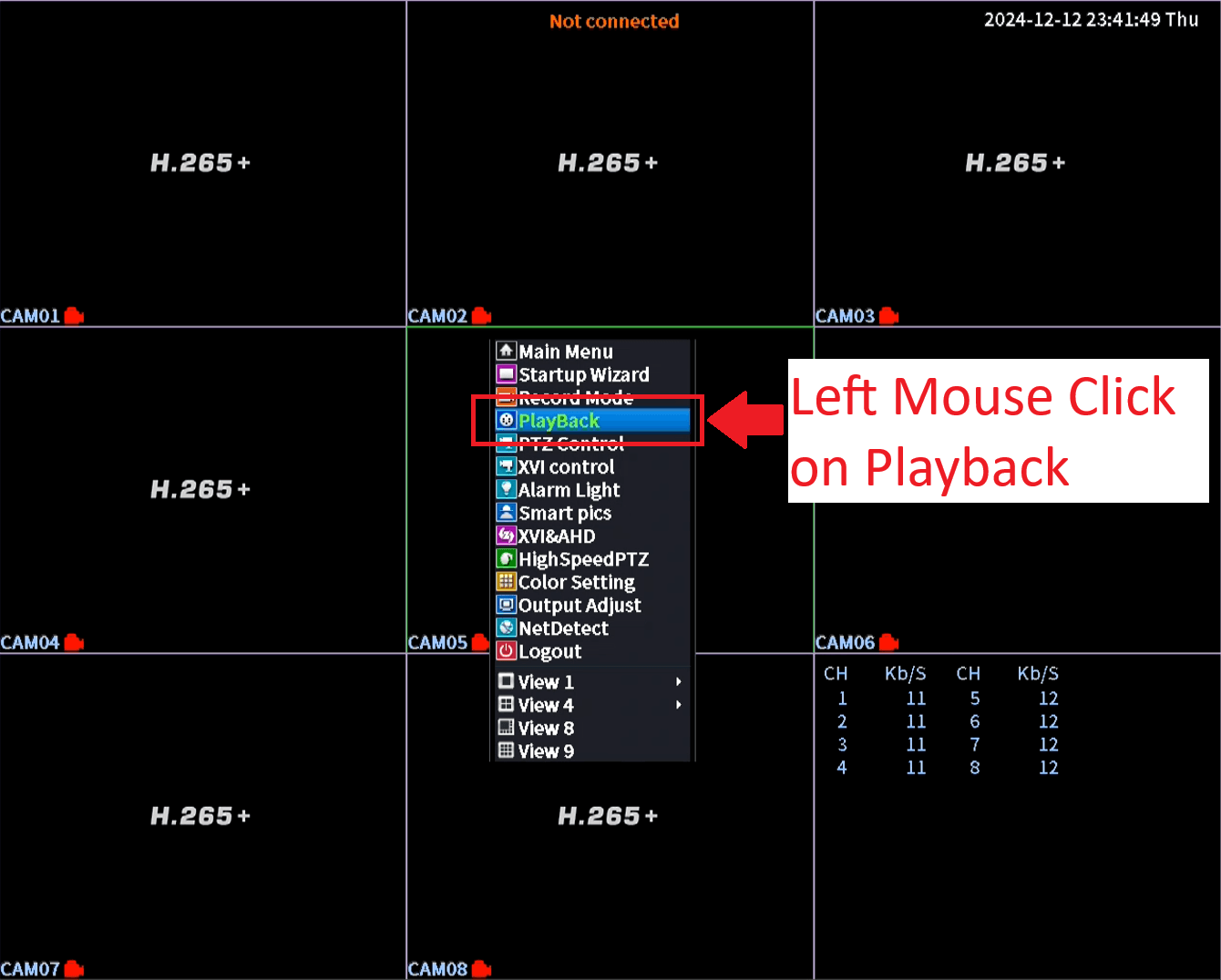
Open Menu – Select Playback
- Right Mouse Click anywhere on the screen to open the Menu
- Left Mouse Click on Playback
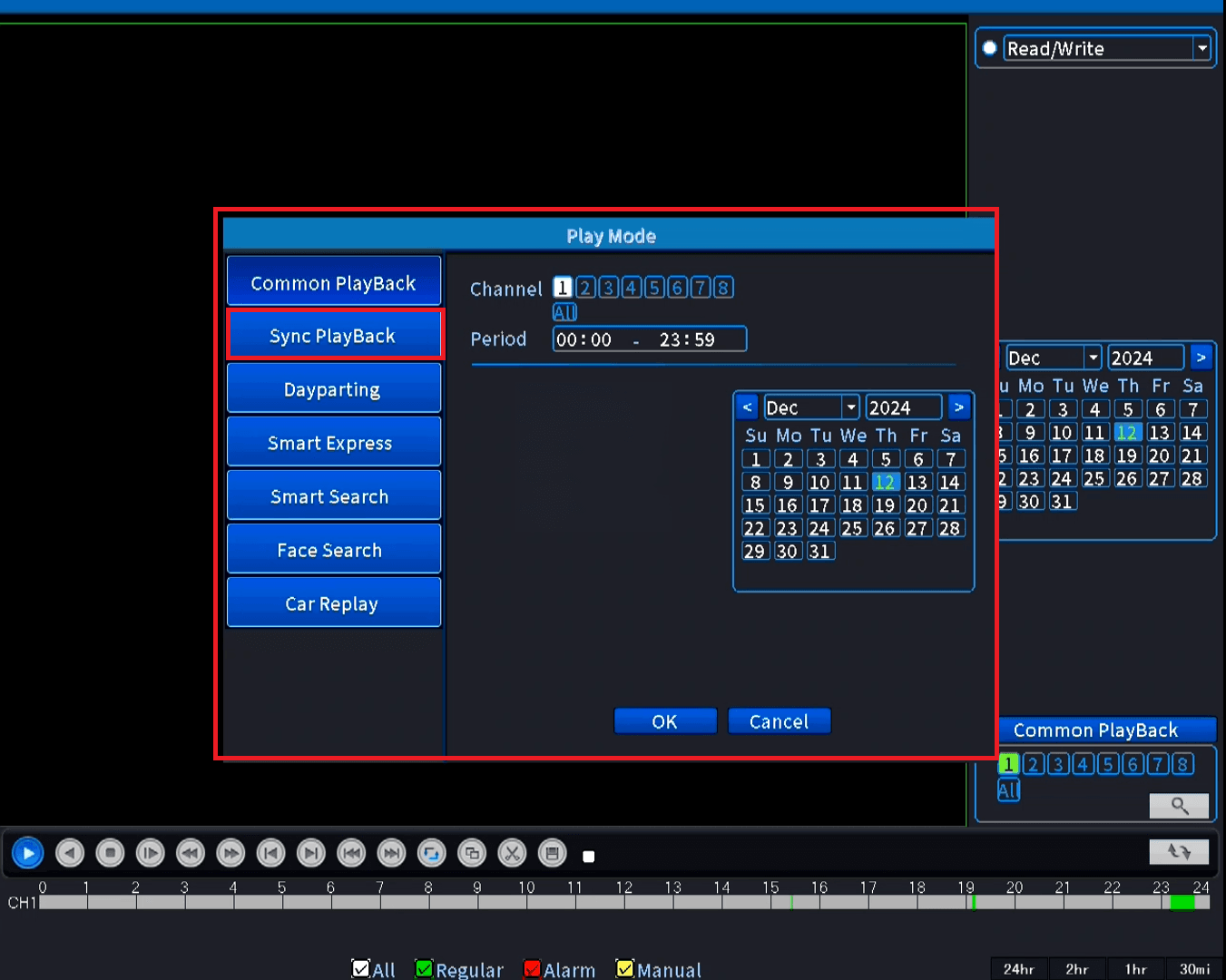
Sync Playback
- By Default Common Playback is selected
- Left Mouse Click on Sync PlayBack to select it
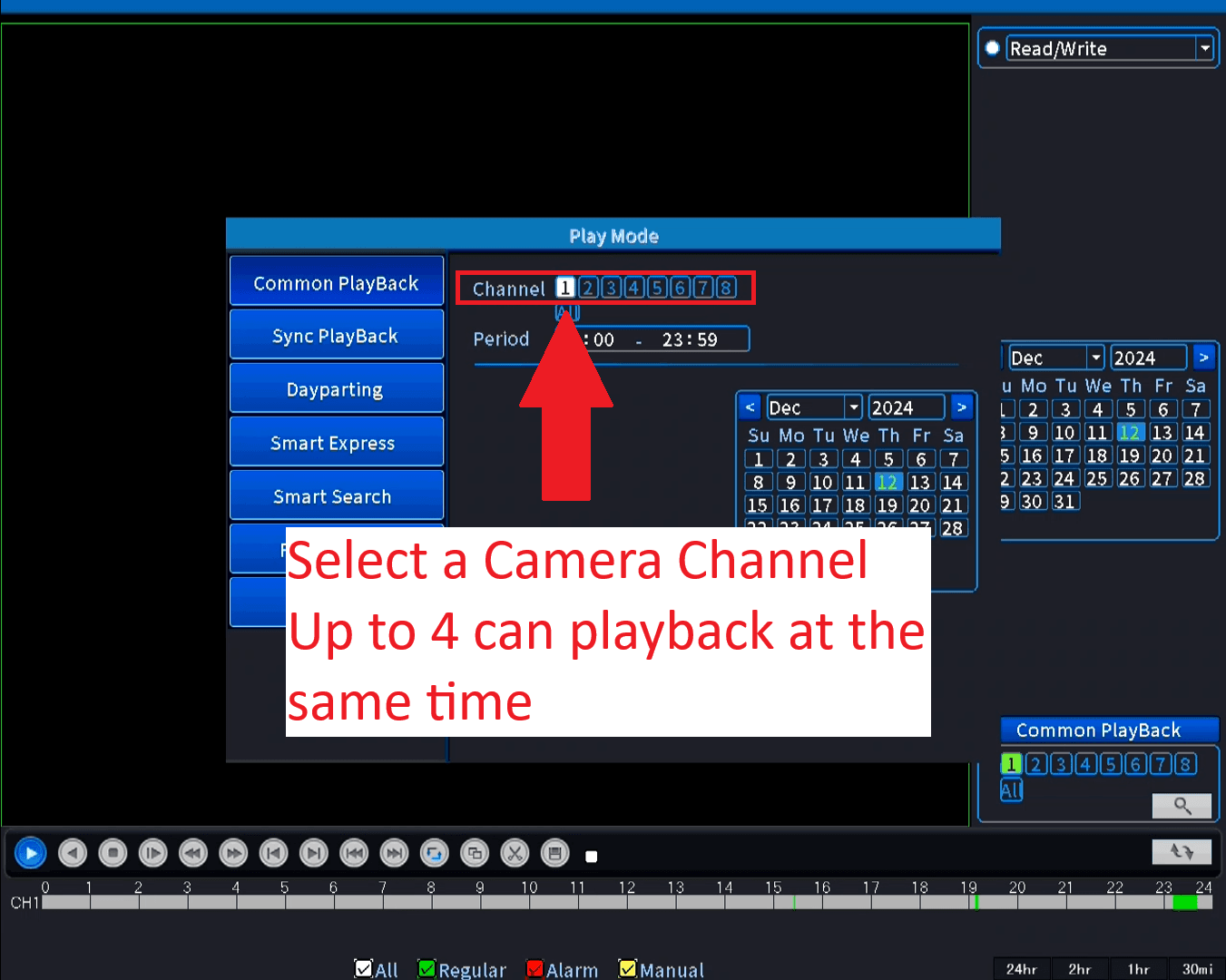
Select a Camera to Playback
- Choose the camera channel you want to watch.
- Left Mouse Click on the channel number to Highlight it, HIghlight indicates it has been selected.
- Left Mouse Click on a Highlighted channel to deselect it
Note:
You can play back up to 4 cameras at the same time.
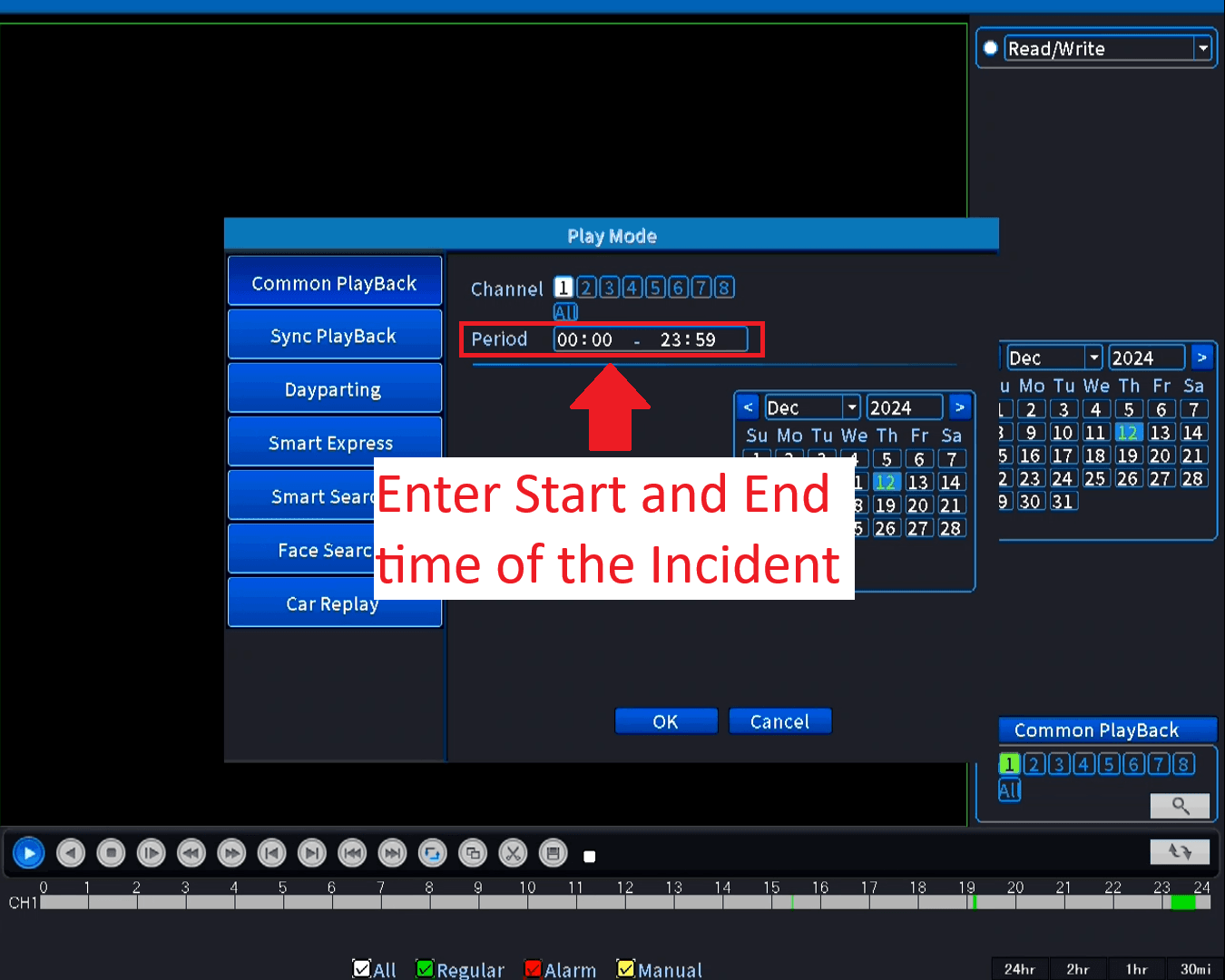
Put in the time Period
-
If you know the exact time of the incident, enter the start time and end time for more accurate playback.
Note:
The playback may start up to 5 minutes before the entered start time.
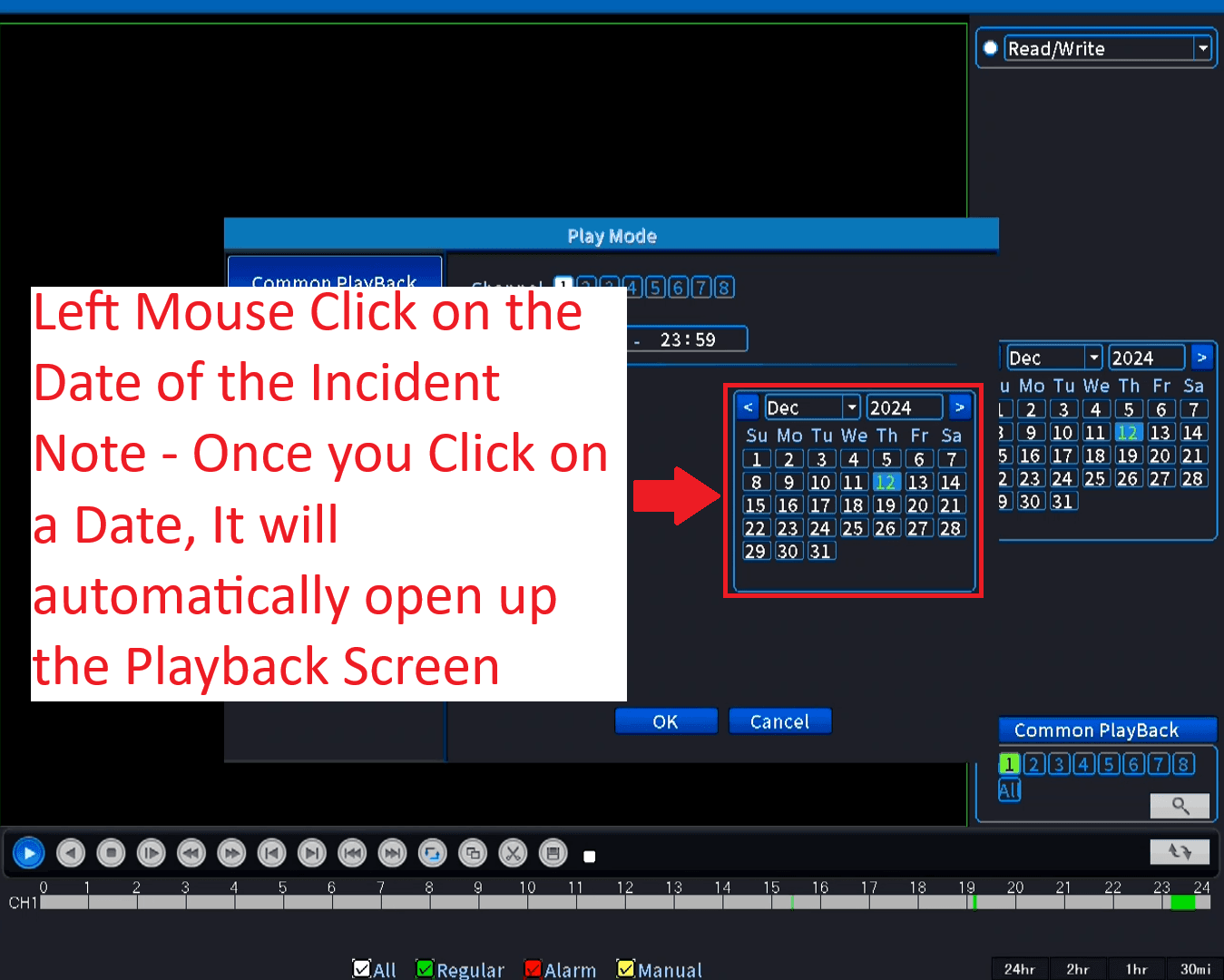
Select Date of the Incident
-
Left Mouse Click on the date of the incident.
Note:
The playback window will automatically open when you select a date.
Start Playback
-
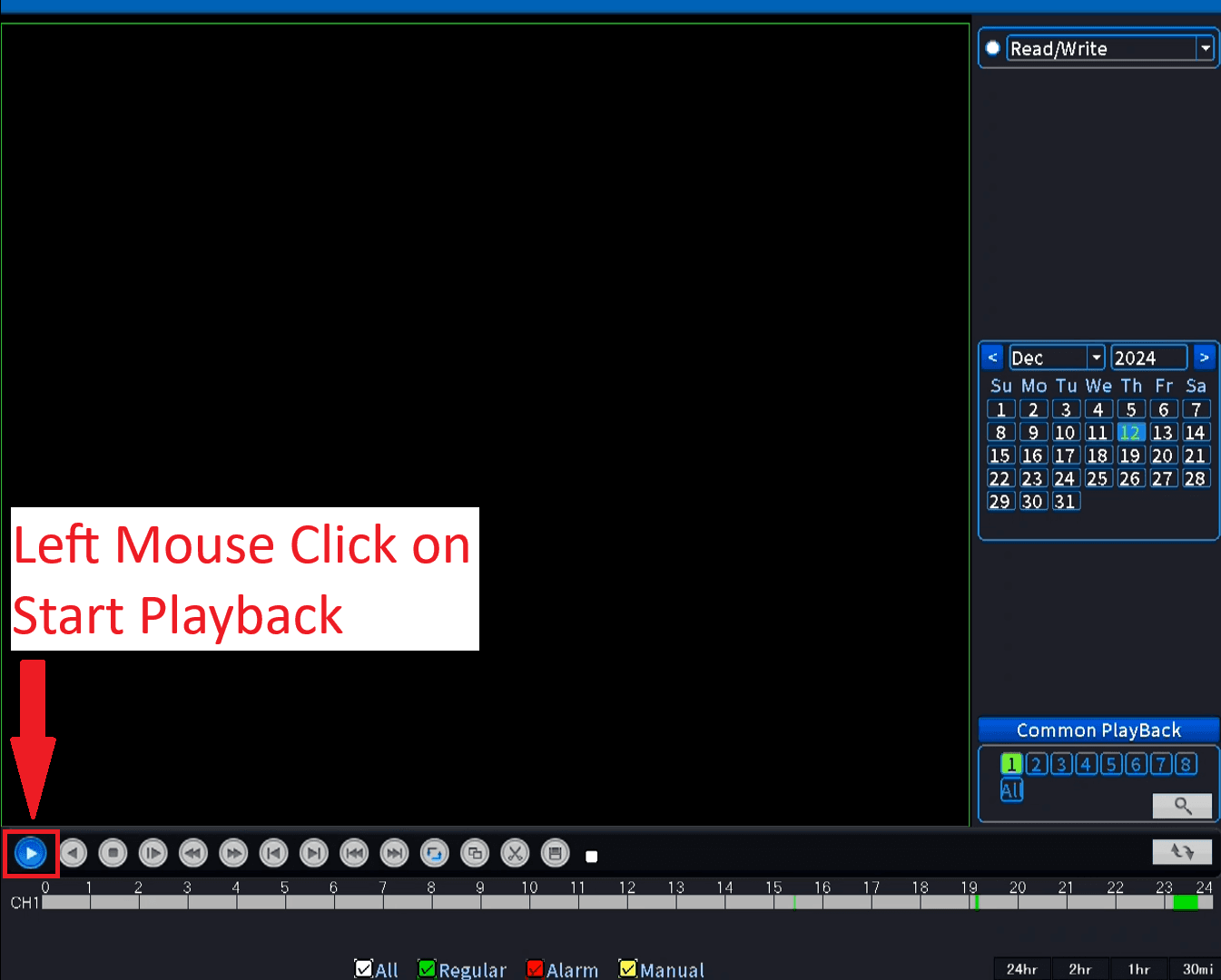
Left Mouse Click on Start playback