- This applies to LZ WIFI Cameras that have PTZ Functionality i.e. The camera Can Pan, Tilt and/or Zoom
- E.g. C433 Camera, Q01, Q10
- This tutorial assumes you have connected your Camera to your WIFI network/Internet
- If it is not connected, please go through our other tutorials on how to connect your LZ WIFI camera to your router.
- Preset Cruise Control will automatically pan the camera to your saved positions every 10 – 15 seconds
- Below is a Video demo – Camera moves every 10 – 15 seconds
- Below the Video are the Instructions in text with images.
- Open your Eseecloud App
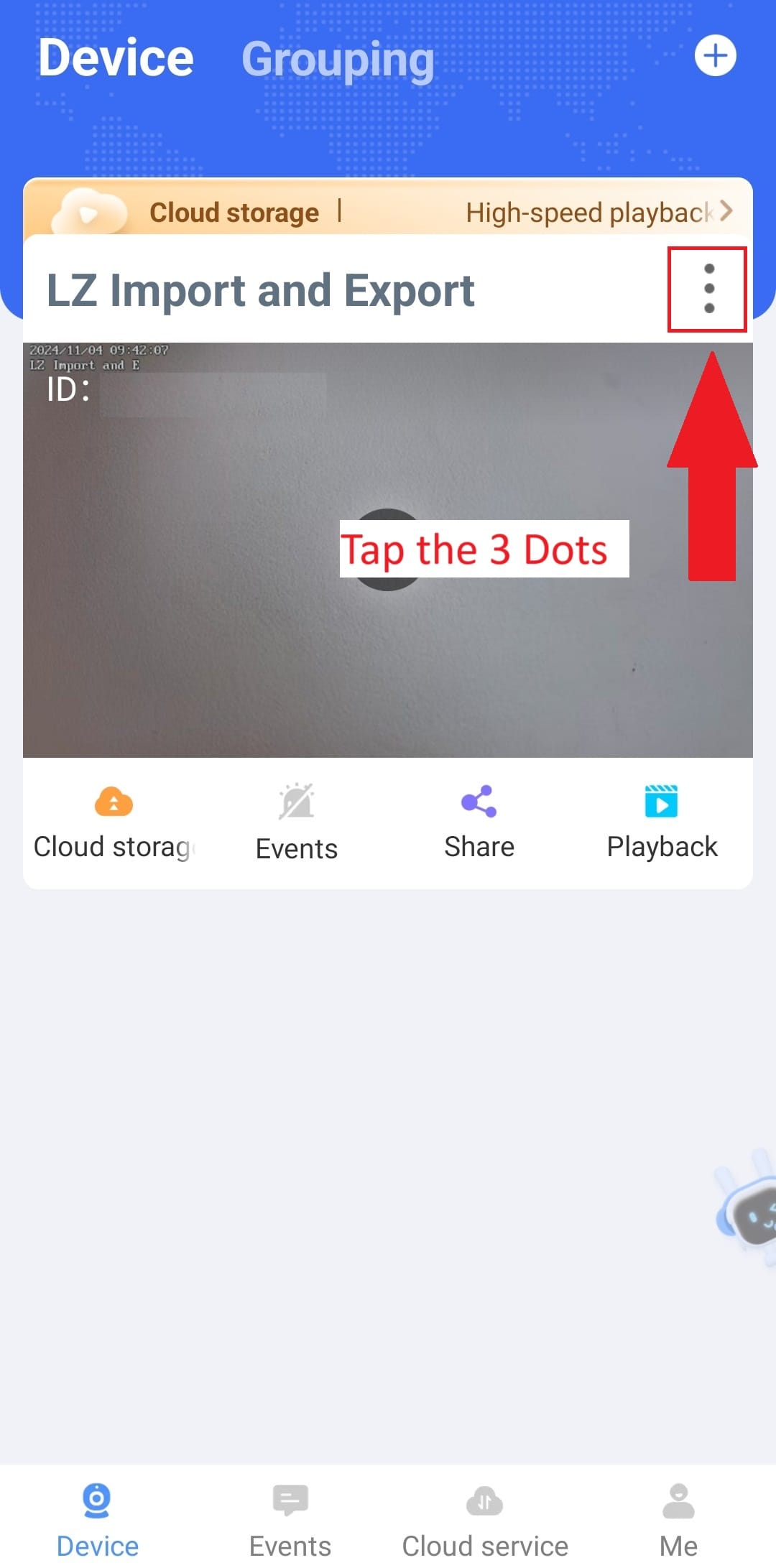
- On the camera that is connected, Tap the 3 Dots
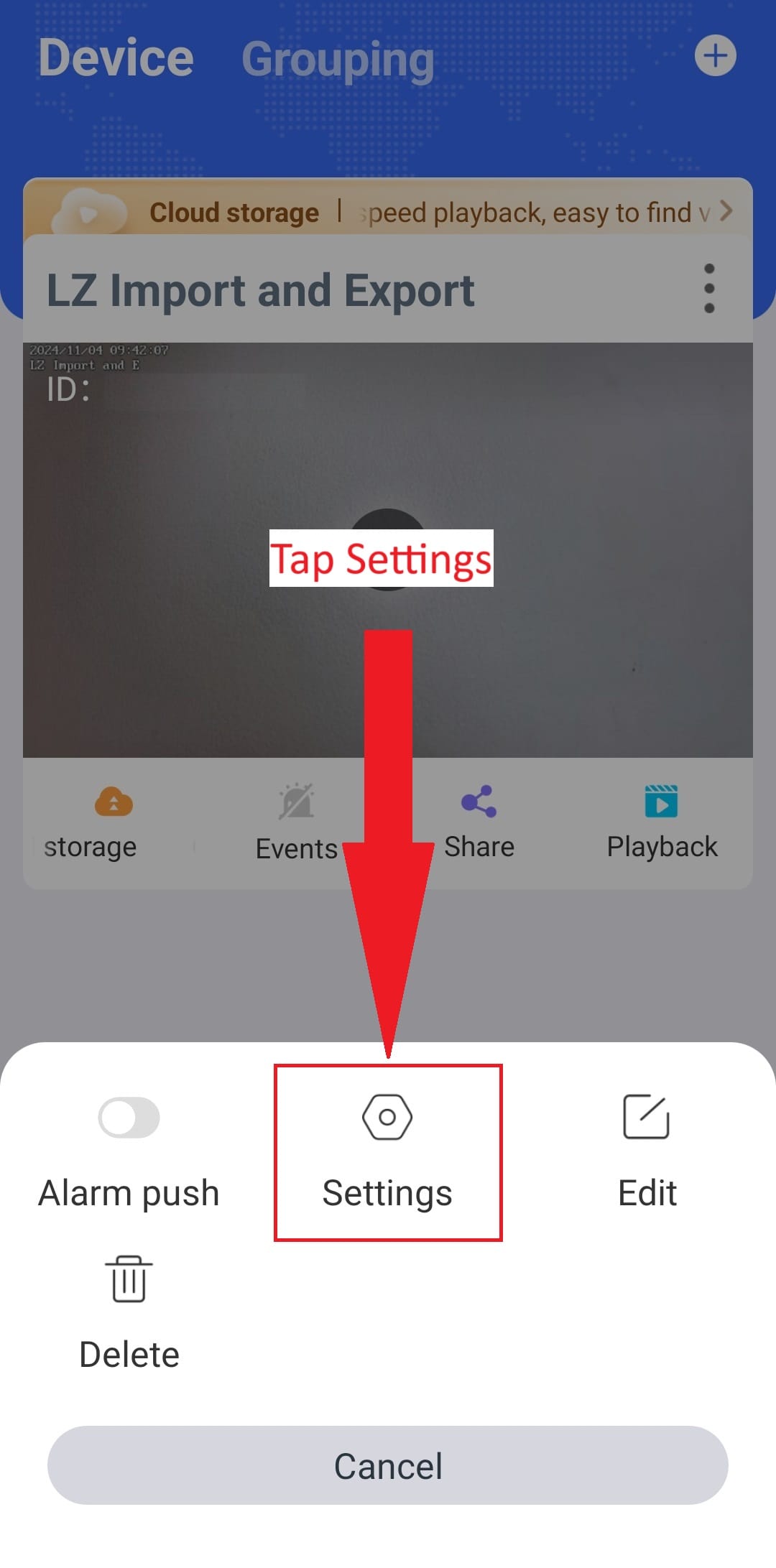
- Tap on Settings
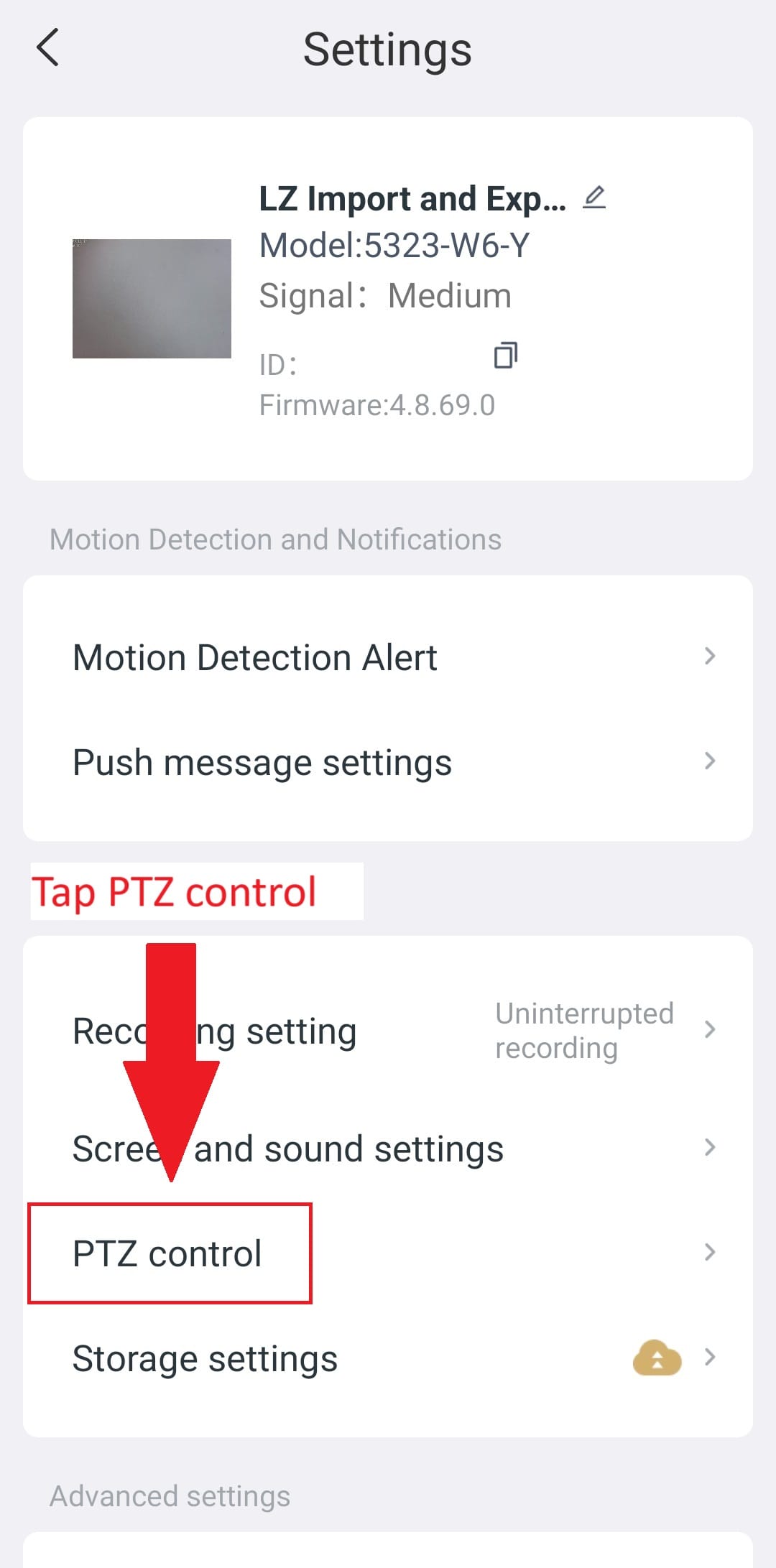
- Tap on PTZ Control
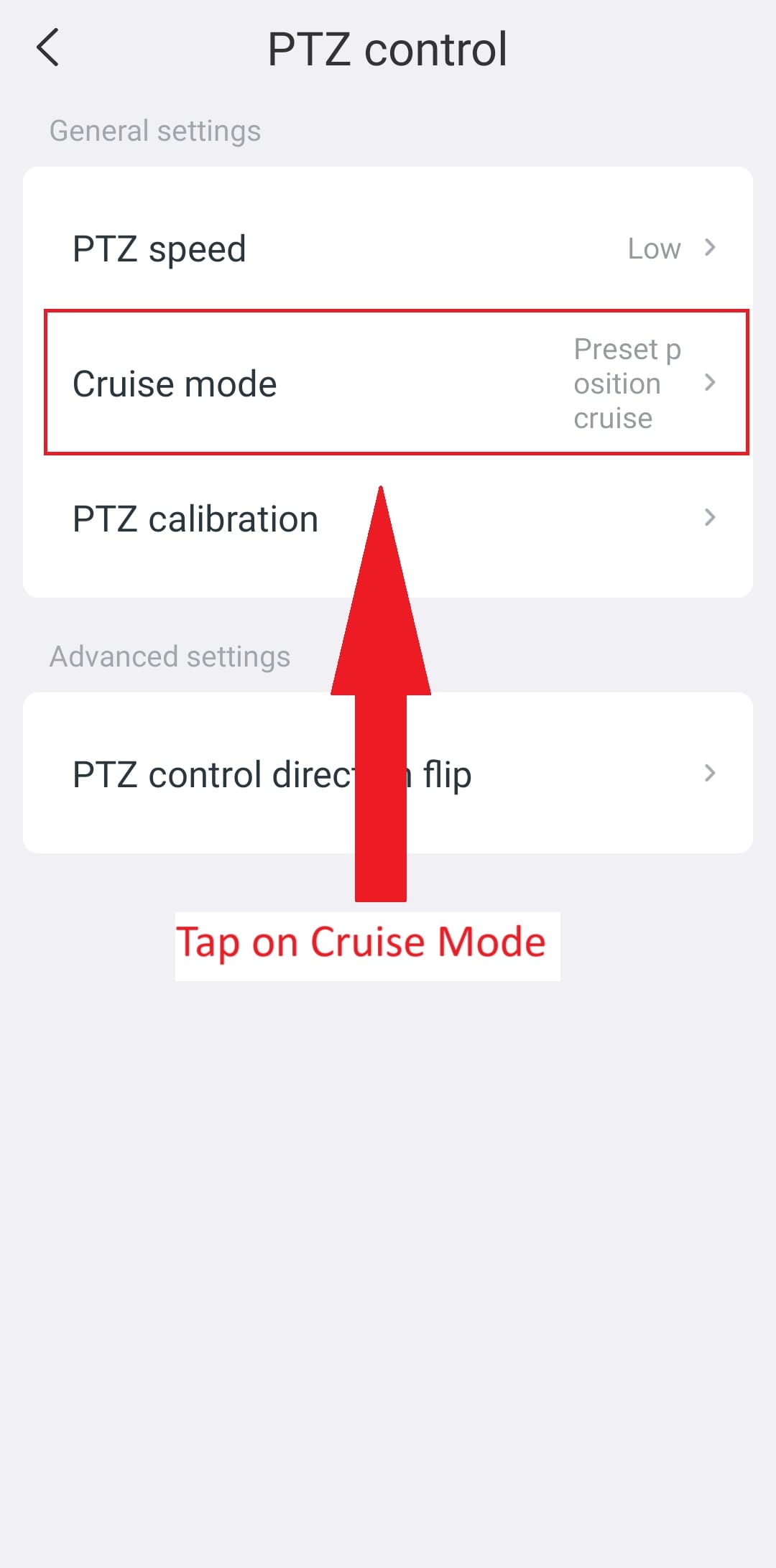
- Tap on Cruise Mode
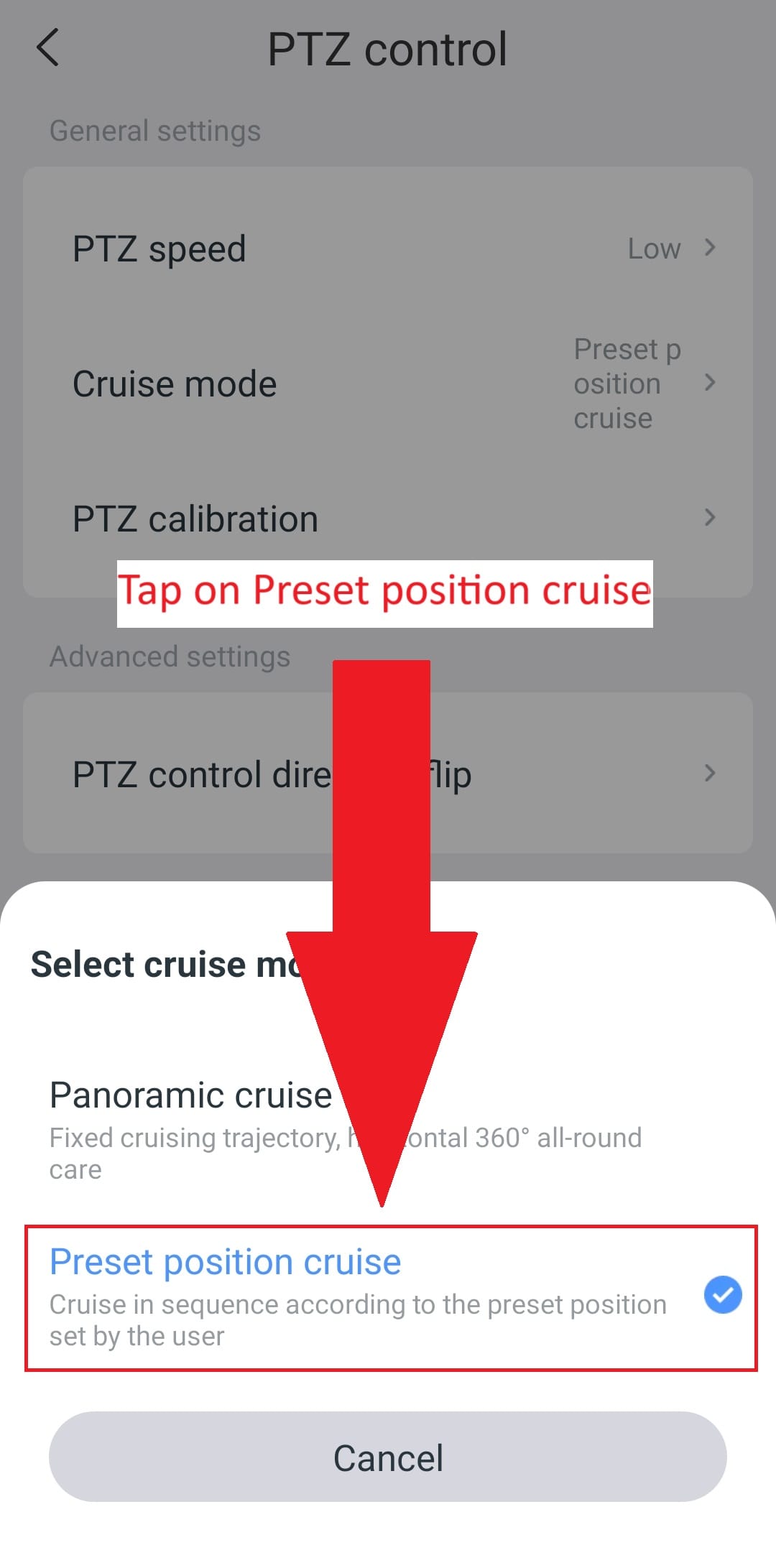
- Tap on Preset position Cruise
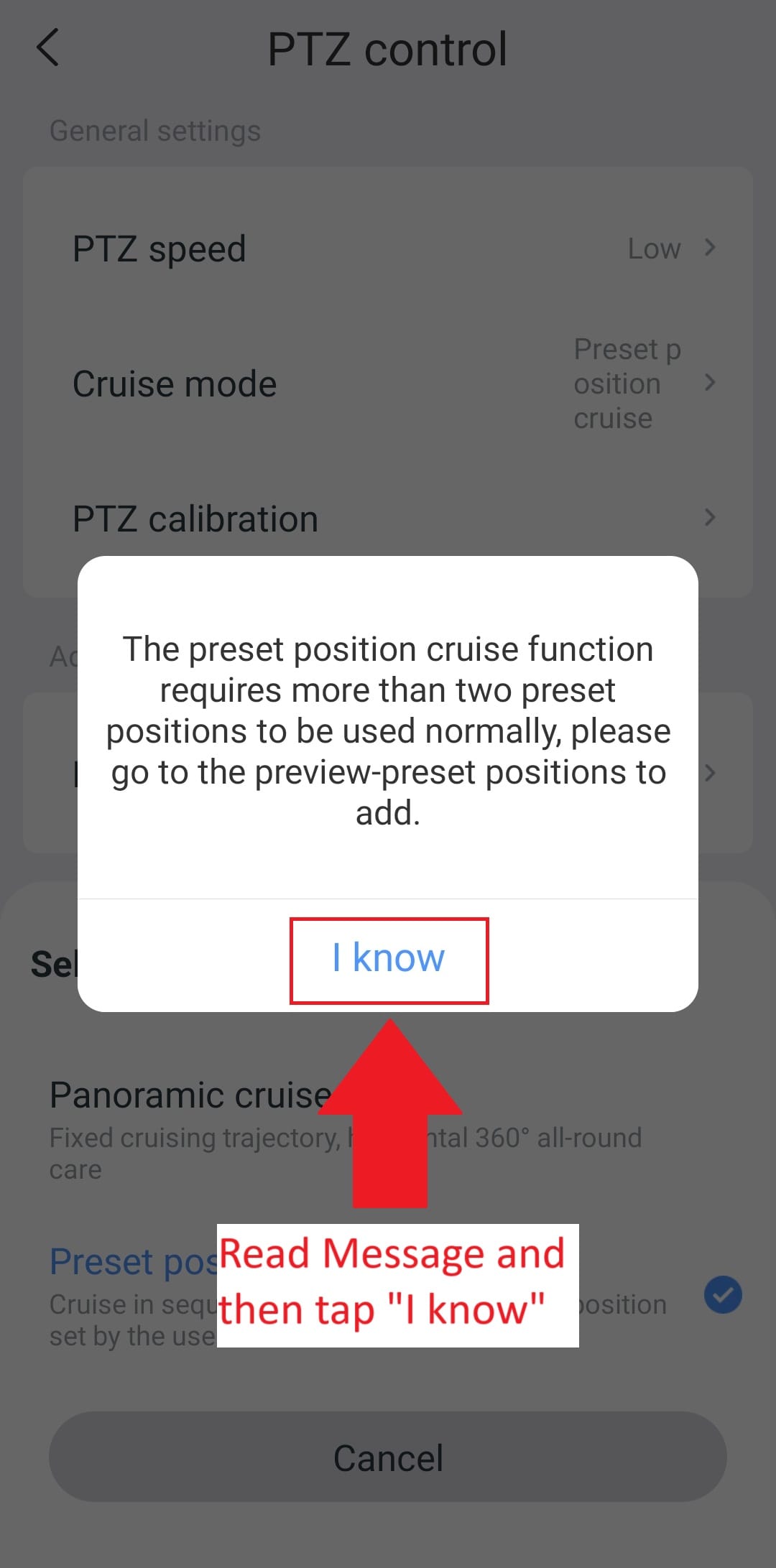
- Message pop up informing you that you require at least two camera positions for the Preset Cruise control to function
- Go back to the Main Screen
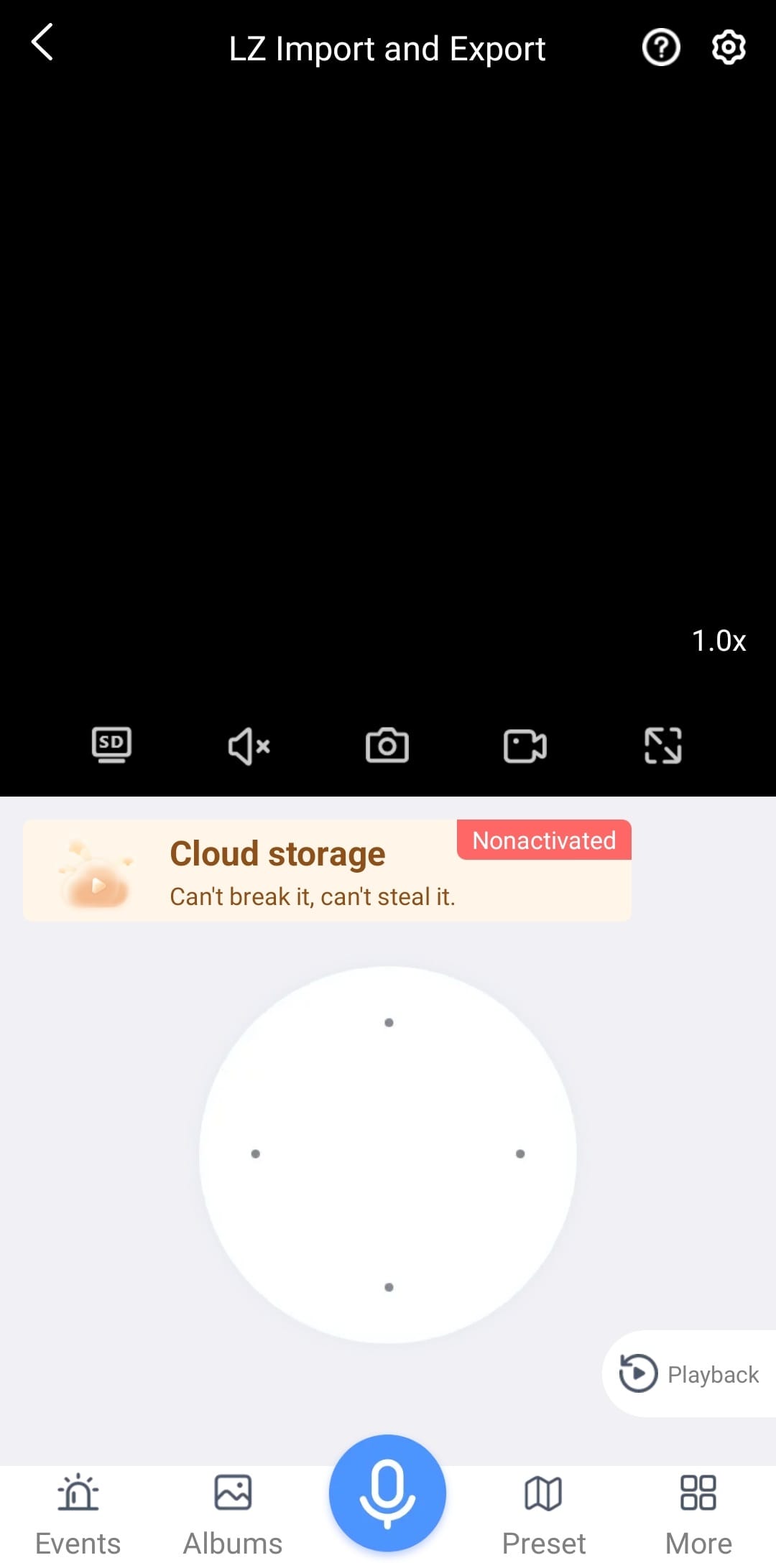
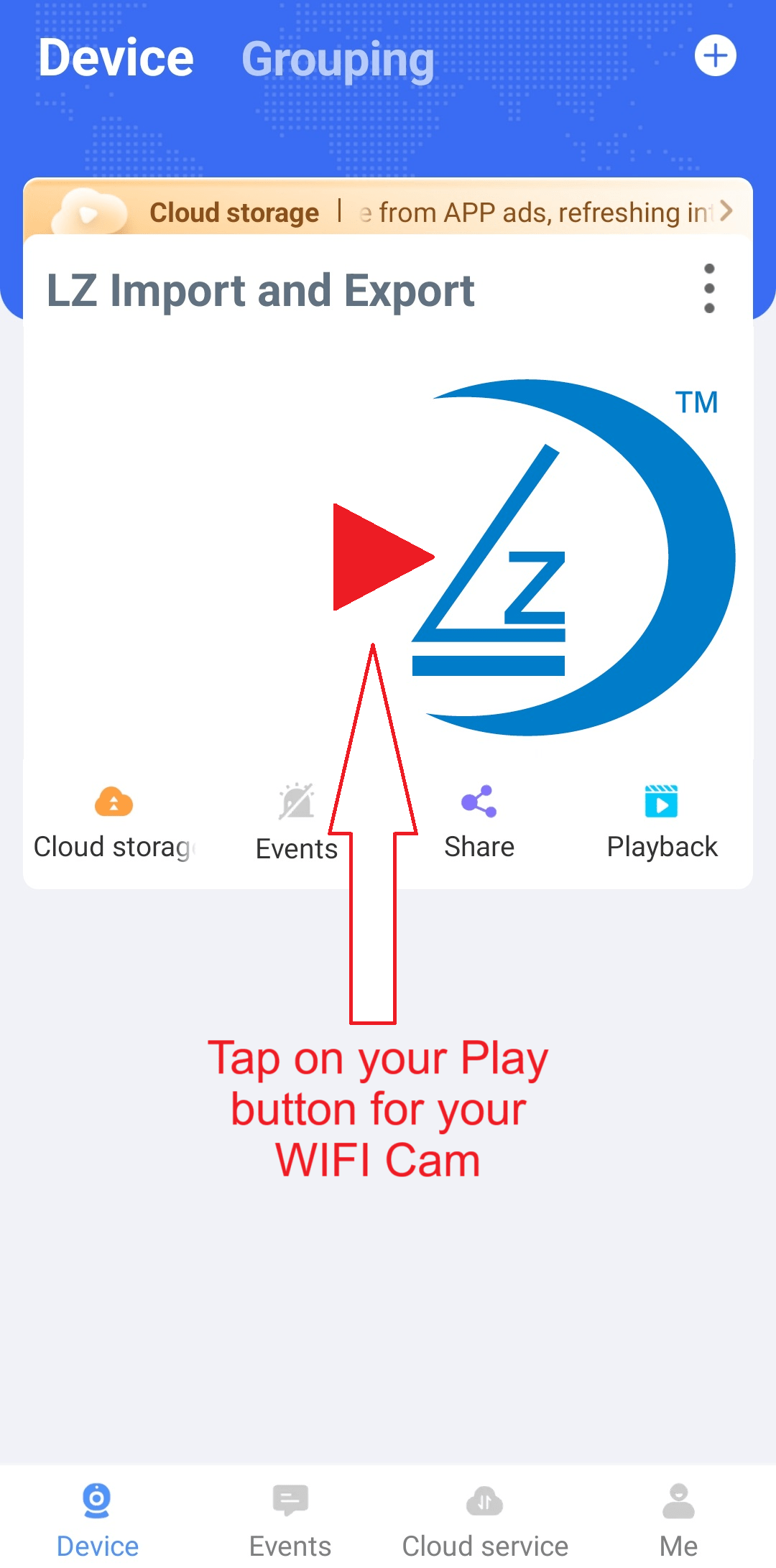
- Click on the Play button of your camera
- Using the Directional Arrows or Sroll on the camera to Move the camera to your starting point.
- This will be called Position 1

- Tap Preset

- Tap Postition 1
- This will save the current camera position into Position 1

- Pop up Message will display for Position 1
- Tap Confirm

- Camera position saved to Position 1

- Tap on X

- Move camera to your next position
- This will be Position 2

- Tap Preset

- Tap Position 2

- Pop up Message will display for Position 2
- Tap Confirm

- Camera position saved to Position 2

- Tap on X

- Move camera to your next position
- This will be Position 3

- Tap Preset

- Tap Position 3

- Pop up Message will display for Position 3
- Tap Confirm

- Camera position saved to Position 3

- Tap on X

- You can continue with the above process to add more positions.
- Once you have added your positions, move onto the next step.

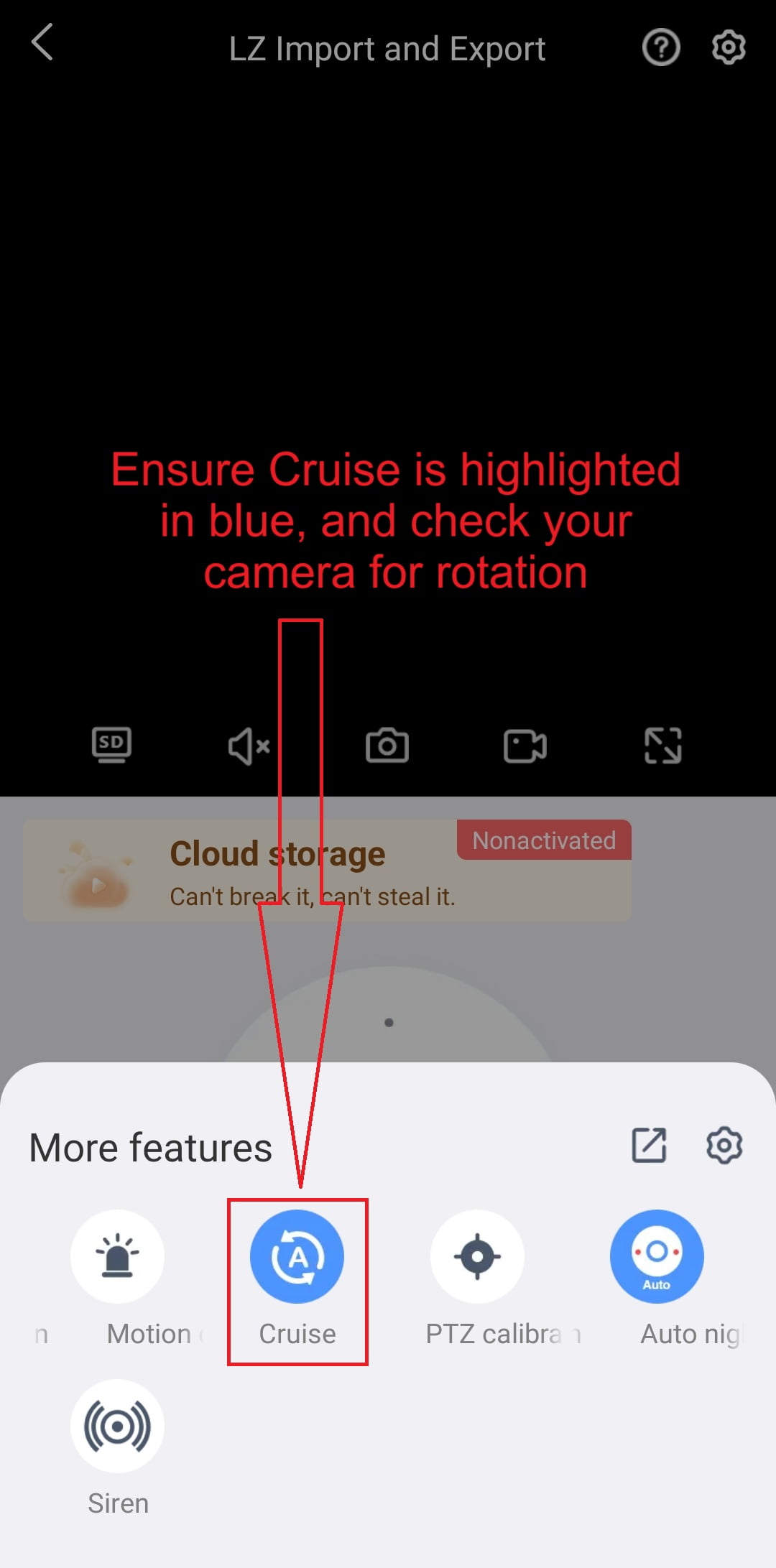
- Click More
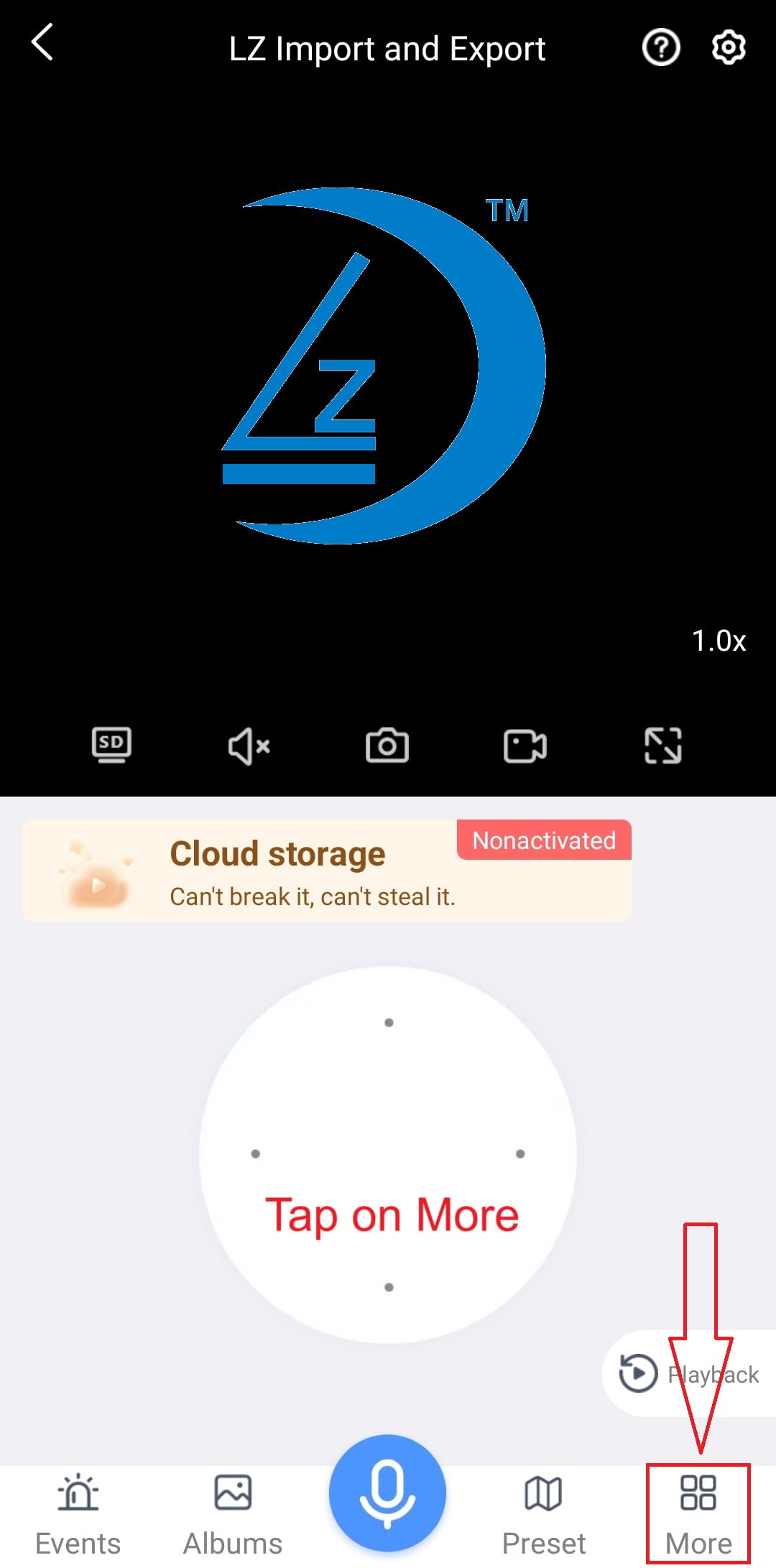
- Tap on Cruise
- Ensure Cruise is highlighted in blue
- Check that your camera is rotating