
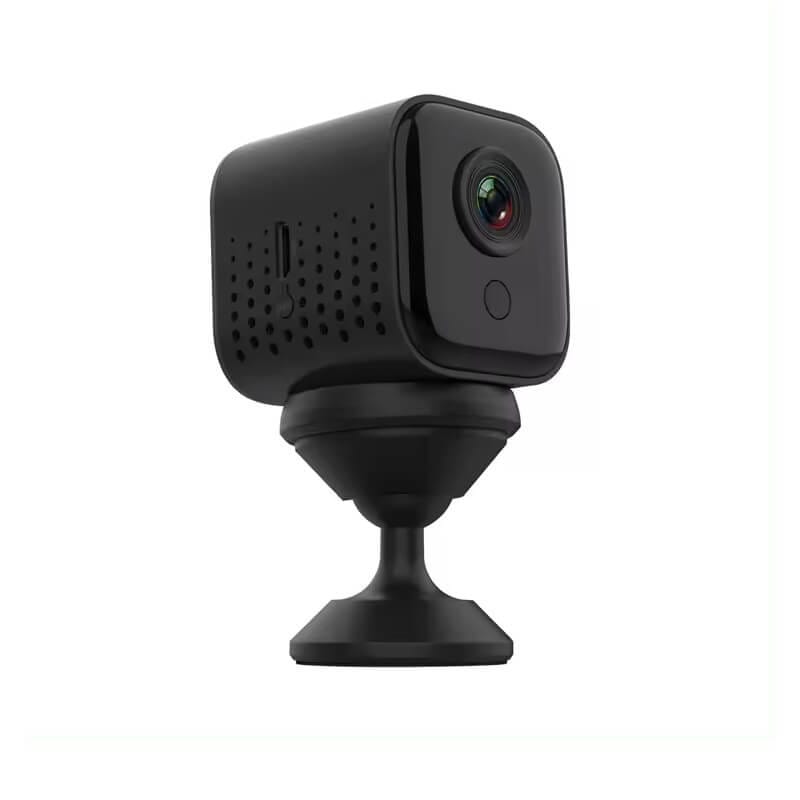
Requirements for Setting Up Your HD Battery Spyware IP Camera (Model WP02H)
To ensure a smooth setup of your HD Battery Spyware IP Camera, please make sure you meet the following requirements:
-
Important! Mobile Operating System minimum requirements
- Your mobile device must be running Android 4.0 or iOS 10.0 or later.
- Ensure your operating system is up to date for optimal performance with the O-Kam app.
-
Charge Your Camera
- Ensure your camera is fully charged before setup.
- Minimum charging time: 4 hours
- Recommended charging time: 24 hours for optimal performance
-
Location Setup
- Sit next to your Wi-Fi router while setting up the camera.
- Have your mobile device and CCTV cameras within reach.
-
Wi-Fi Requirements
- Your Wi-Fi router must support 2.4GHz frequency (Note: 5GHz is not compatible).
-
Wi-Fi Credentials
- Have your Wi-Fi network name (SSID) and password ready for connection.
-
App Download
- Make sure you have downloaded the O-Kam app on your mobile device.
Download O-Kam Pro from Android or IOS app store.
- Your mobile device must be running Android 4.0 or iOS 10.0 or later.

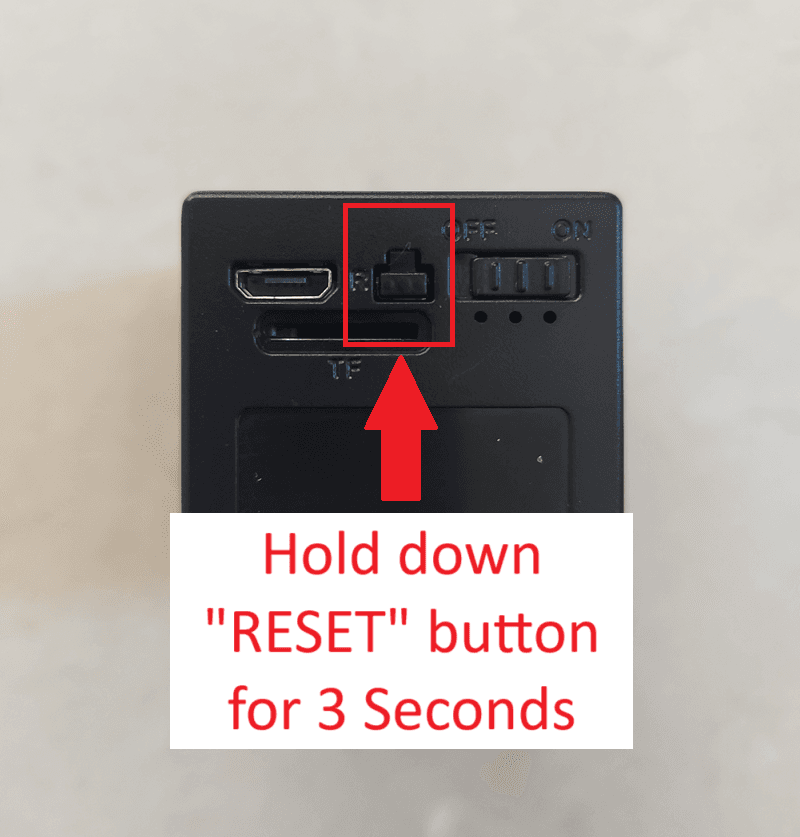
Reset camera on first use
- Turn On the camera
- Hold down the “RESET” for 3 seconds
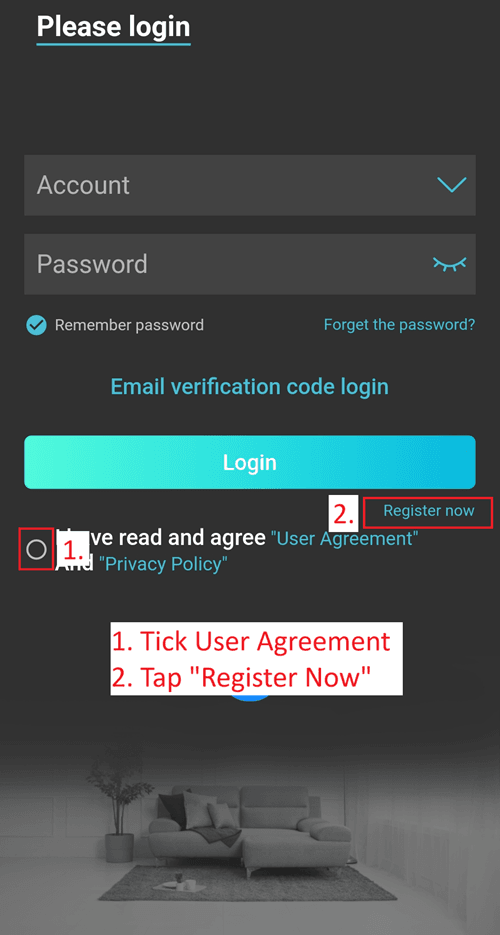
Registering on the O-Kam Pro App
- Open the App
- Tick the User Agreement Terms
- Tap on “Register Now”
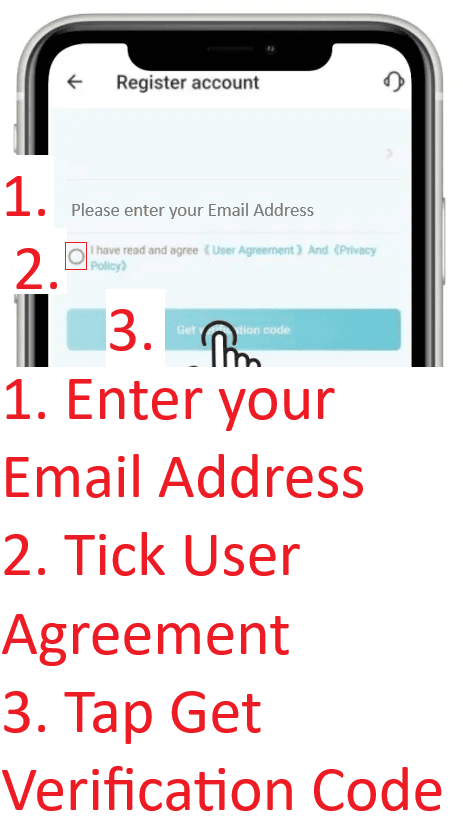
Registering on the O-Kam Pro App
- Enter you Email Address
- Tick the User Agreement Terms
- Tap on “Get Verification Code”
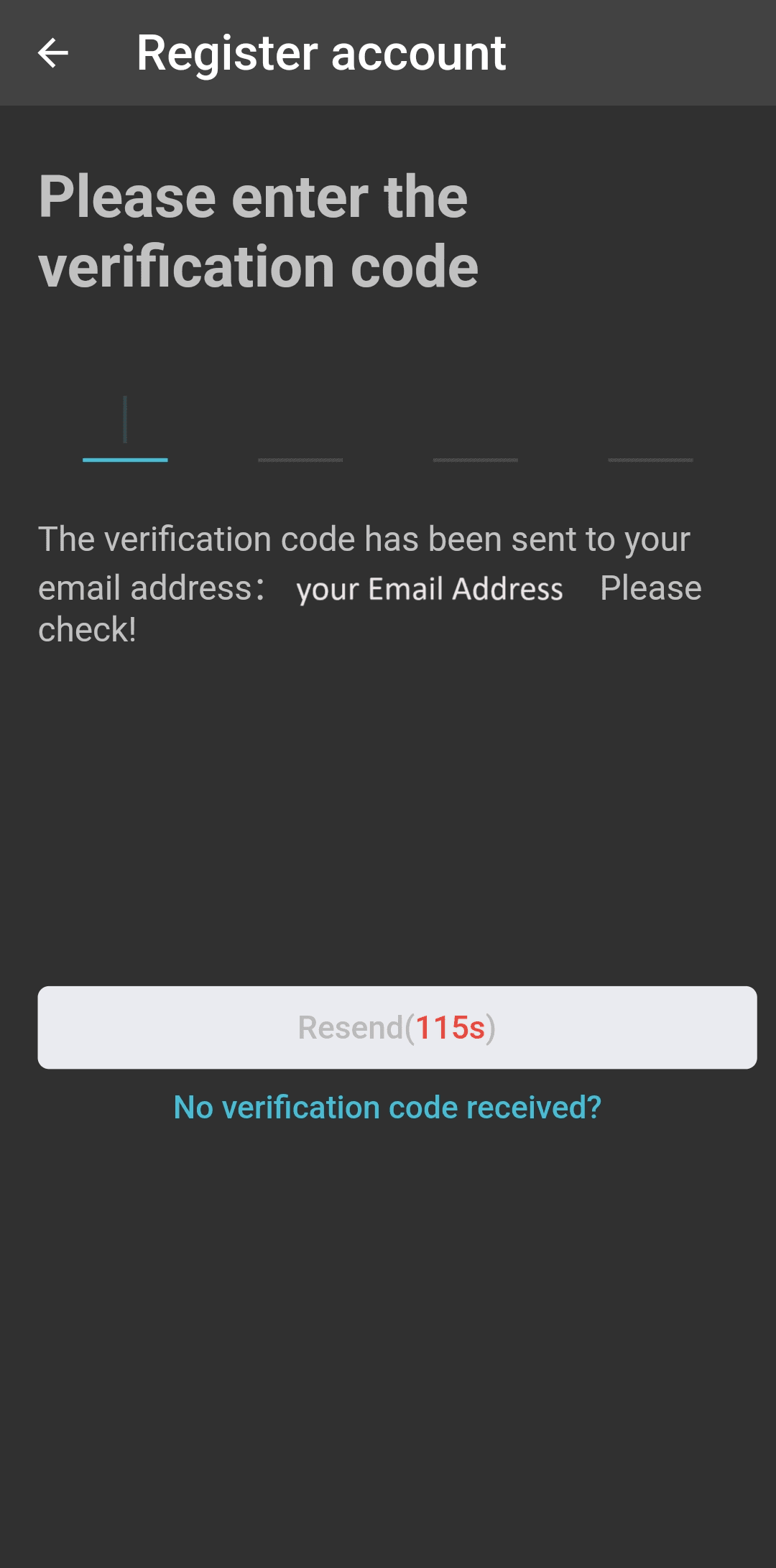
Enter Verification Code
- Check your Email for the verification code
- Enter your verification code
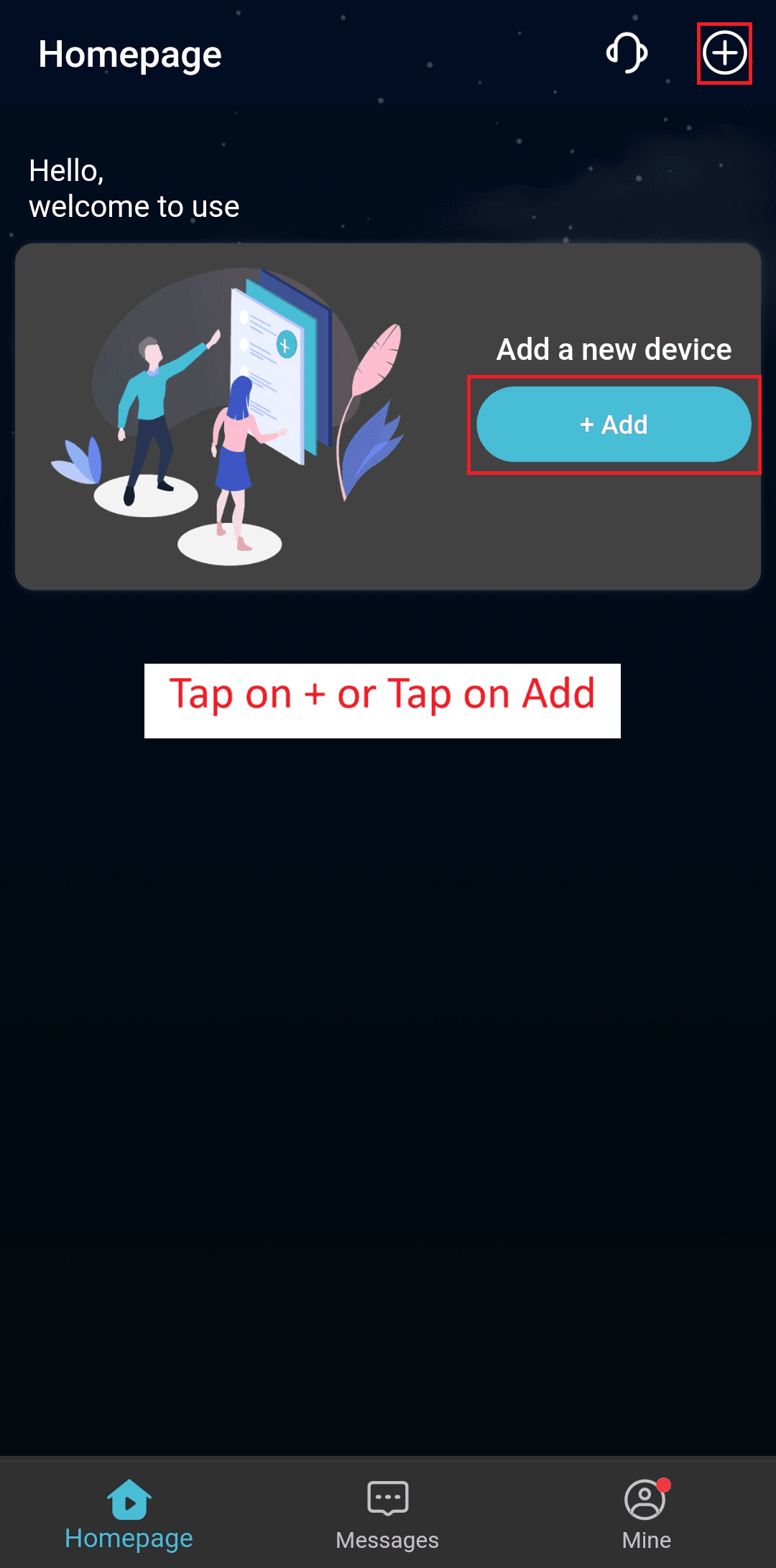
Tap Add Device
- Tap on + or
- Tap on Add
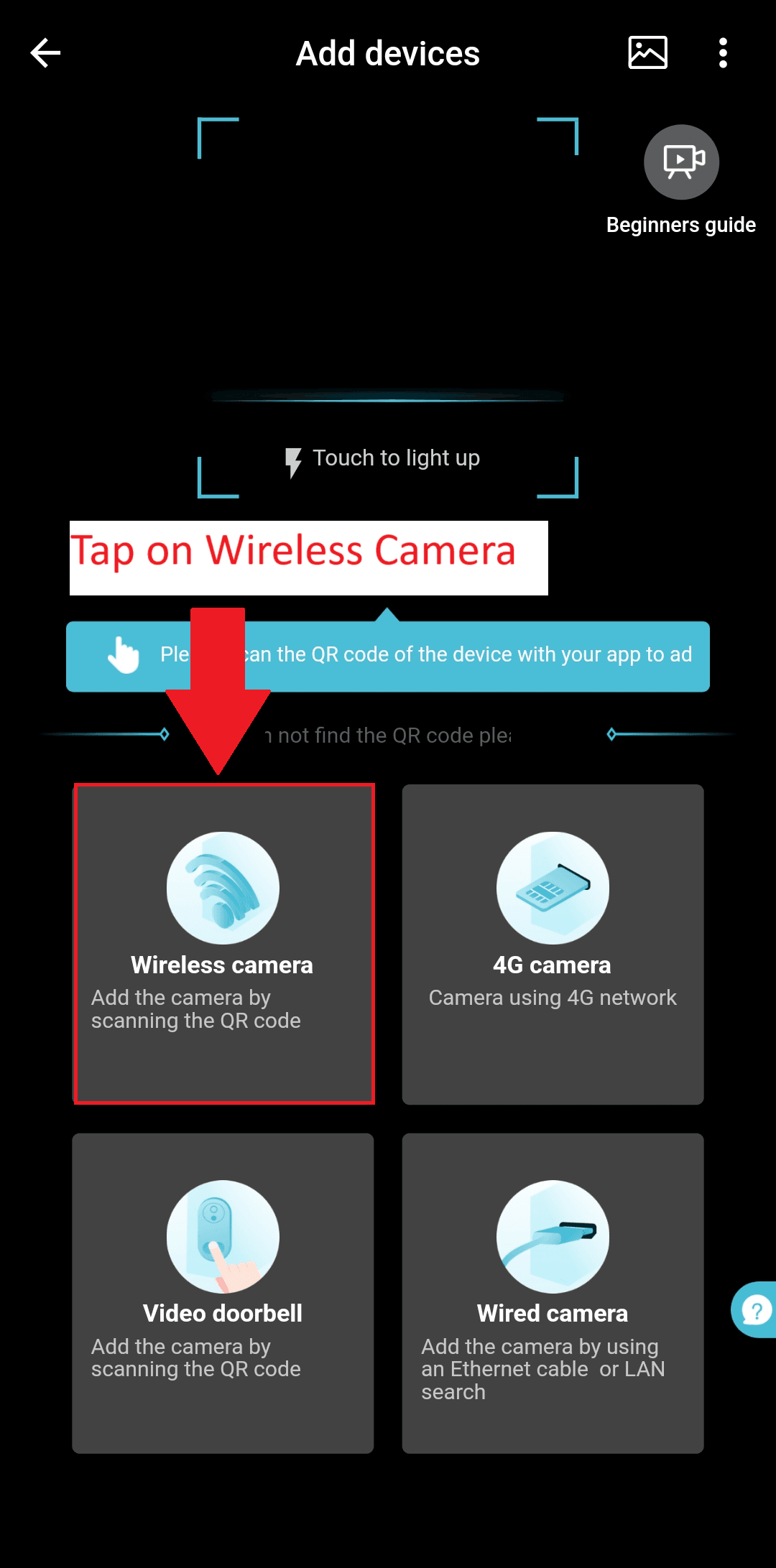
Tap Wireless Camera
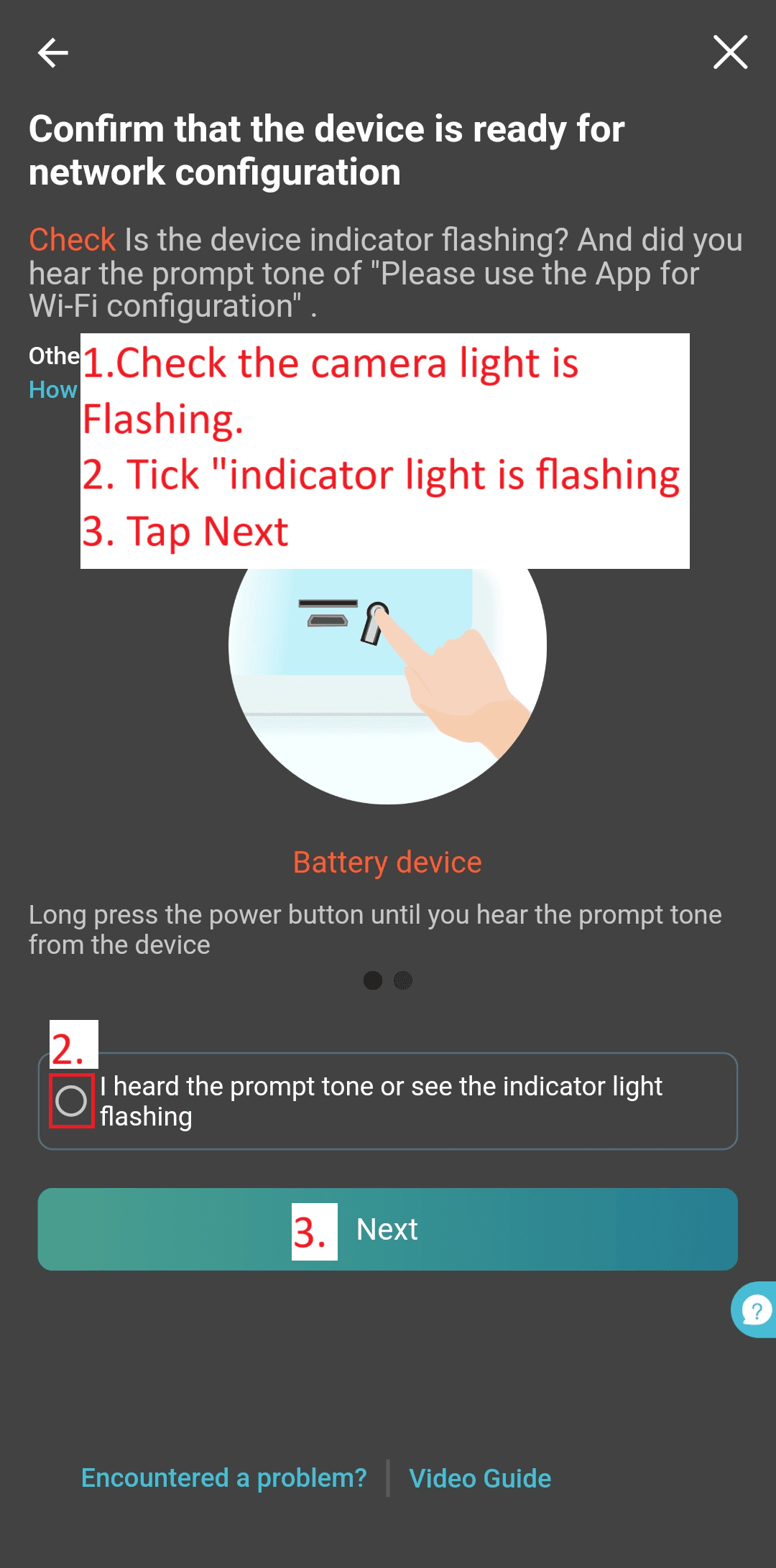
Camera light flashing
- Check that your camera light is flashing.
- Tick “indicator light flashing”
- Tap Next
Select WIFI and enter WIFI Password
- Select your WIFI Name
- Enter your WIFI Password
- Tap Next

QR Code Generated on Phone
- A QR Code will be generated on your phone screen
- Point the WIFI Camera to the QR code
- Distance between the WIFI Camera and QR code is between 15 – 30 Centimeters or 6 – 8 Inches
- Process can take up to minute for the WIFI camera to connect to your WIFI.

Binding
- Once you have reached this screen, you have successfully connected the camera to your WIFI Network
- Name your camera location e.g. Home, Office, Office 2
- Tap Bind Now

Firmware Upgrade
- Recommended to check and keep Firmware Updated
- On the App, select your camera “System Settings”
- Select “Monitoring Function”
- Select “Firmware Upgrade”
- If their is an upgrade available, Upgrade it to the latest
