
How to Set the Time on Your LZ DVR – Essential!!!
Setting the correct time on your DVR is essential for accurate recording and playback. Follow these simple steps to ensure your DVR’s time is set correctly:
-
Set the Correct Time Zone: Ensure your DVR is configured to the correct time zone based on your location.
-
If Connected to the Internet: ( Recommended)
- Enable Sync Time with Internet Servers: This option will automatically sync your DVR’s clock with the correct time from online time servers.
- Note: This feature is available on certain DVR models that support internet connectivity.
-
If Not Connected to the Internet:
- Replace the Battery: Your DVR typically uses a CR2032 coin cell battery to maintain the internal clock. Some DVR models use this battery model, may use a different battery model, while others do not have a replaceable battery. If the time is incorrect or resets frequently, the battery may need to be replaced.
- Ensure the new battery is properly installed and secure.
Tips:
- Check Battery Health Regularly: A low battery can cause time-related issues. Replace the battery if you notice incorrect time or frequent resets.
- Set Time Manually: If your DVR is not connected to the internet, you can manually set the time through the DVR’s settings menu.
- Time Zone Settings: Double-check your time zone to avoid recording errors.
Login
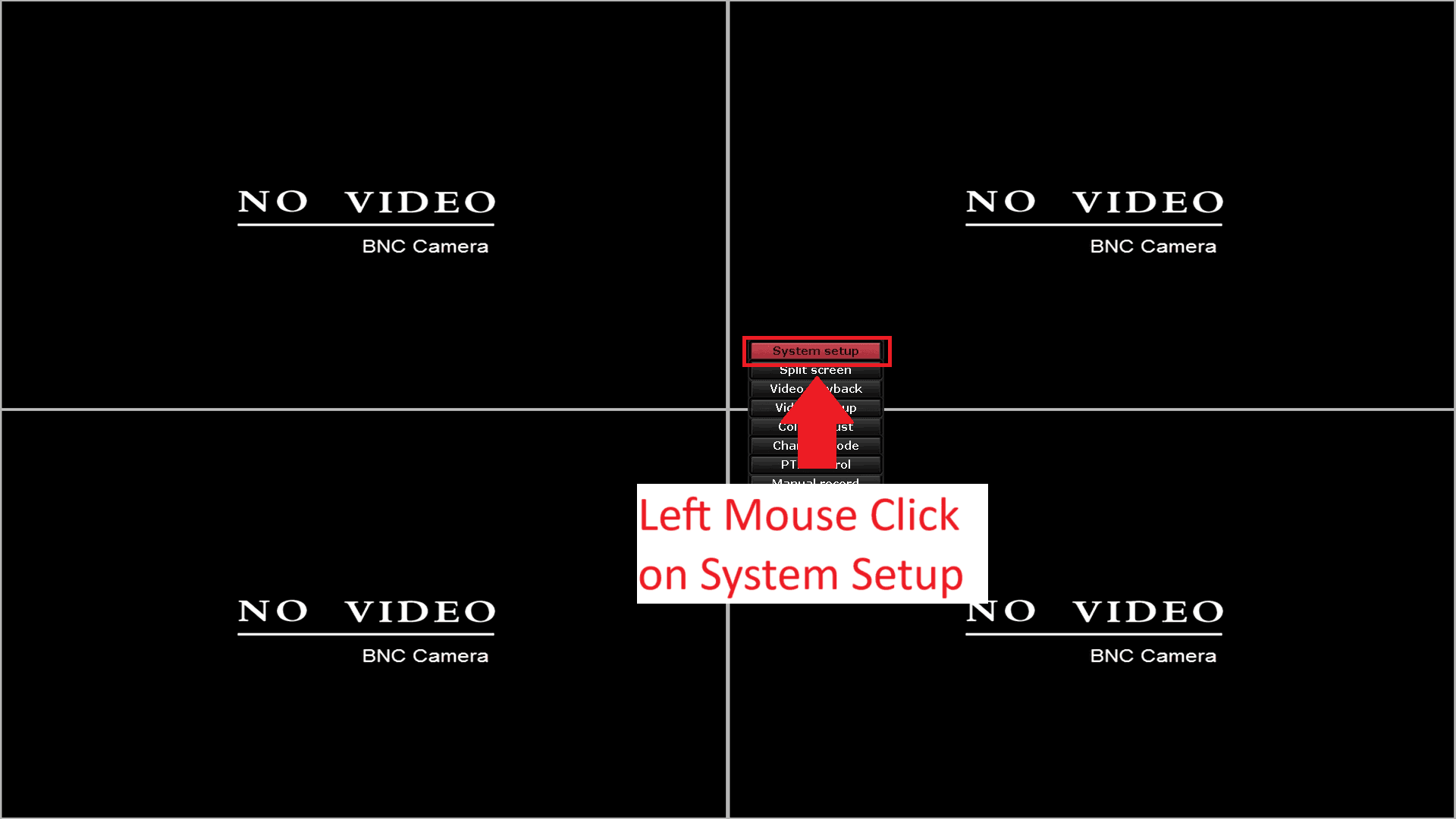
- Right Mouse Click to bring up the Menu
- Left Mouse Click on System Setup
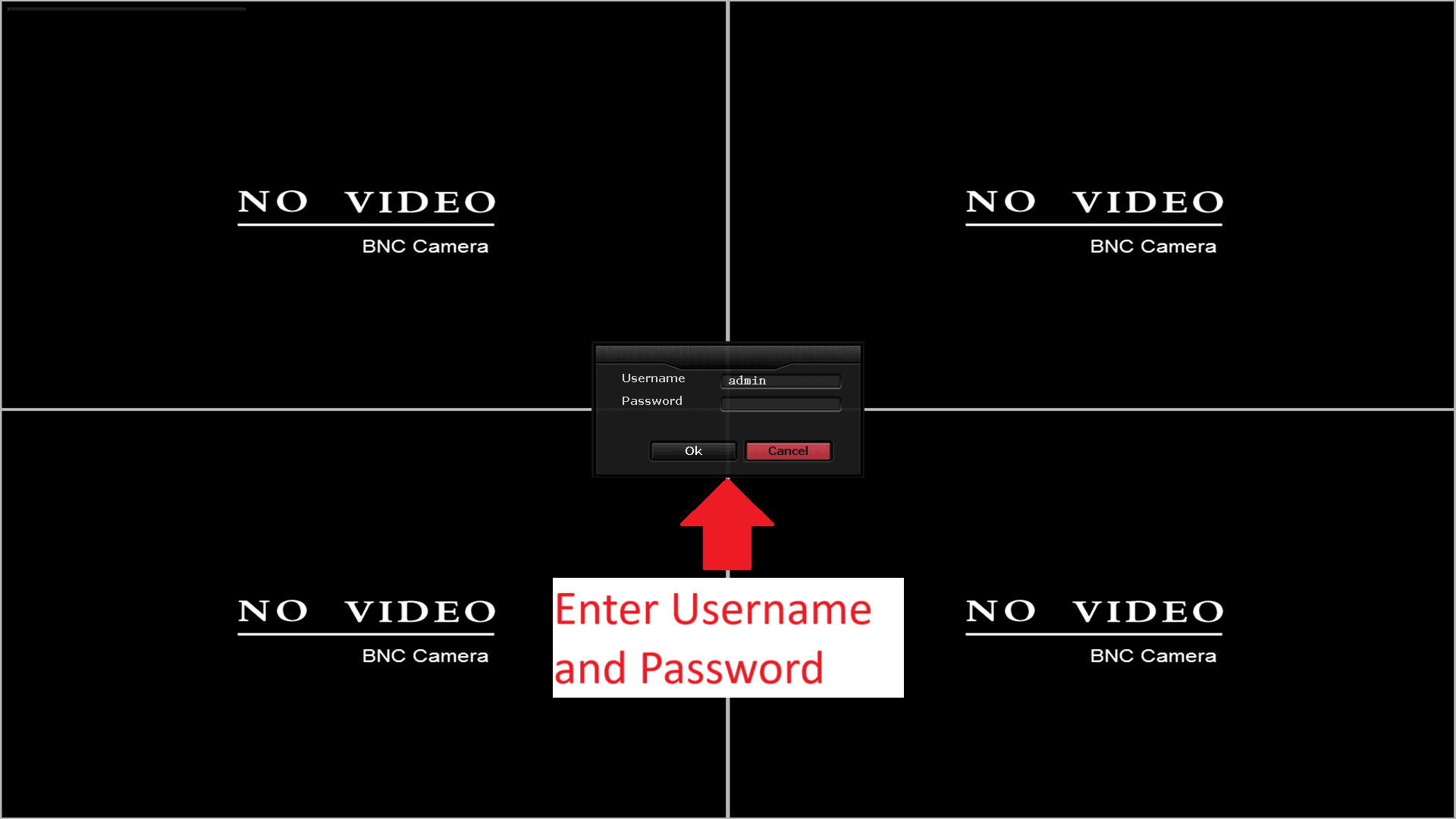
How to Enter Your Username and Password on Your DVR
To access your DVR, follow these simple steps:
-
Enter Your Username: Type in the username provided to you during your DVR purchase.
-
Enter Your Password: Enter the password that was given to you by the branch when you bought the DVR.
Forgot Your Password?
If you’ve forgotten your password, you can take your DVR to the branch for a password reset. Please note:- A surcharge will be applied for resetting a password.
- The reset process may take a few days.
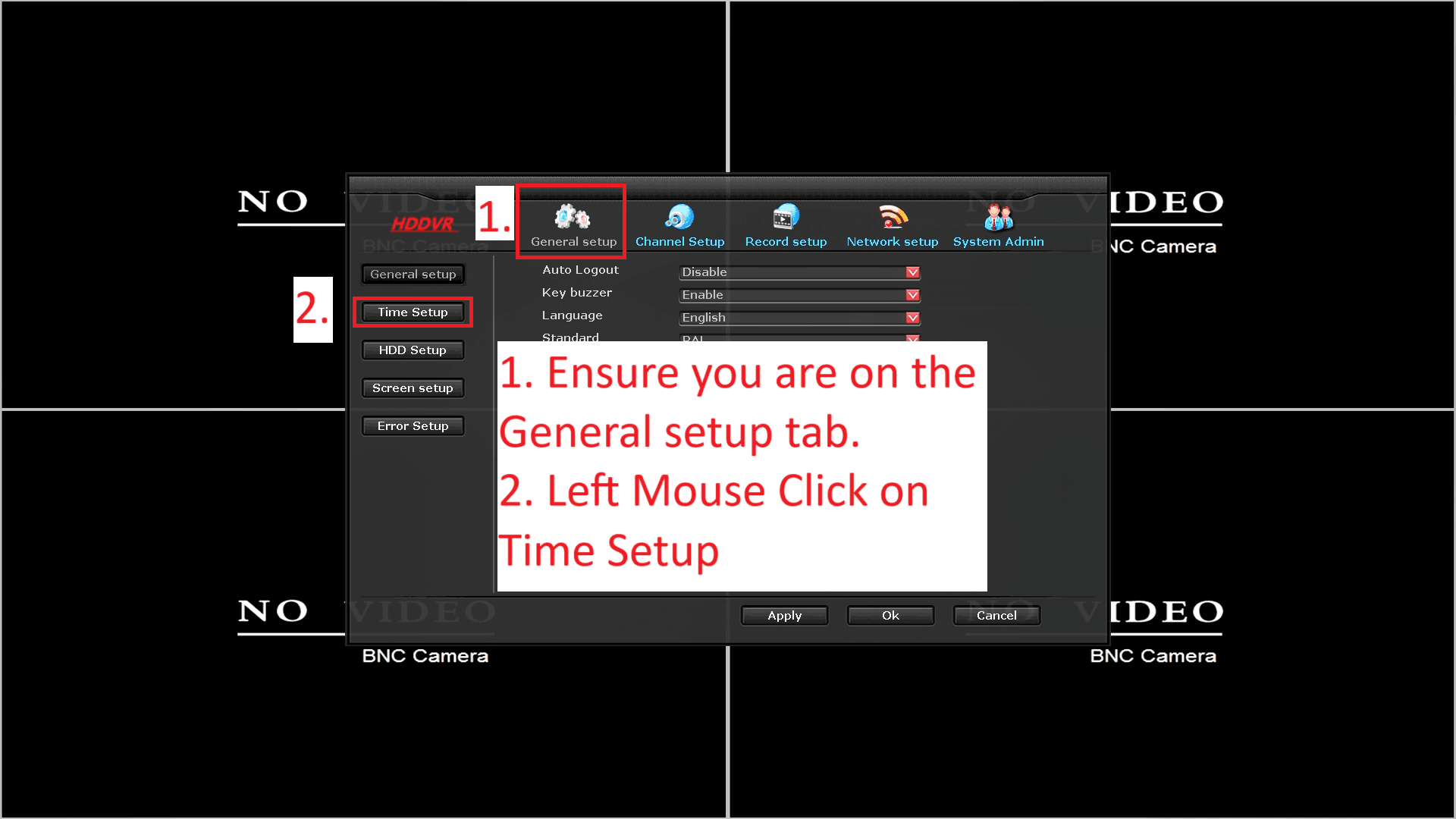
Select Time Setup Menu Item
- By Default, you should be on the General Setup Tab, if not, Left Mouse Click on General Setup
- On the Left Menu, Left Mouse Click on Time Setup
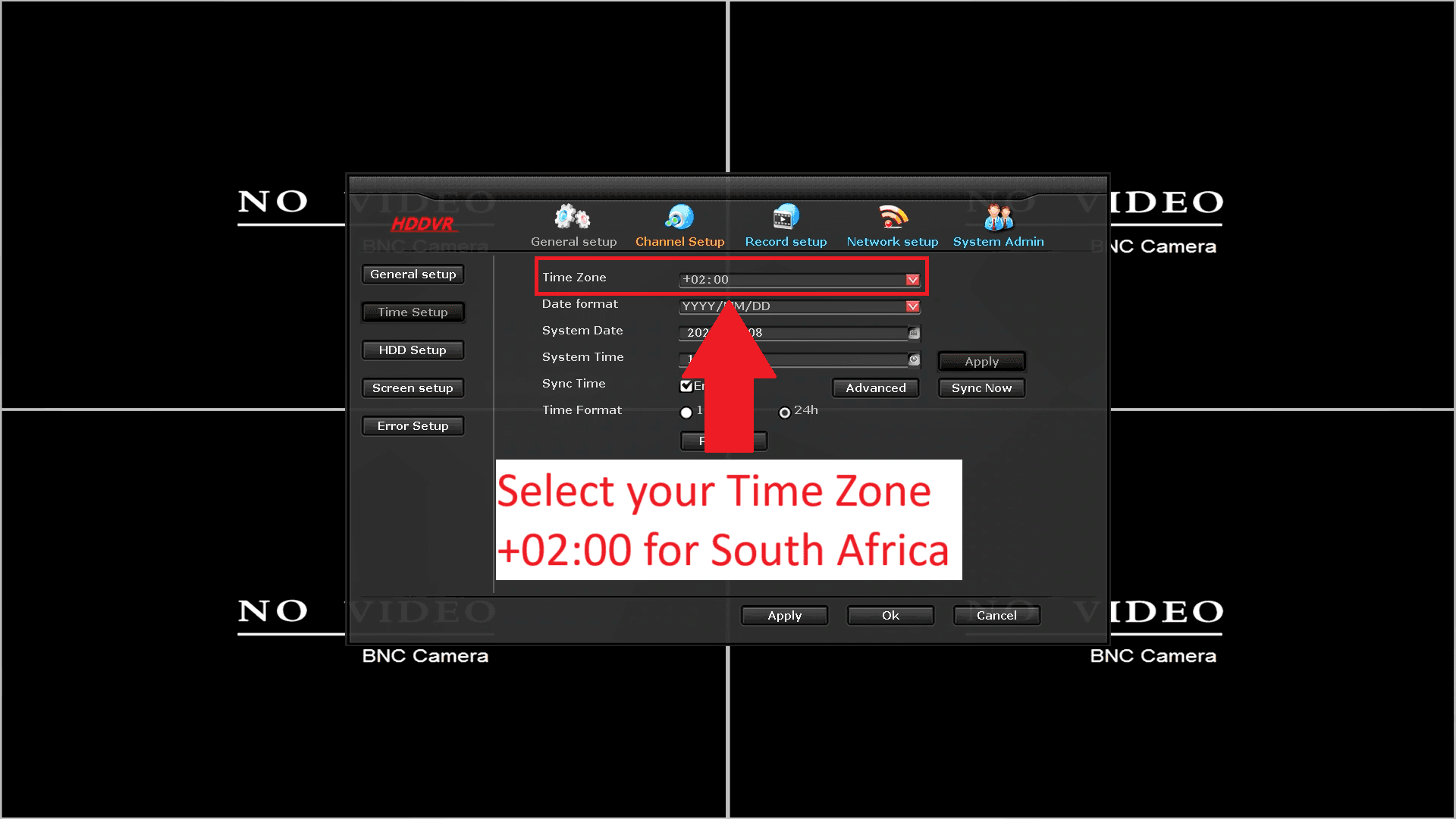
Select Your Time Zone
- For South Africa: Set the time zone to +2:00.
This ensures your DVR is correctly synced to the local time.
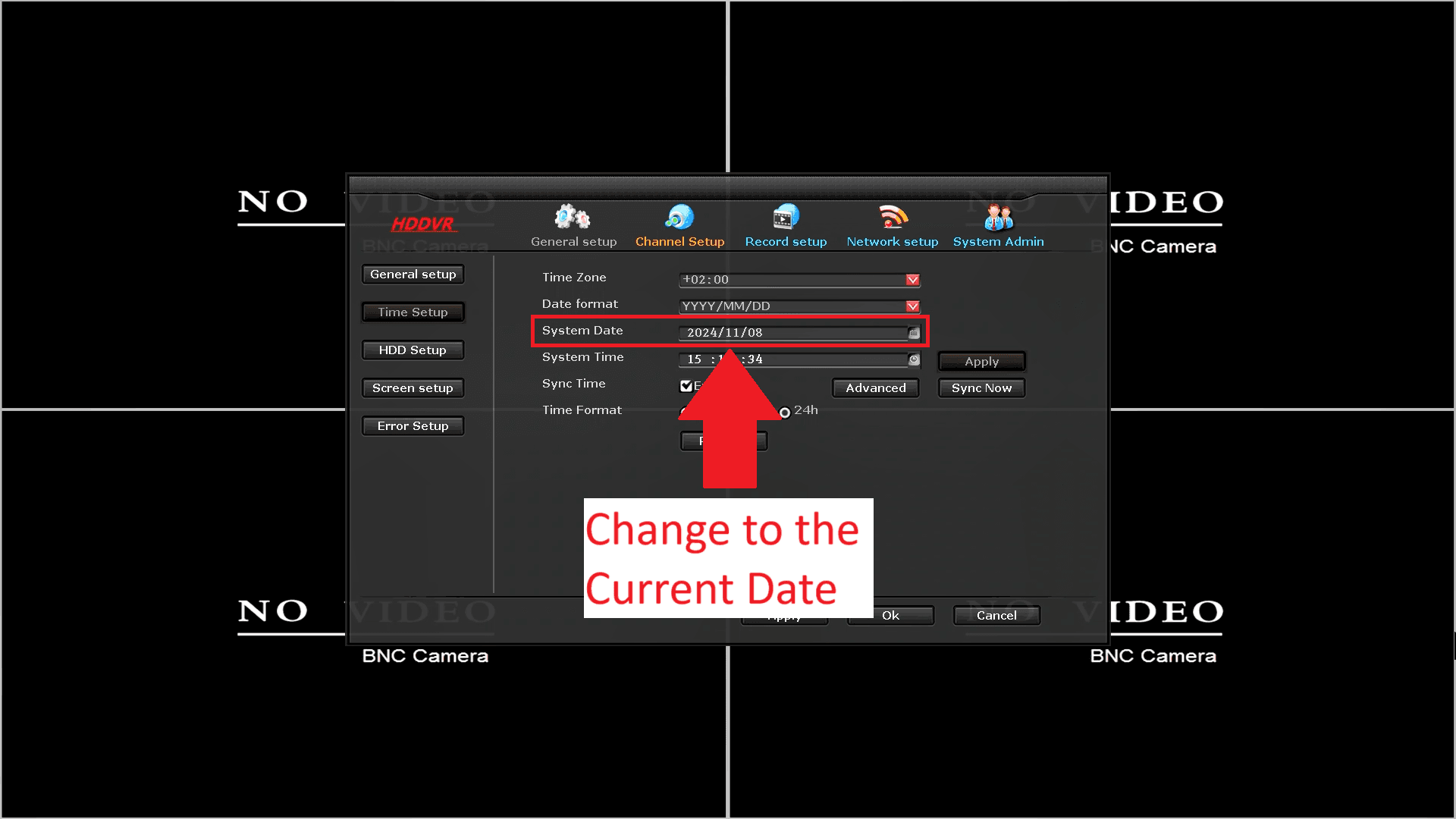
System Date
- Using your mouse, Select the Current Date
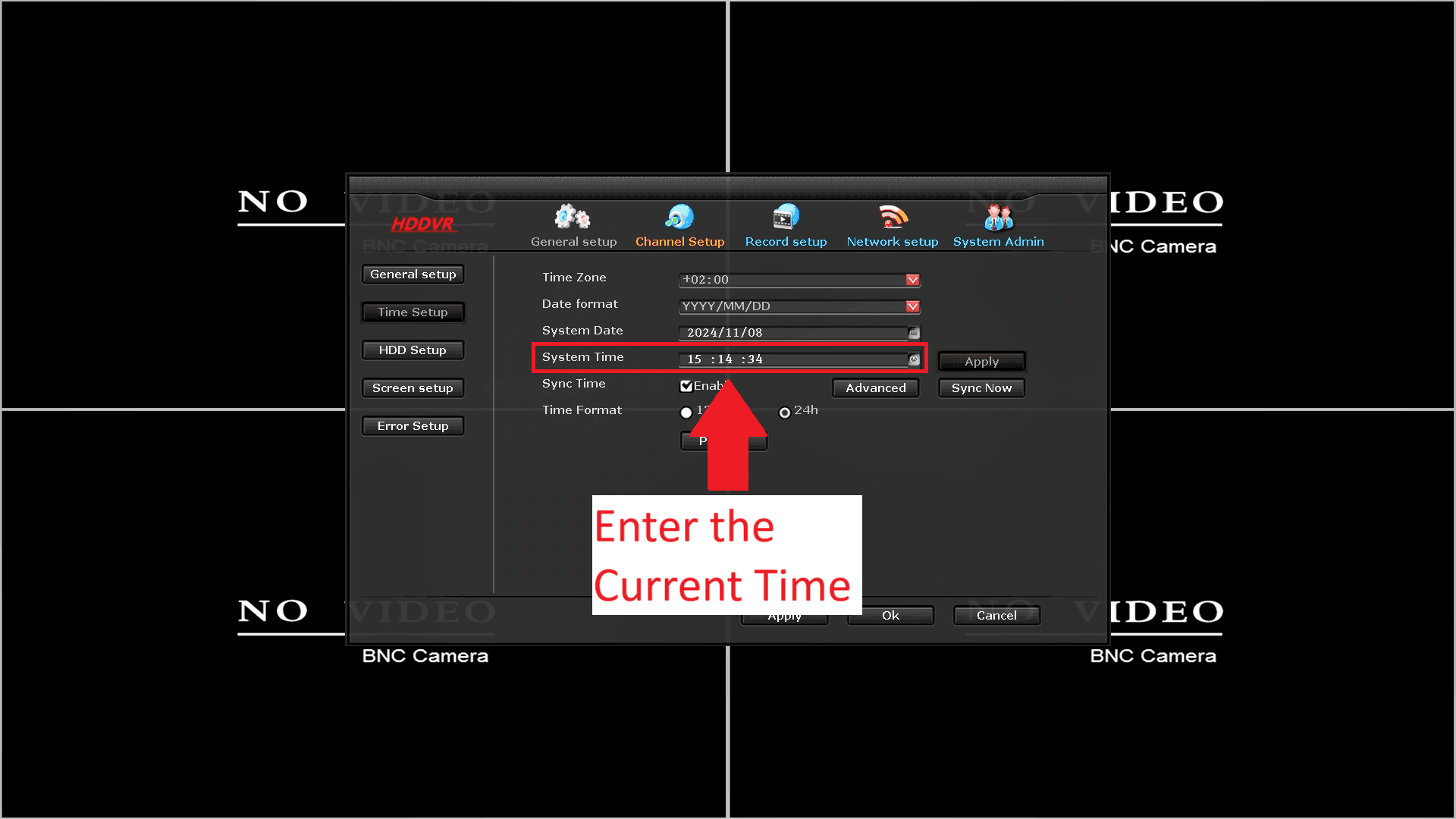
System Time
- Using your mouse, Select the Current Time
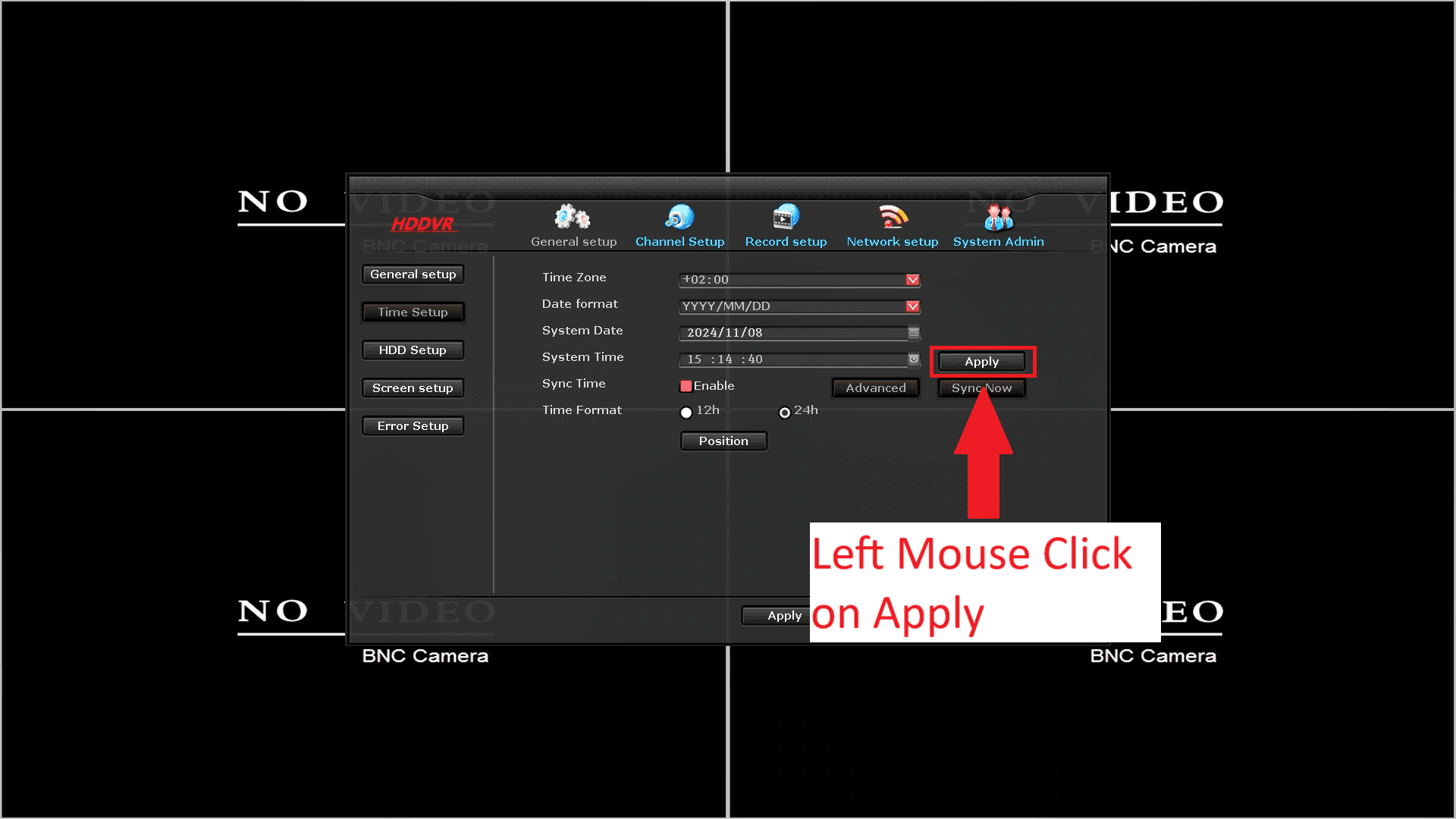
Left Mouse Click on Apply
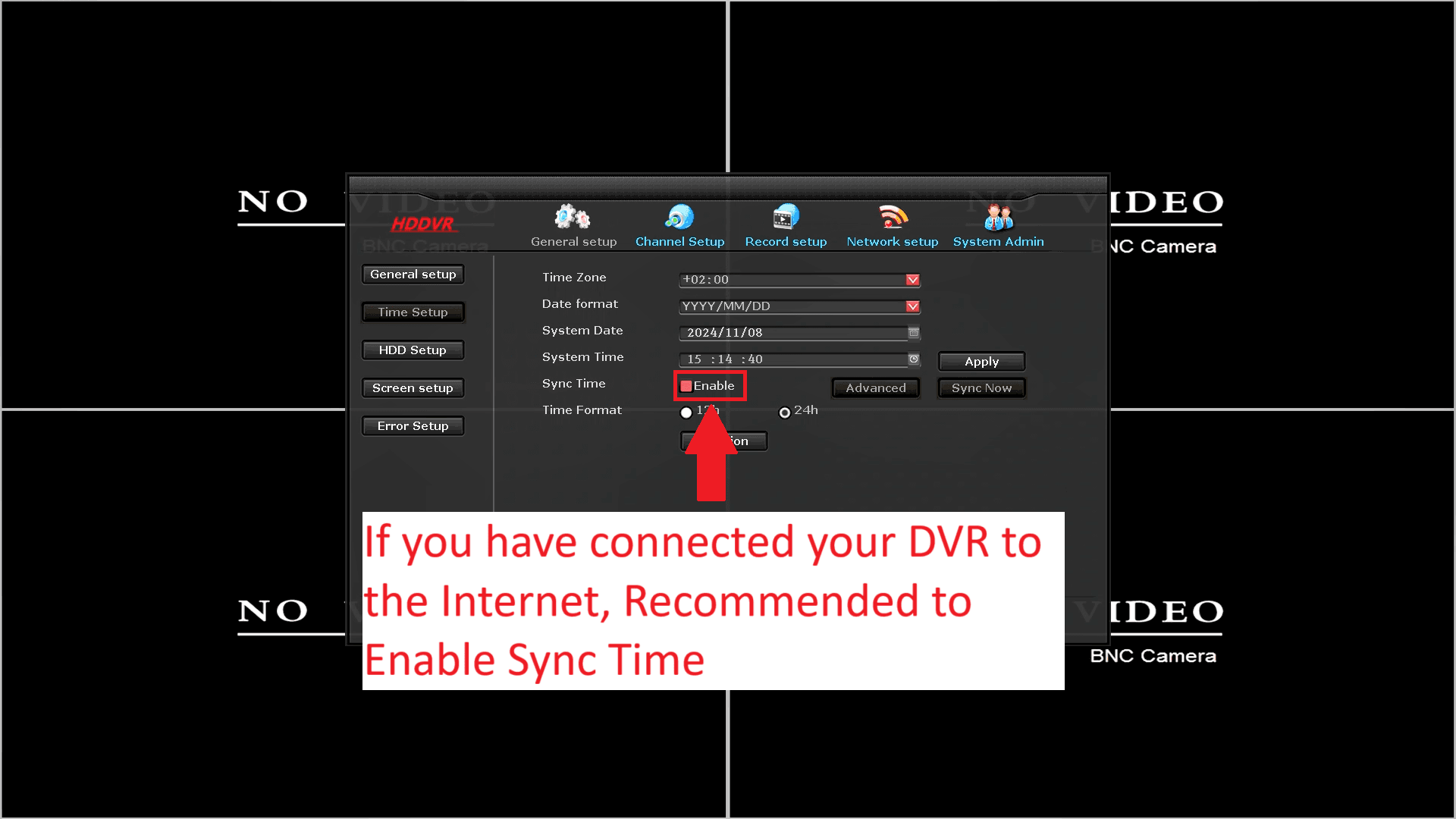
Internet Server Time
- If you have connected your DVR to the Internet
- Left Mouse Click on Sync Time to Enable it
Left Mouse Click on Apply
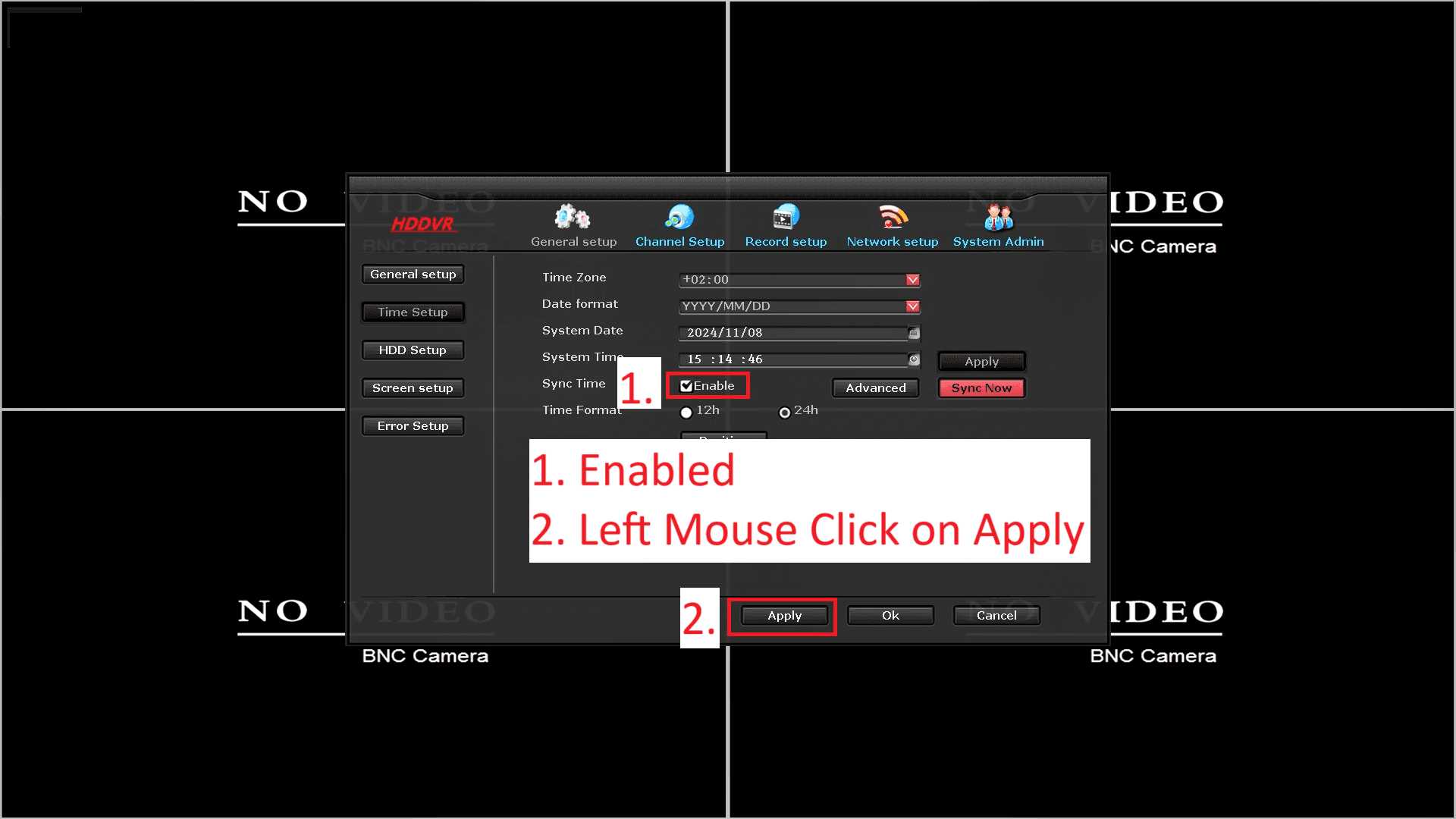
Left Mouse Click on Ok
- Double check your Date and Time has been set to the current Date and Time.
- If Connected to the Internet, Enable Sync Time
- Click Apply
- Click OK

Check that the Time has been set correctly

Time Display Settings
-
Default Display: By default, the time is shown in the bottom-left corner of the screen.
-
If Time Is Not Displaying:
To enable the date and time display, follow these steps:- Left-click to open the Menu.
- Select System Setup and Left-click to open the settings.
- In the System Setup menu, Left-click on Show Time When Preview to enable the time display.
This will ensure the date and time appear on your screen during preview live viewing mode.
