Video Tutorial
Text Instructions
Prerequisites
- Eseecloud App installed on your Phone. Click here for Tutorial
- Registered and logged in on the Eseecloud App. Click here for Tutorial
- Hikvision Router Model 4G12C – 2.4 GHZ WIFI Enabled. The process should be similar for other Models. Click here for Tutorial
- LZ WIFI Camera or other LZ Remote Viewing Device e.g. Indoor WIFI Camera Model C433A-W, LZ DVR, LZ NVR
1. Ensure you have Registered and Logged in, You can only add devices once you have logged in.
- Download the Eseecloud App, Available for IOS and Android Users
- Huawei users, App may not be available on the Huawei Store, Download a separate app called APKPure, if this one is unavailable, you will need to find alternatives.
- If you need to Register, Click one the links below for a tutorial on how to register.
- Register via Google – Quickest and Easiest method
- Register via Cellphone Number
- Register via Email Address
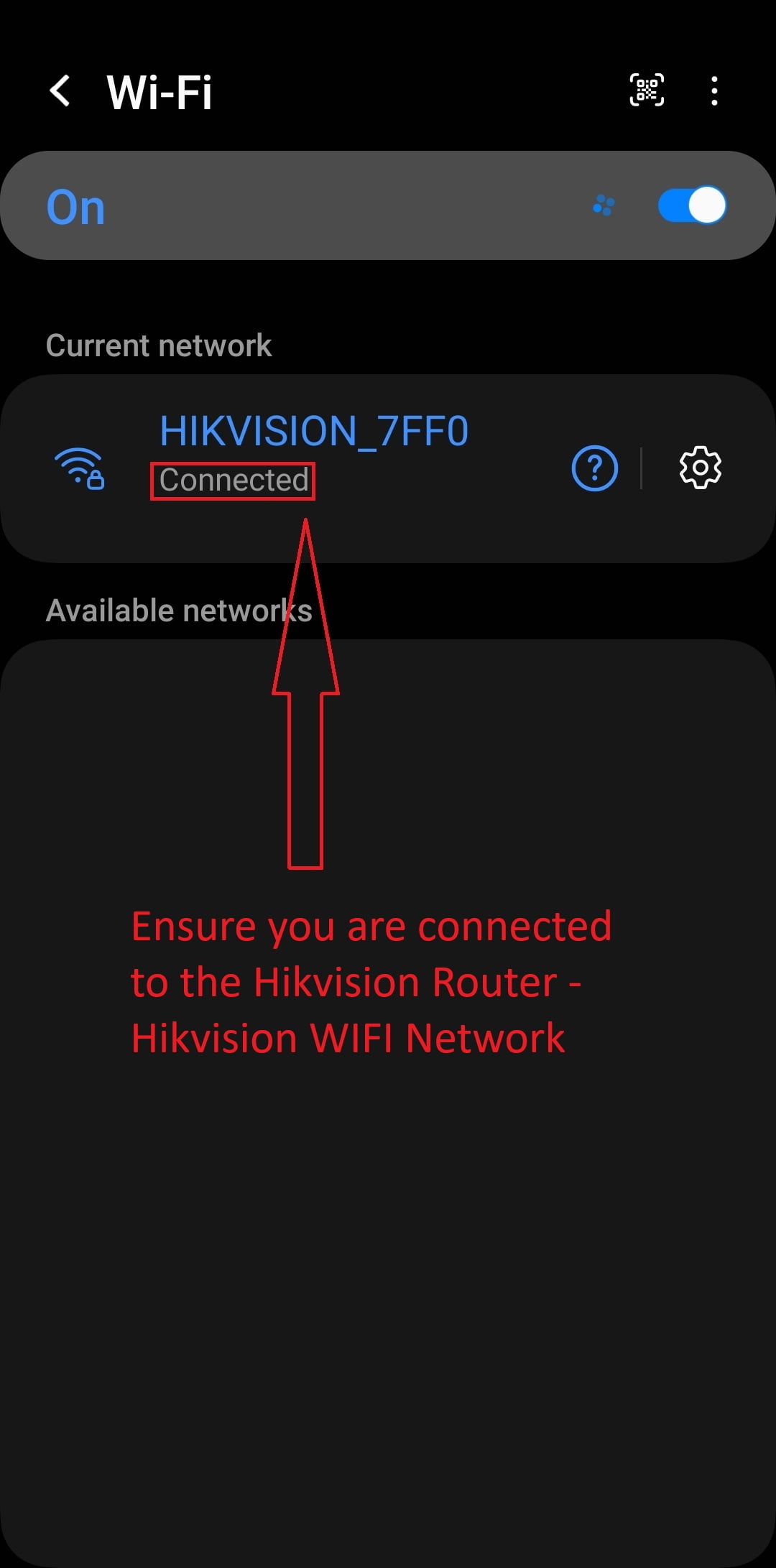
1. Ensure you are connected to the HikVision WIFI Network
- In this Tutorial we are connecting an LZ WIFI Device to a Hikvision Router
- Ensure you are connected to the Hikvision WIFI Network