
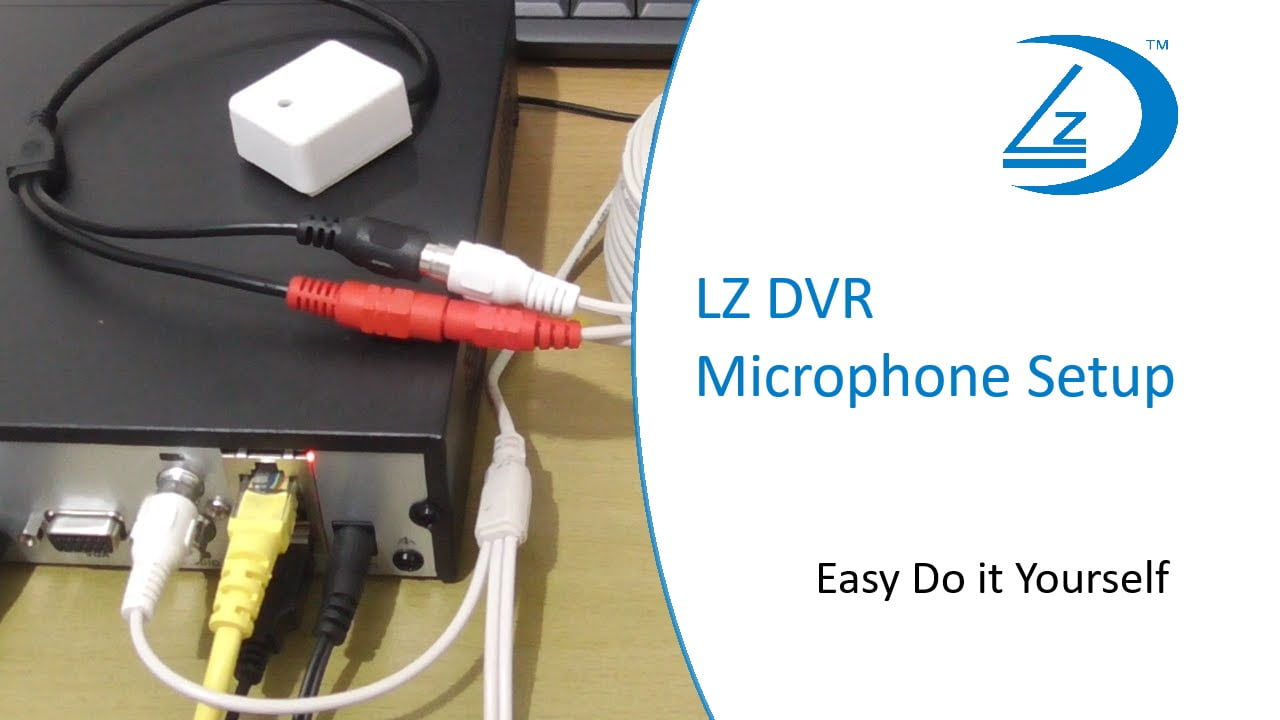
Equipment Needed
- LZ DVR
- Microphone (suitable for CCTV)
- 12 Volt Power Supply for the microphone
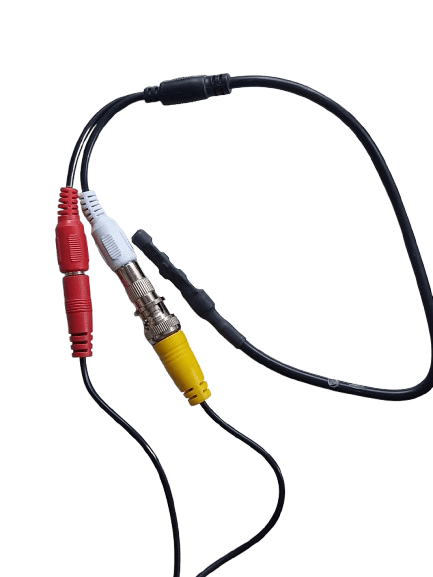
- Recommended RG59 Ready Made Audio Cable
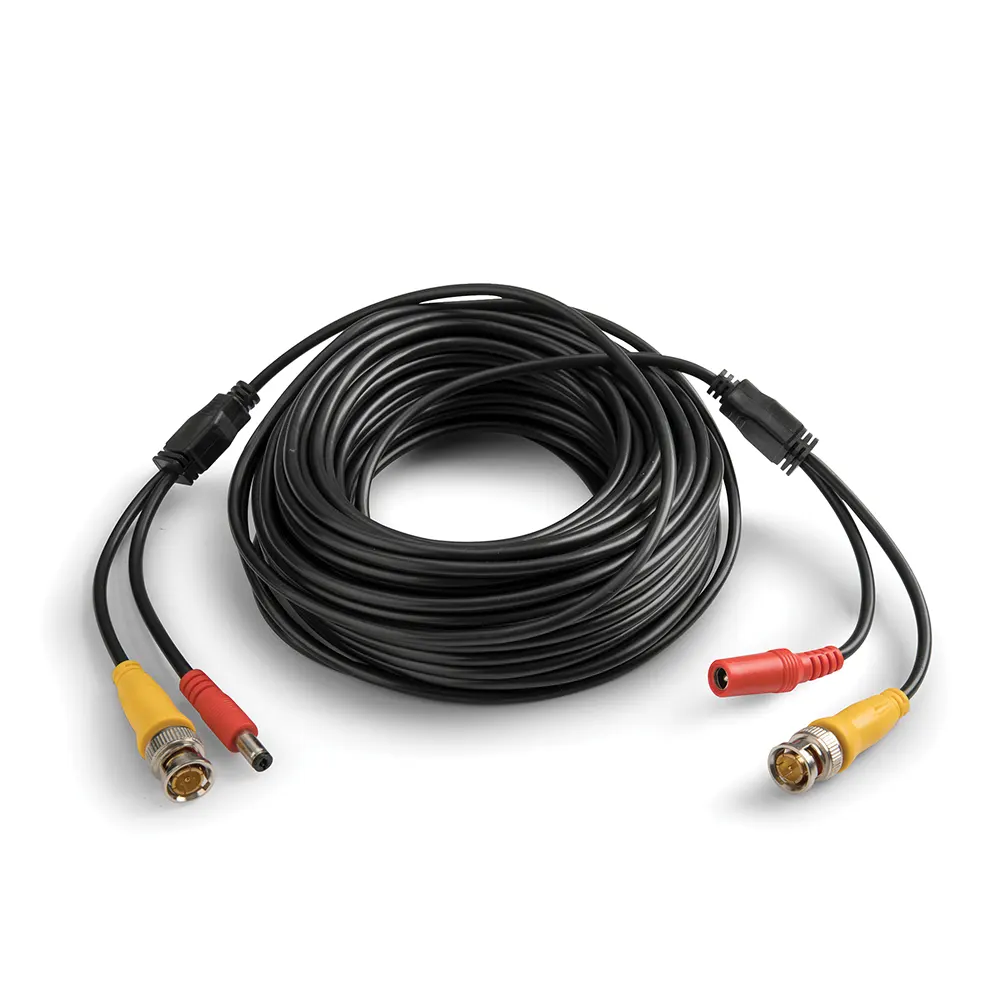
- Alternative Method – RG59 Ready Made Cable (BNC connectors and Power)
- 2 * RCA Male Connectors
- HDMI Cable
- TV with HDMI Input
Step-by-Step Instructional Guide to Connect a CCTV Microphone to Your DVR. Guide with images below.
This guide will help you easily connect a microphone to the audio input of your LZ DVR and pair it with Camera Channel 1. Follow these steps for a successful setup.
Preparation
Select a Suitable Location: Position the microphone within listening distance of the area you want to monitor. Ensure it’s secure and unobstructed.
Step-by-Step Connection Guide
- Power the Microphone
- Connect the Microphone to the Power Supply: Plug the microphone into the 12 Volt power supply. Ensure it’s in a location where it can receive power safely.
- Prepare the RG59 Cable
- Recommended – Connect the Ready Made Audio Cable to the Microphone and insert female side into DVR Audio input
- Alternative – Connect the standard Ready Made Cable to the Microphone and insert female side into DVR Audio input
- Other Alternative method – Cut and Prepare RG59 Cable: If necessary, cut the RG59 cable to the desired length.Attach BNC and RCA Connectors
- Strip the ends of the RG59 cable and attach an RCA male connector to each end.
- Connect the Microphone to the DVR
- Run the Cable: Run the prepared RG59 cable from the microphone to the back of the DVR.
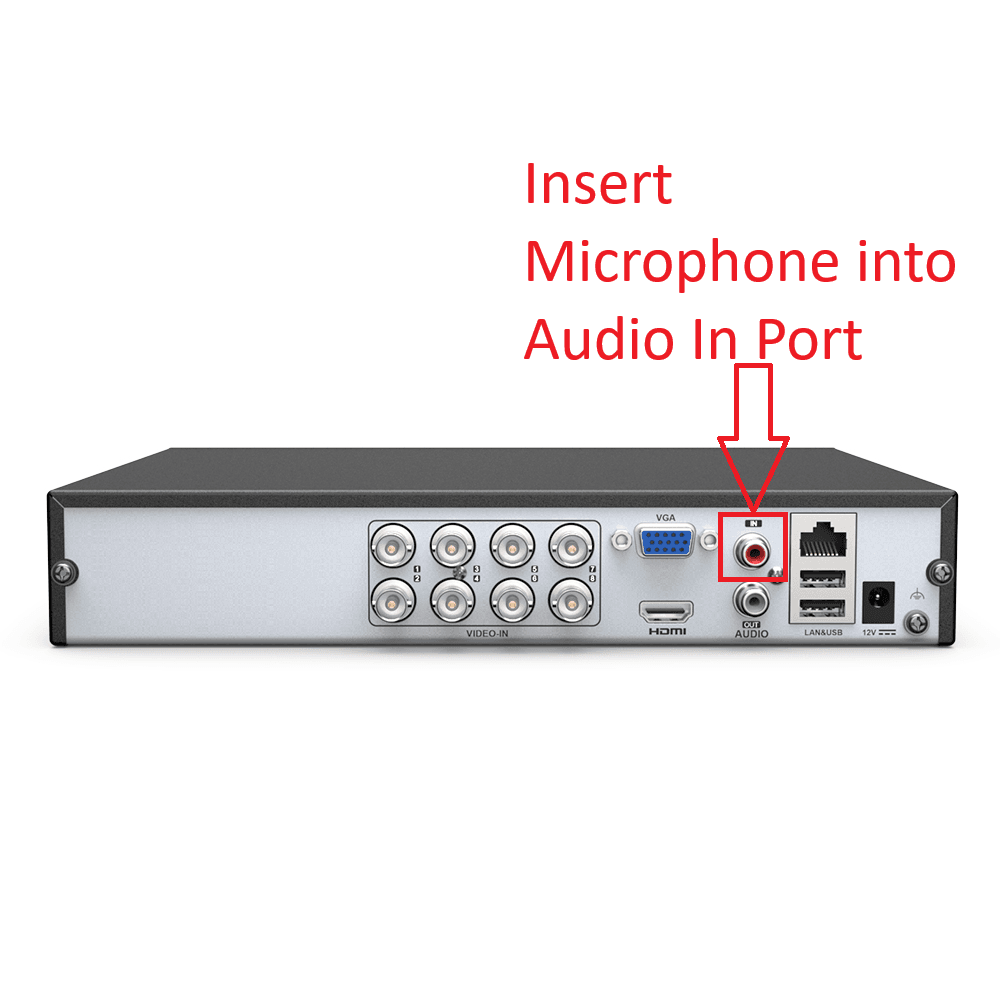
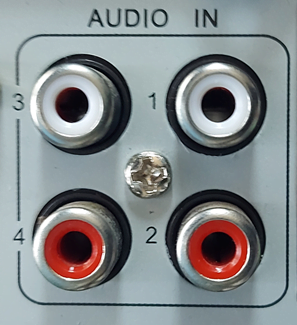
- Plug into Audio Input: Connect one end of the RG59 cable (with RCA connector) into the audio input port labeled “Audio In 1” on the DVR.
- Pair the Microphone with Camera Channel 1
- Ensure Camera 1 is in the same location as the Microphone.
- Access DVR Settings: Power on the DVR and connect it to your TV using the HDMI cable.
- Navigate to Audio Settings:
- Menu
- Settings
- Channel Setup
- Ensure Channel 1 is Selected.
- Select Encode Mode
- Change Video Mode to A/V Stream.
- If your DVR model has more than one Audio input, and you have installed more than one microphone
- Click on Copy To
- Select All Channels
- Click Ok
- Click Apply
- Click OK
Test the Connection
- Test Audio Input: Speak into the microphone and check the audio feed through the DVR interface on your TV.
- Adjust Settings: If necessary, adjust the volume levels and audio sensitivity settings in the DVR settings menu.
Additional Tips for Optimal Setup
– Microphone Placement: Ensure the microphone is placed to capture clear audio without excessive background noise.
– Cable Management: Secure all cables to prevent tripping hazards and damage.
– Regular Checks: Periodically check the microphone and connections to ensure they remain functional.
By following these steps, you’ll have successfully connected your CCTV microphone to your LZ DVR and paired it with Camera Channel 1, enhancing your security monitoring capabilities. If you have any further questions or need assistance, feel free to reach out!
Recommended – Using RG59 Audio Cable.
- Insert the RCA Male onto Microphone
- Insert DC Male into Female power port on Microphone
Instructions for Standard RG59 Ready Made Cable below.
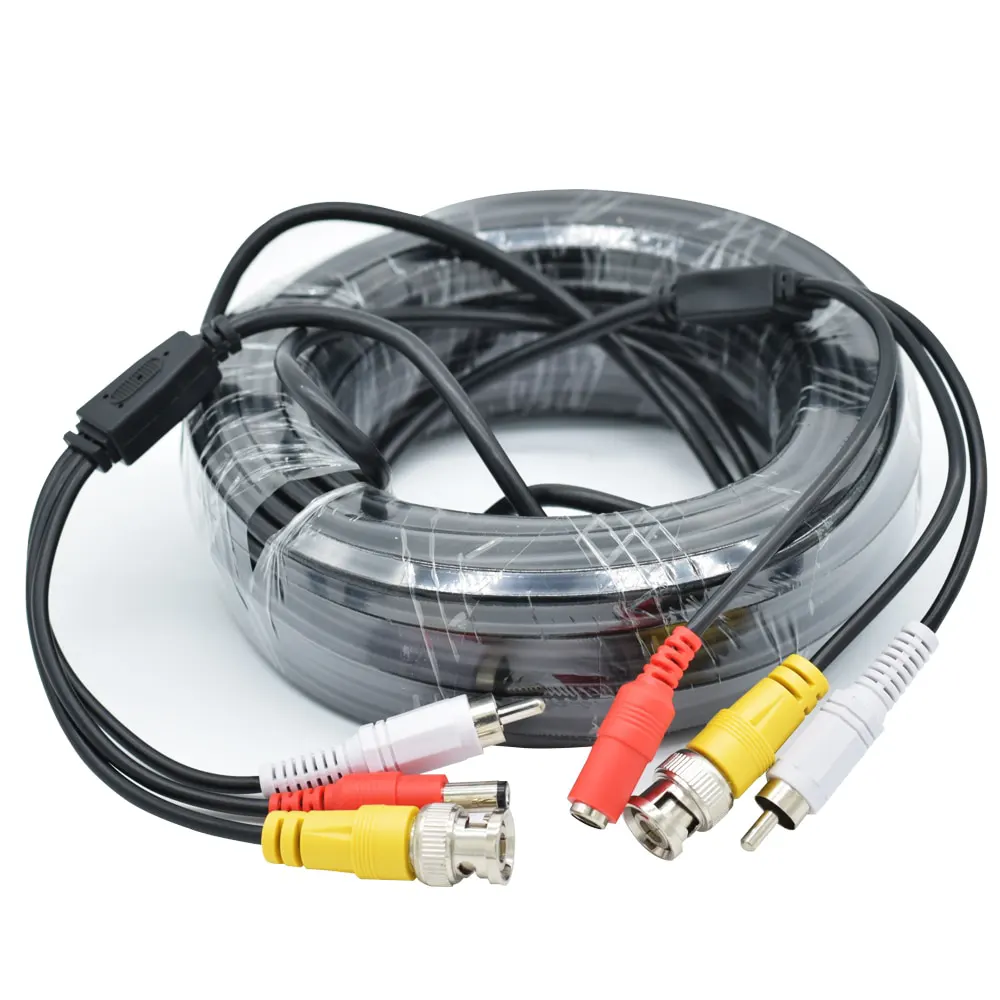

Connecting RCA Male connectors onto standard RG59 Ready Made Cable
Put RCA Male Connectors on to your RG59 Cable
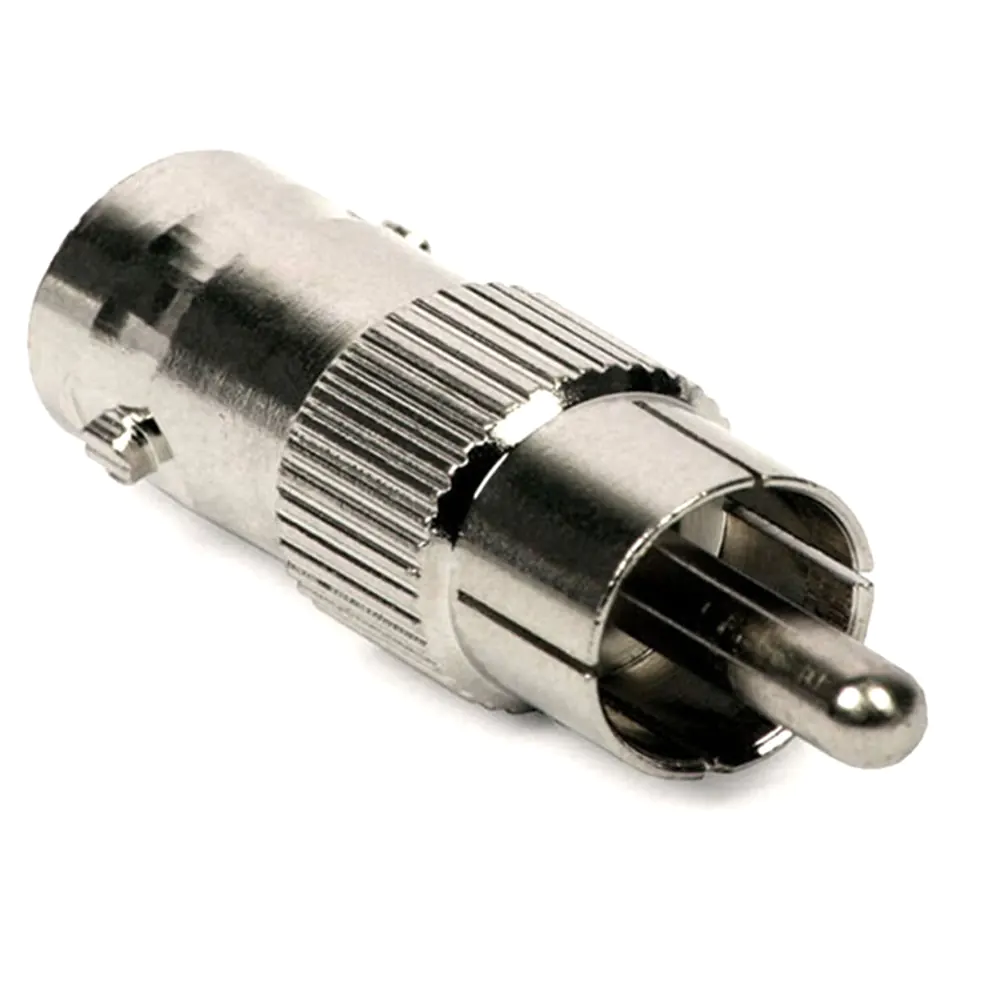
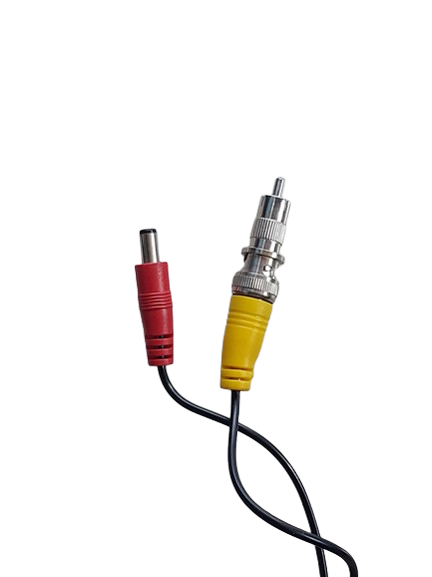
Locate the Audio Input port on the DVR
Insert the RCA Male into Audio Port 1 (Some models have more than 1 audio port).
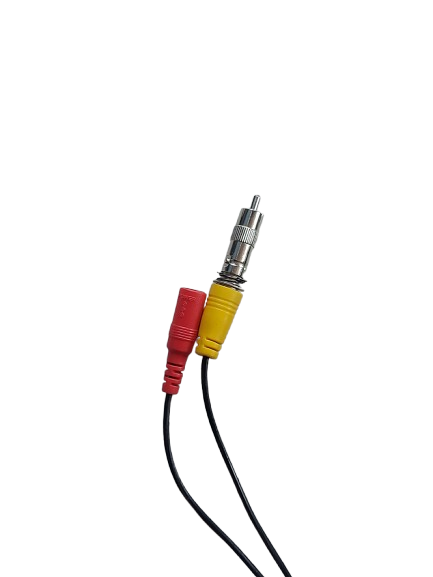

Connect your Power supply to the female end of the RG59 Cable

- On LZ DVR
- Go to Menu
- Select Settings
- Go to Channel Setup

- Ensure Channel 1 is Selected

- Go to Encode Mode

- Change Encode mode from Video only to A/V Stream (Audio Video Stream

- If your DVR has more than one audio input, and you have installed more than 1 Microphone
- Left Click Copy to
- Select All Channels
- Click Ok
- If only one Microphone installed, Skip to next step

- Click Apply

- Click OK

Test your Setup
- Ensure all your devices are plugged in and powered up.
- TV source switched to HDMI
- Volume up on the TV
- Select Channel 1, so that Channel 1 is displaying in Full Screen
- If you have installed more than 1 microphone, open each individual Channel to Full screen