
Default Recording Mode
Please note:
- If you have installed a Hard drive,
- The DVR is set to record videos 24 hours a day by default.
- Please ensure to check out the tutorial on how to format the Hard Drive
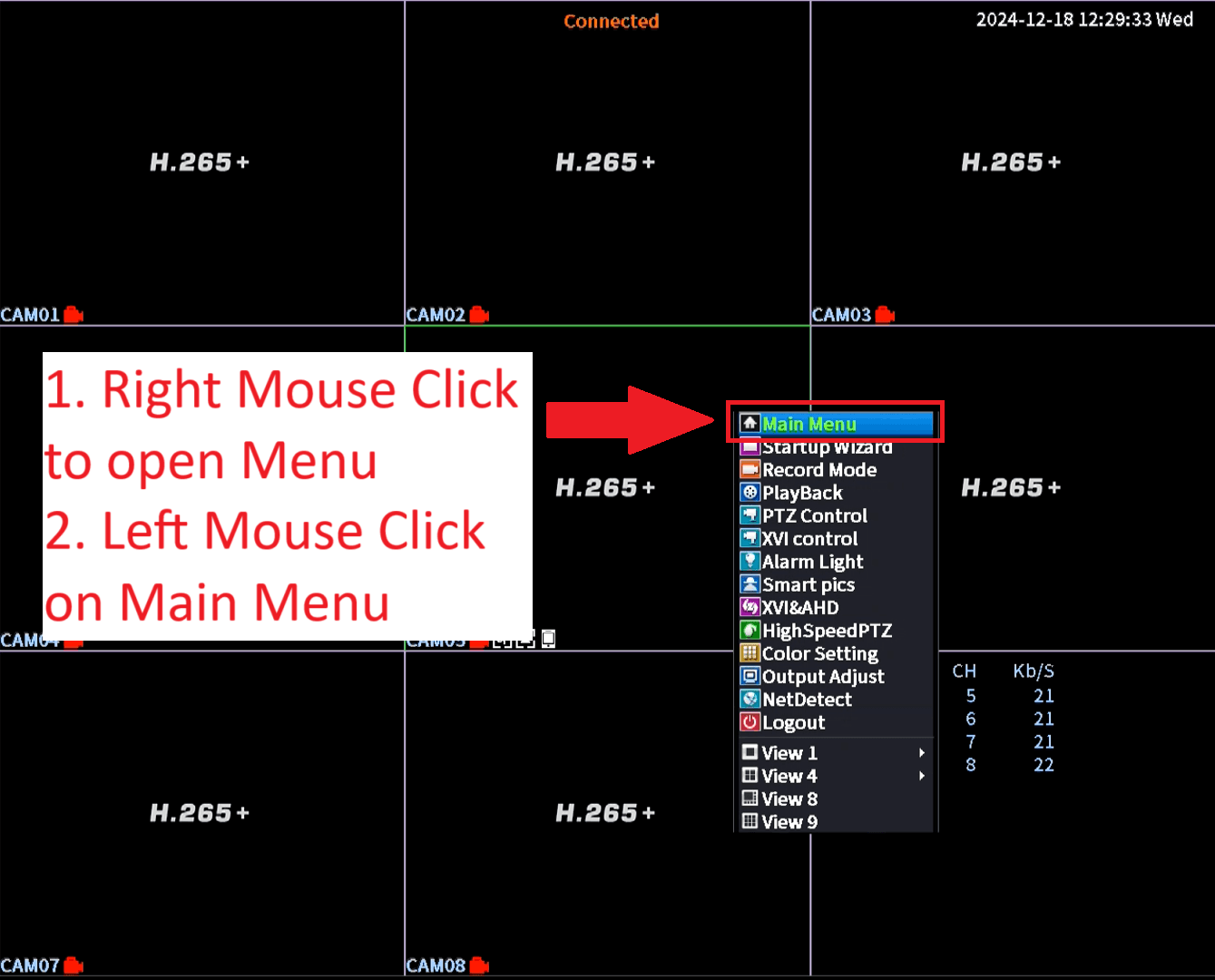
Access Menu
- Right-click anywhere on the DVR screen with your mouse.
- Left Mouse Click on Main Menu
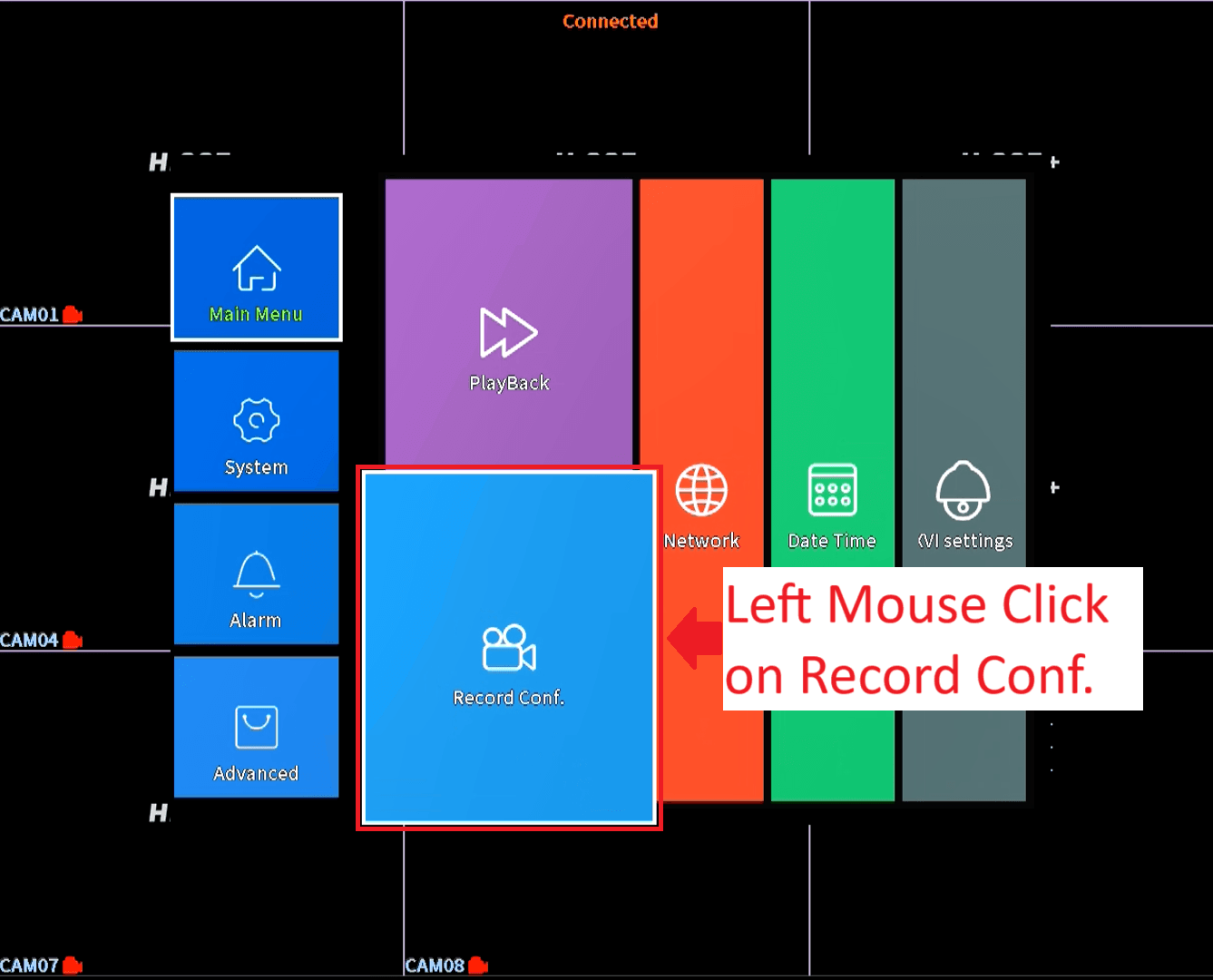
Access Recording Settings
- Left Mouse Click on Record Conf
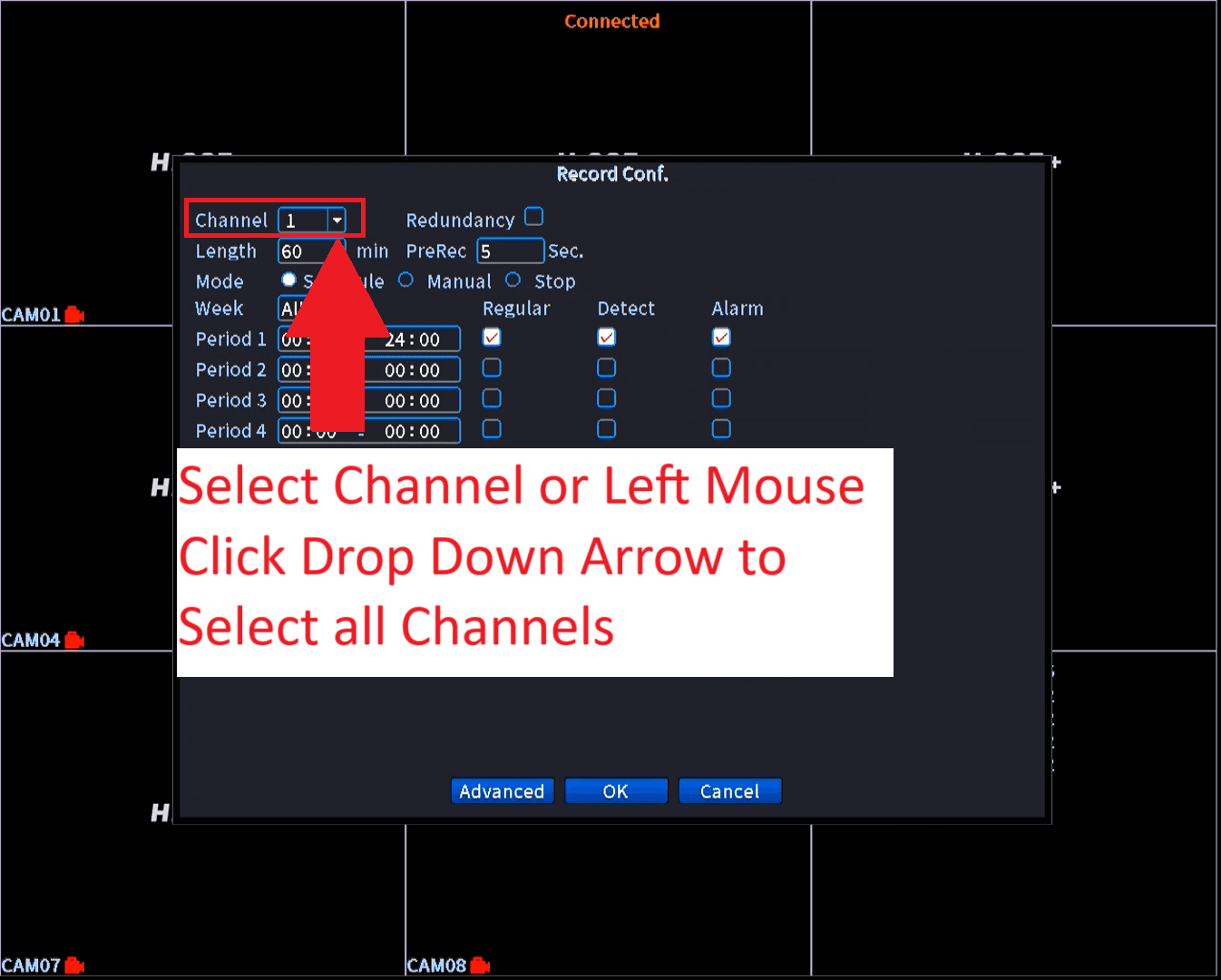
Choose Your Channel
- Select the camera channel you want to set up.
- You can choose a specific channel or select All to apply settings to every channel.
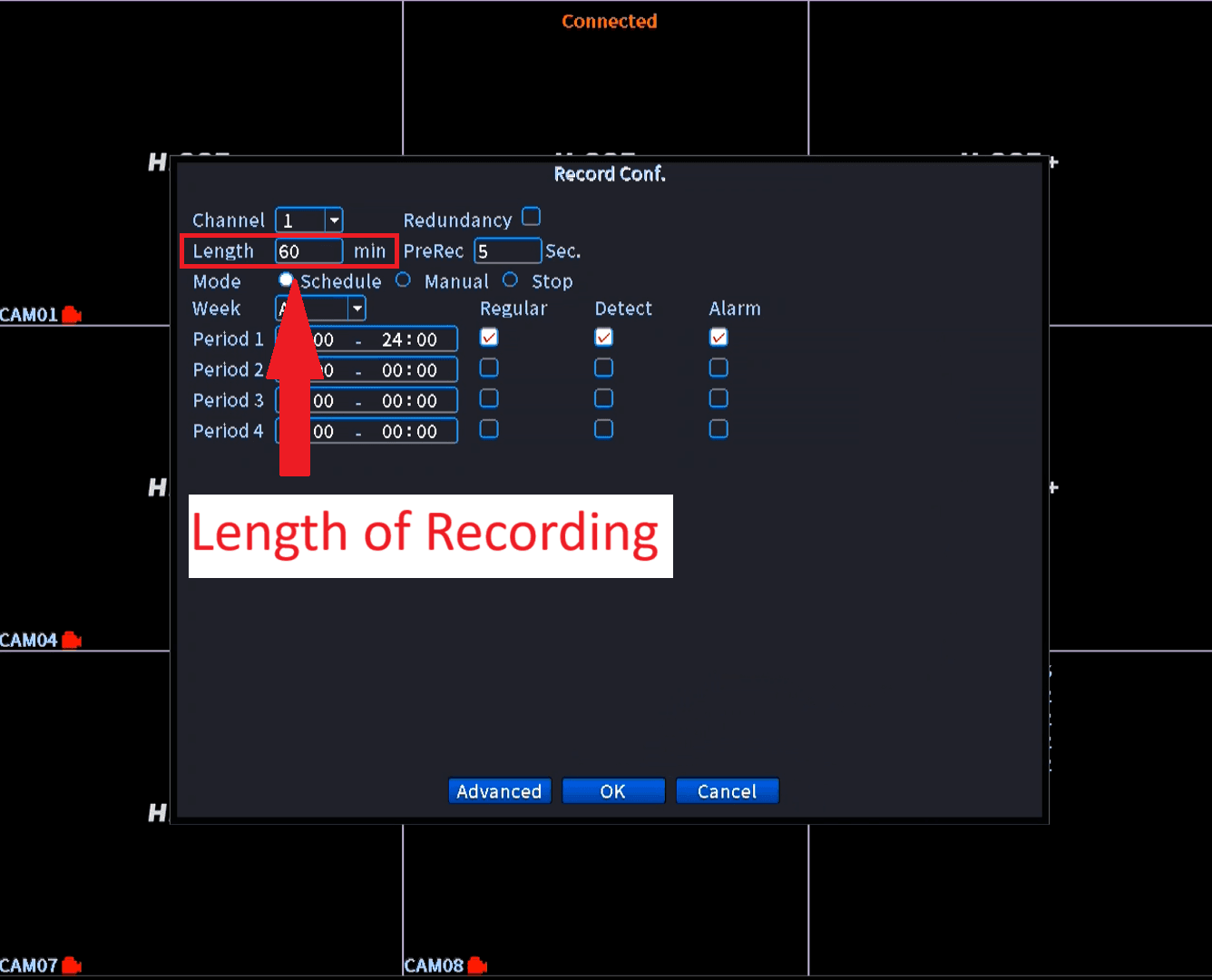
Set Video Length
- Look for the Length option.
- Choose how long each video recording should be. The default is 60 minutes.
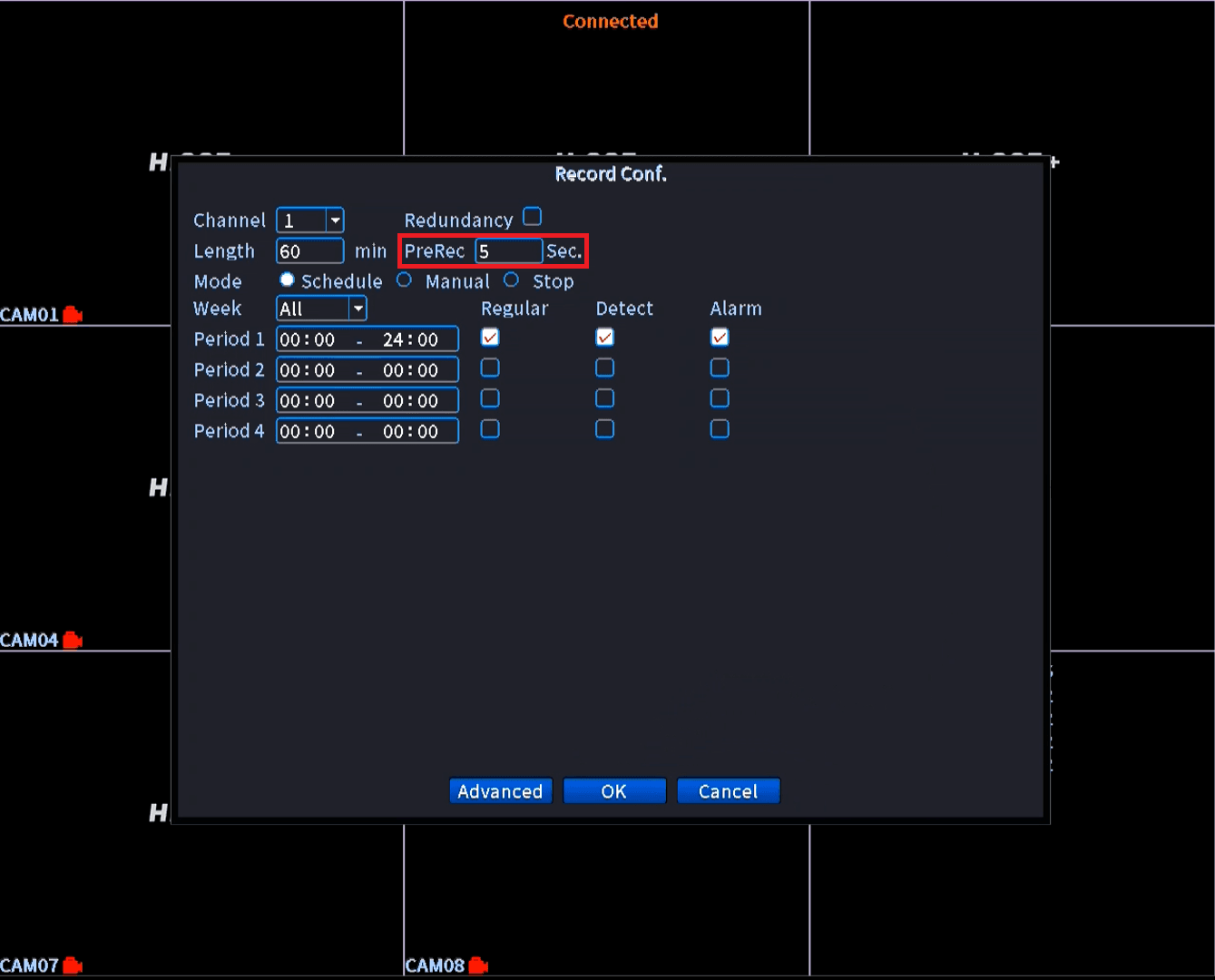
Enable Pre-Recording (Optional)
- Find the PreRec option.
- Set the time (1–30 seconds) to start recording a few seconds before motion is detected. The default is 5 seconds.
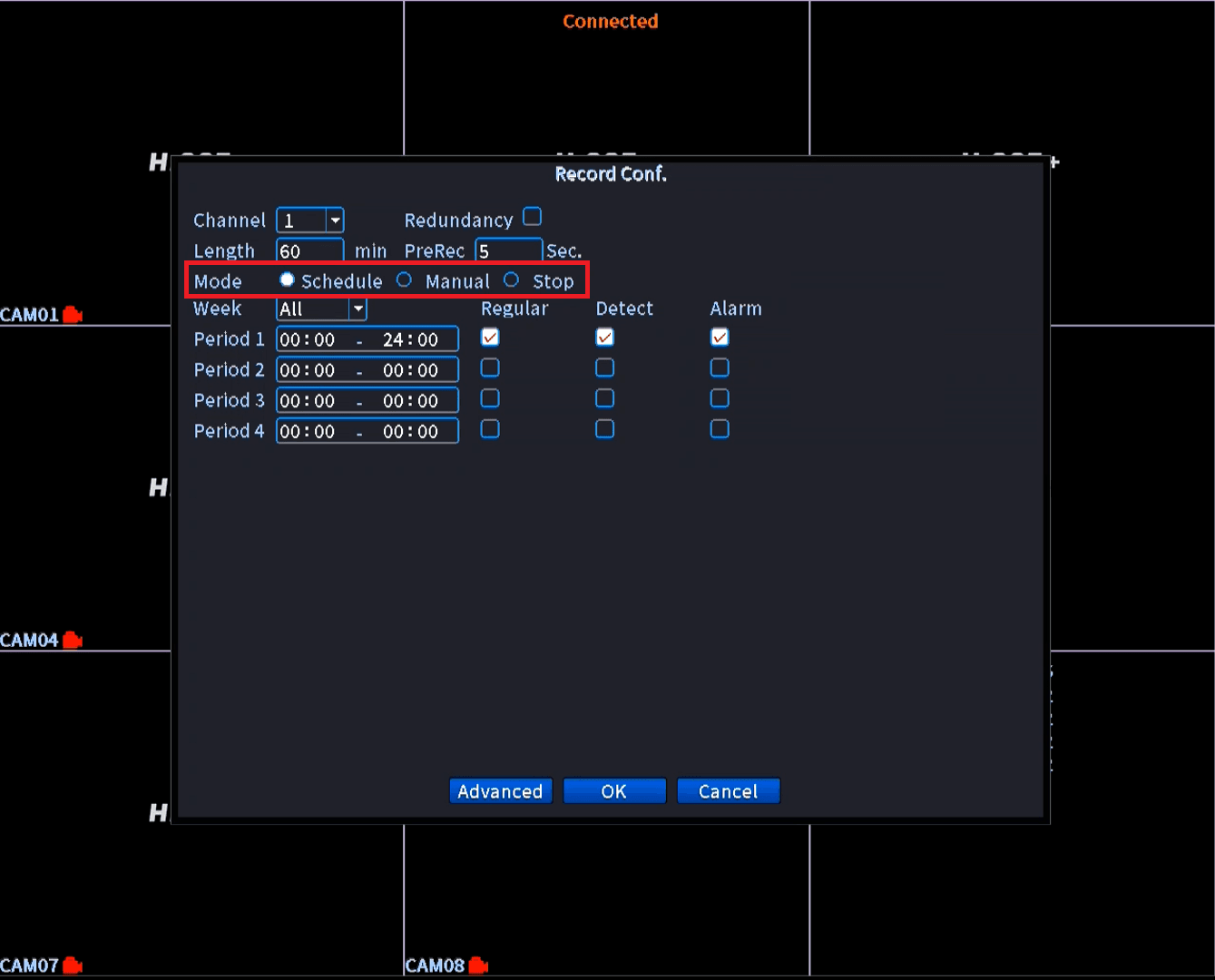
Choose Recording Mode
- Select from the following modes:
- Schedule: Records based on your set schedule.
- Manual: Records continuously, 24/7.
- Stop: Stops all recording.
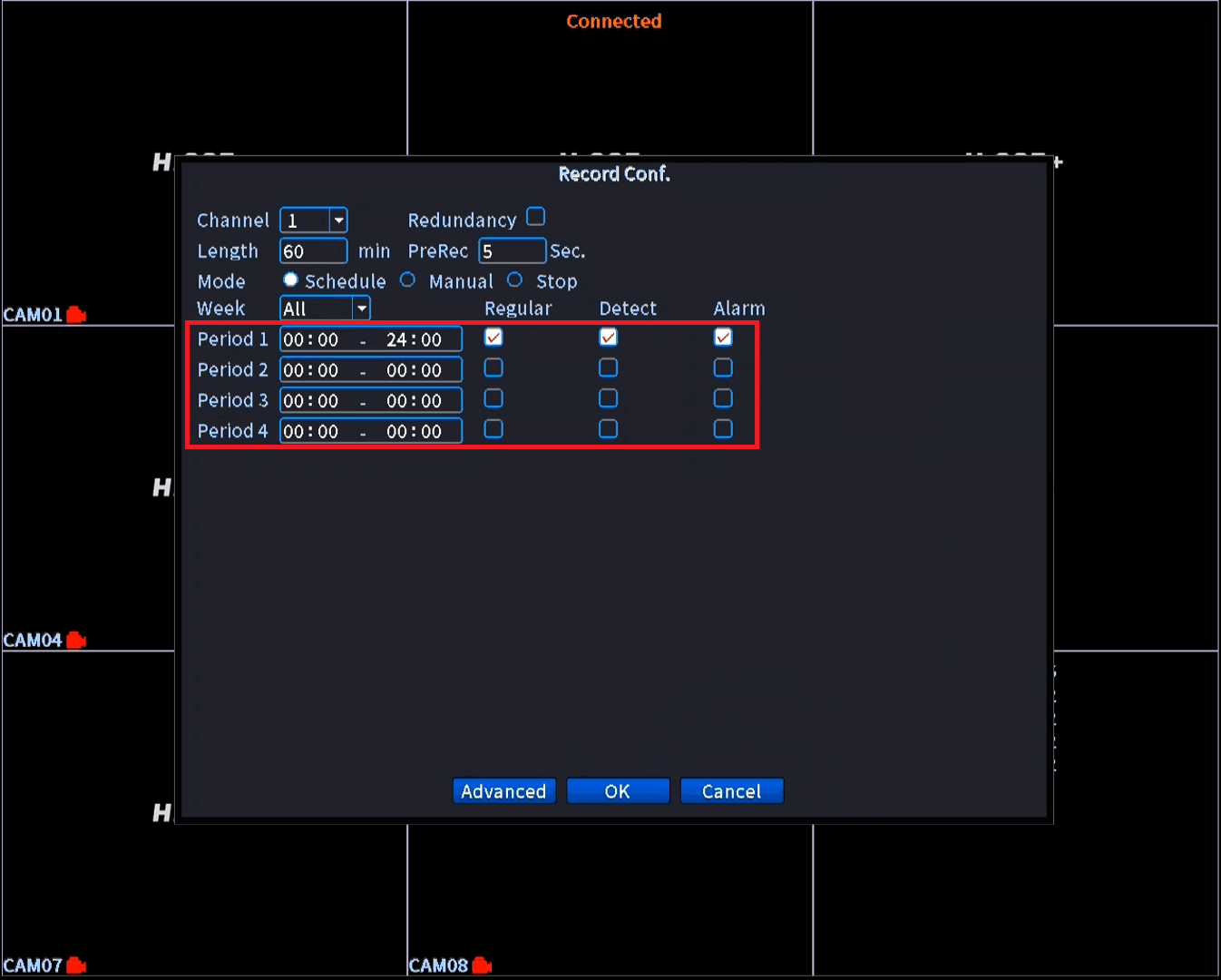
Set Your Recording Schedule
- Look for the Week dropdown to select which days to apply the schedule (e.g., All days).
- Adjust the Period 1, 2, 3, or 4 to set the time ranges for recording. For example:
- Period 1: 00:00 – 24:00 (for all-day recording).
- Tick Recording Types for each time range:
- Regular: Always record.
- Detect: Record only when motion or human shapes are detected.
- Alarm: (Not supported on this DVR).
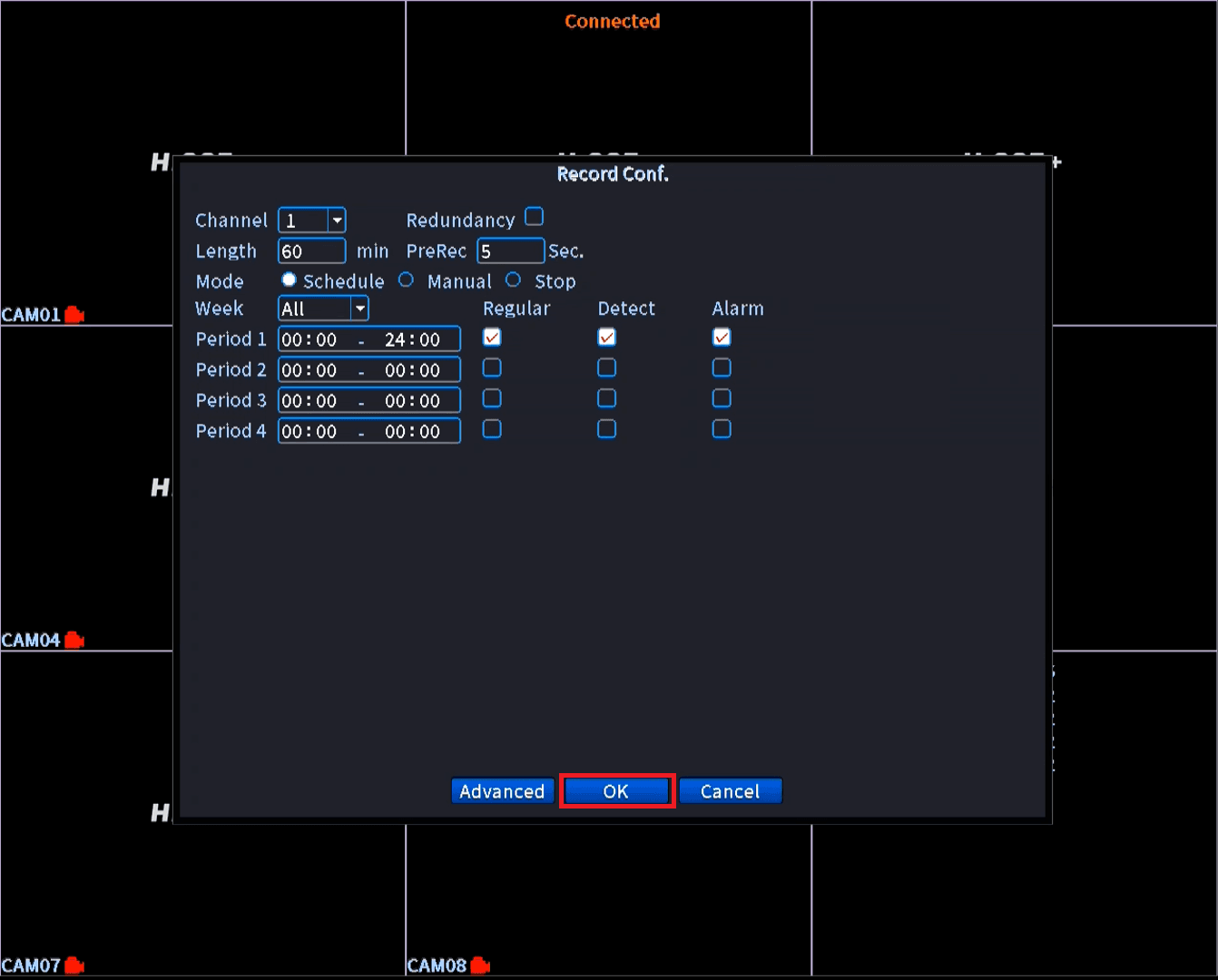
Save Your Settings
- Click OK to save.
Understand the Default Overwrite Rule
- If the hard disk fills up, the DVR will automatically overwrite the oldest video files with new ones.