Use this as a Overview Guideline, Apps are continually being updated and app user interfaces might be updated and upgraded in the future.
Requirements
- Your DVR is connected to your router and has Internet connection.
- You have your mobile phone with a functioning camera. Function camera is required to scan the DVR ID in the form of a QR Code
- You have downloaded the xMeye app.
- You have registered on the xMeye app.
- If you need to register on the xMeye app you can go to this tutorial – Registration via Email address on xMeye app.

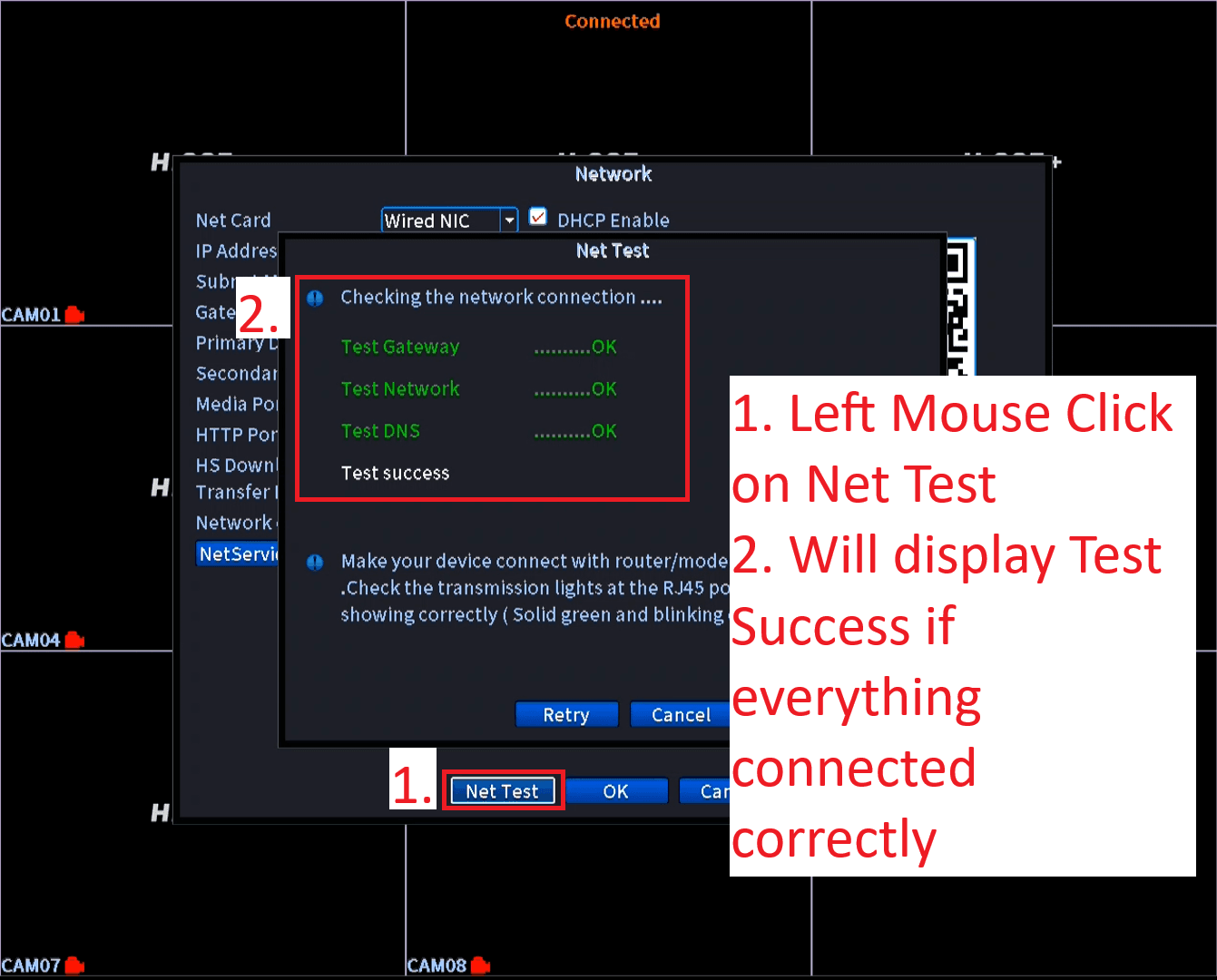
1. DVR Network connectivity test
- Go to DVR Main Menu -> Nework
- Click on Net Test
- All tests should display in Green “OK” and “Test success”
- If not, check your network cable and Router.
- If still not connected, contact a network technician.
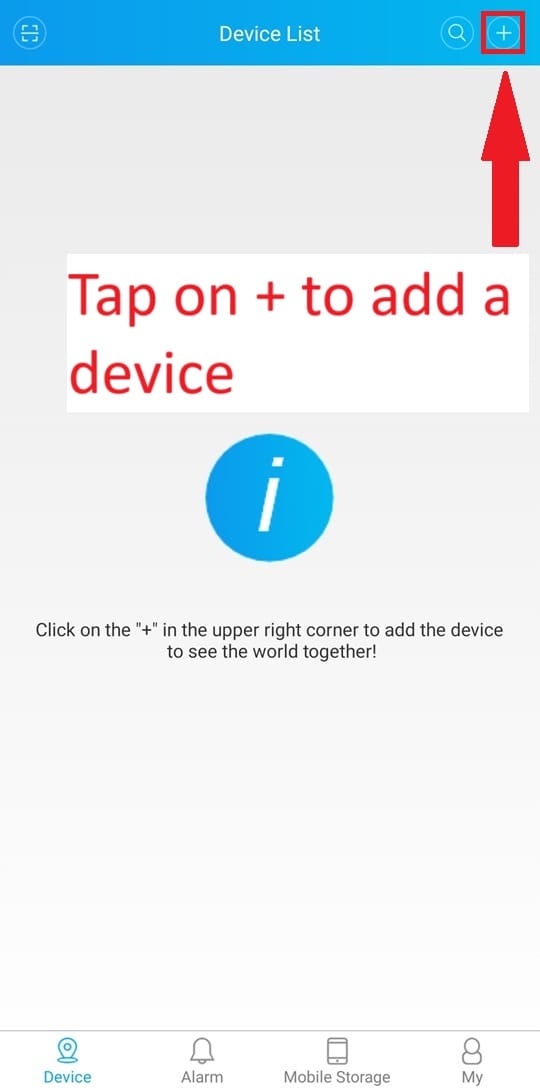
2. Xmeye App – Tap on + to add a Device
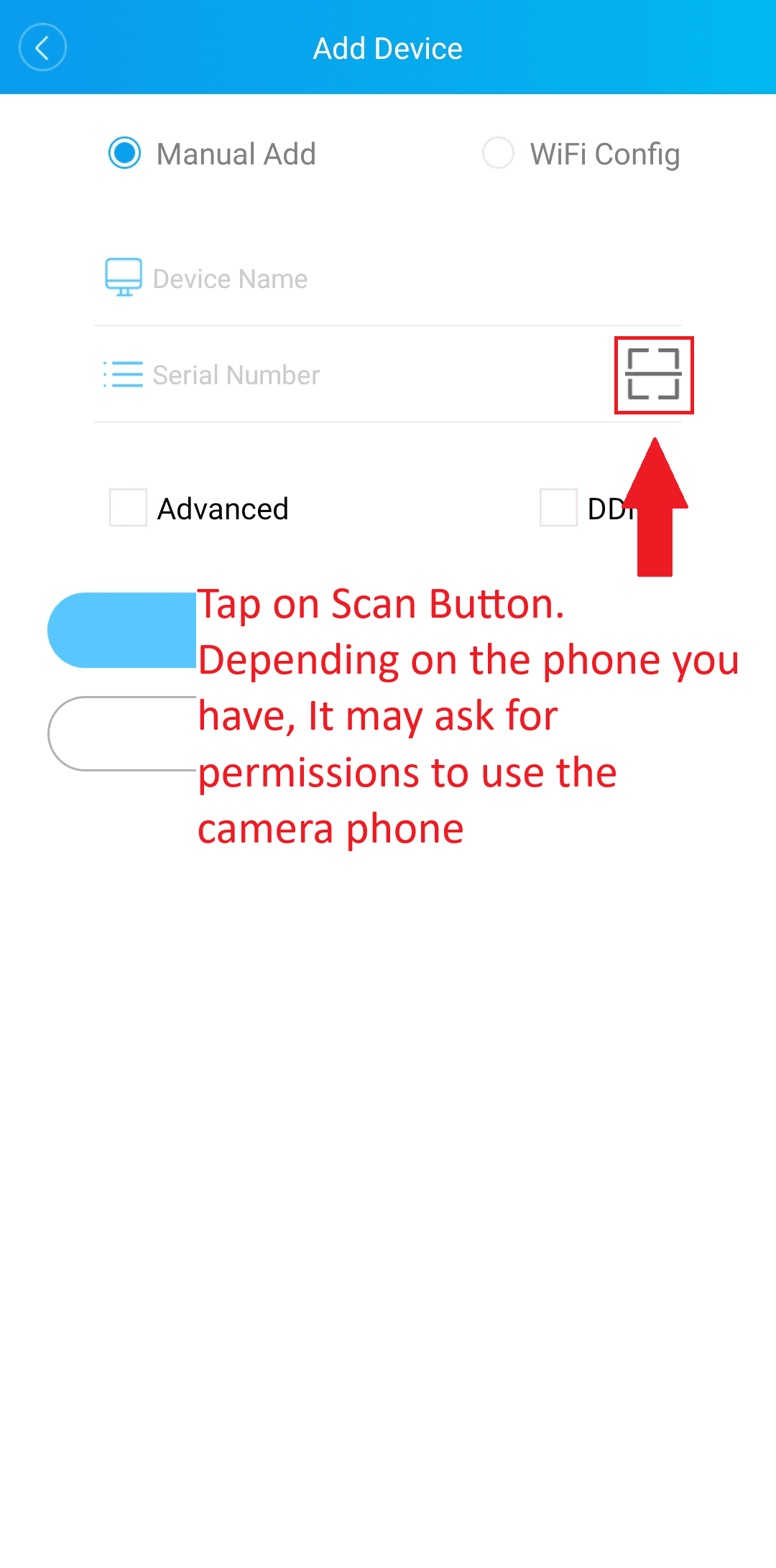
3. Add Device Screen
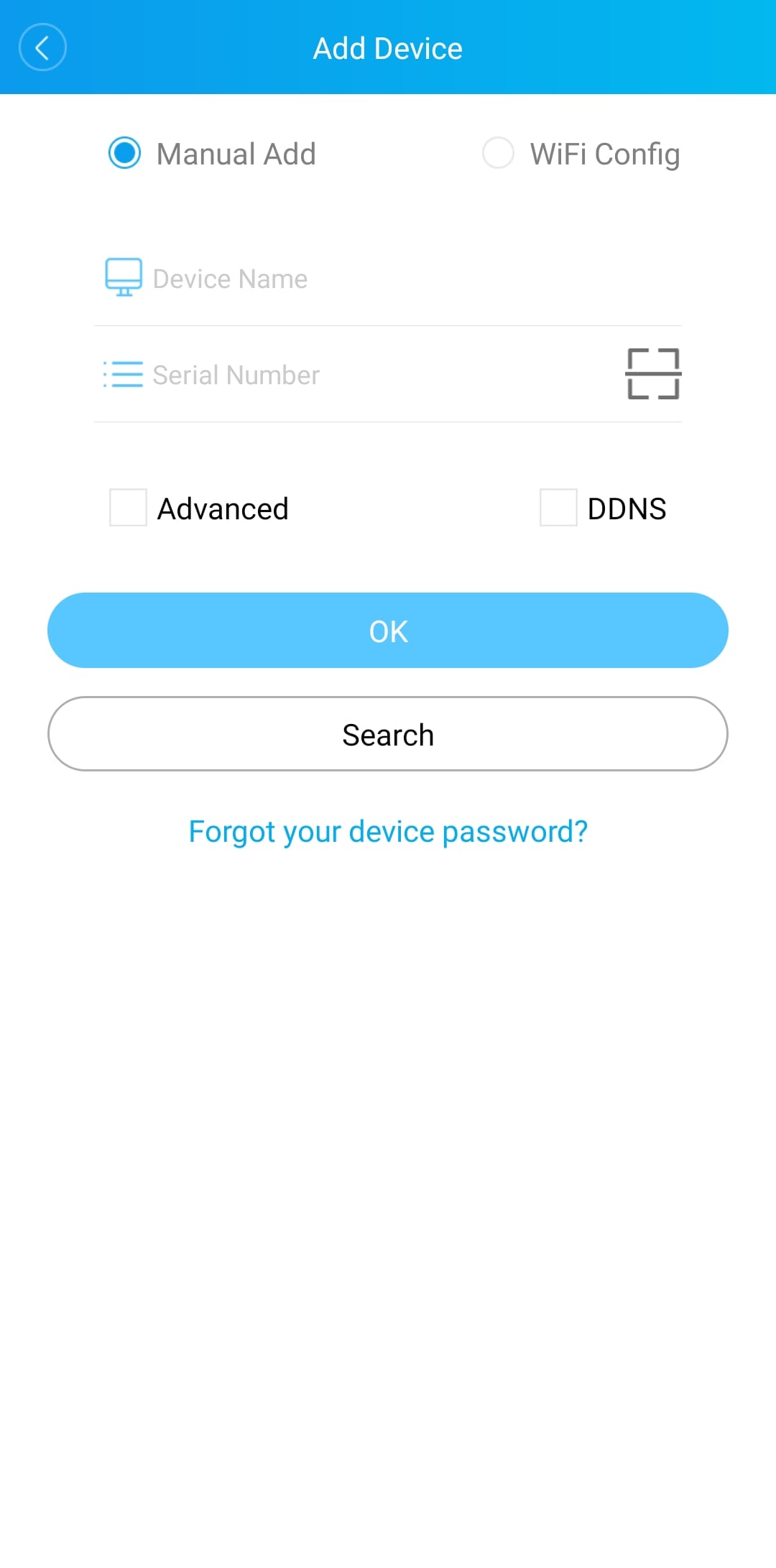
4. Tap on Scan Button
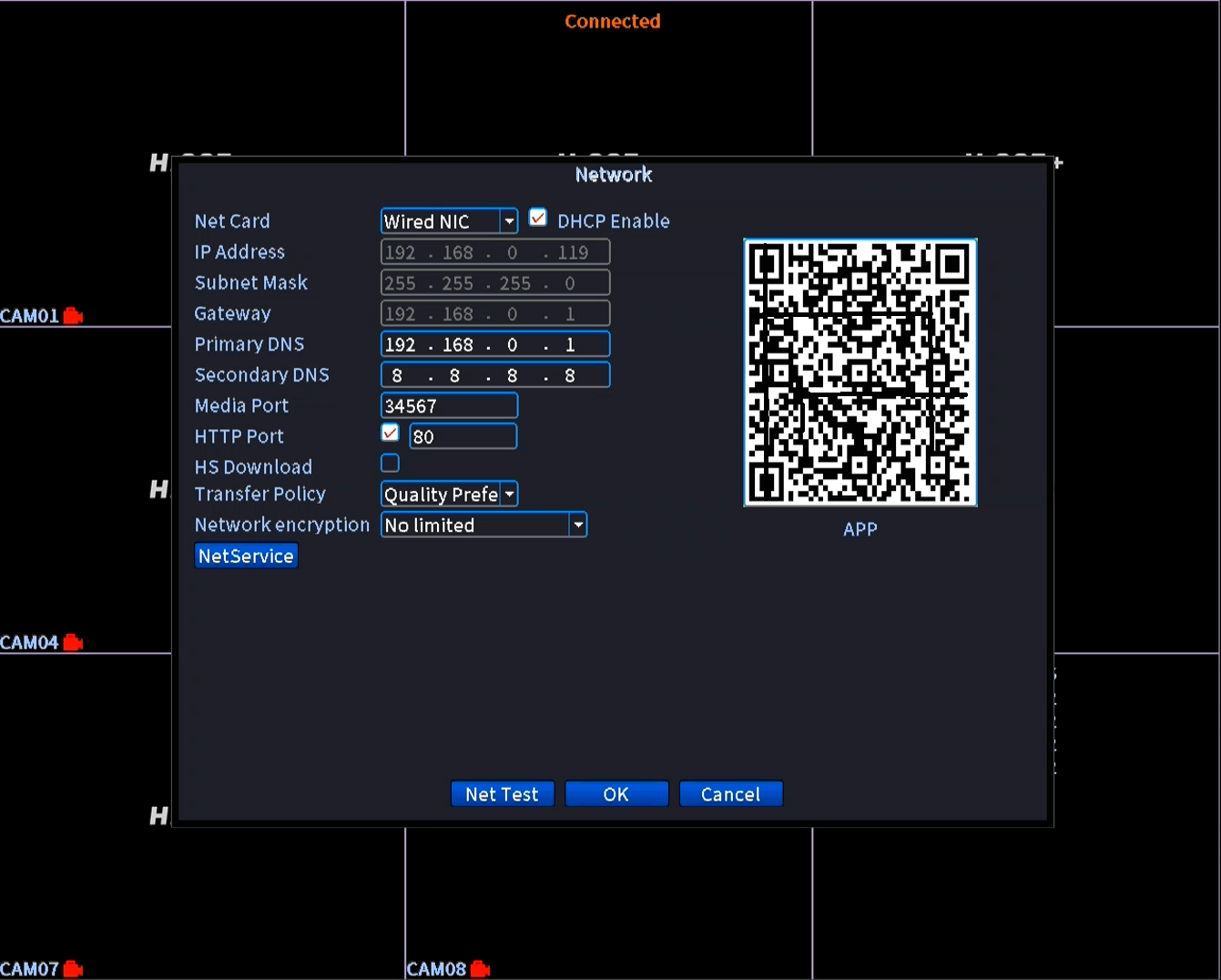
5. Locate the QR Code in Network Settings of DVR
- On the DVR go to Main Menu -> Network
6. Scan QR Code
- Point the Camera to the QR Code to scan and autofill the detals into the app.

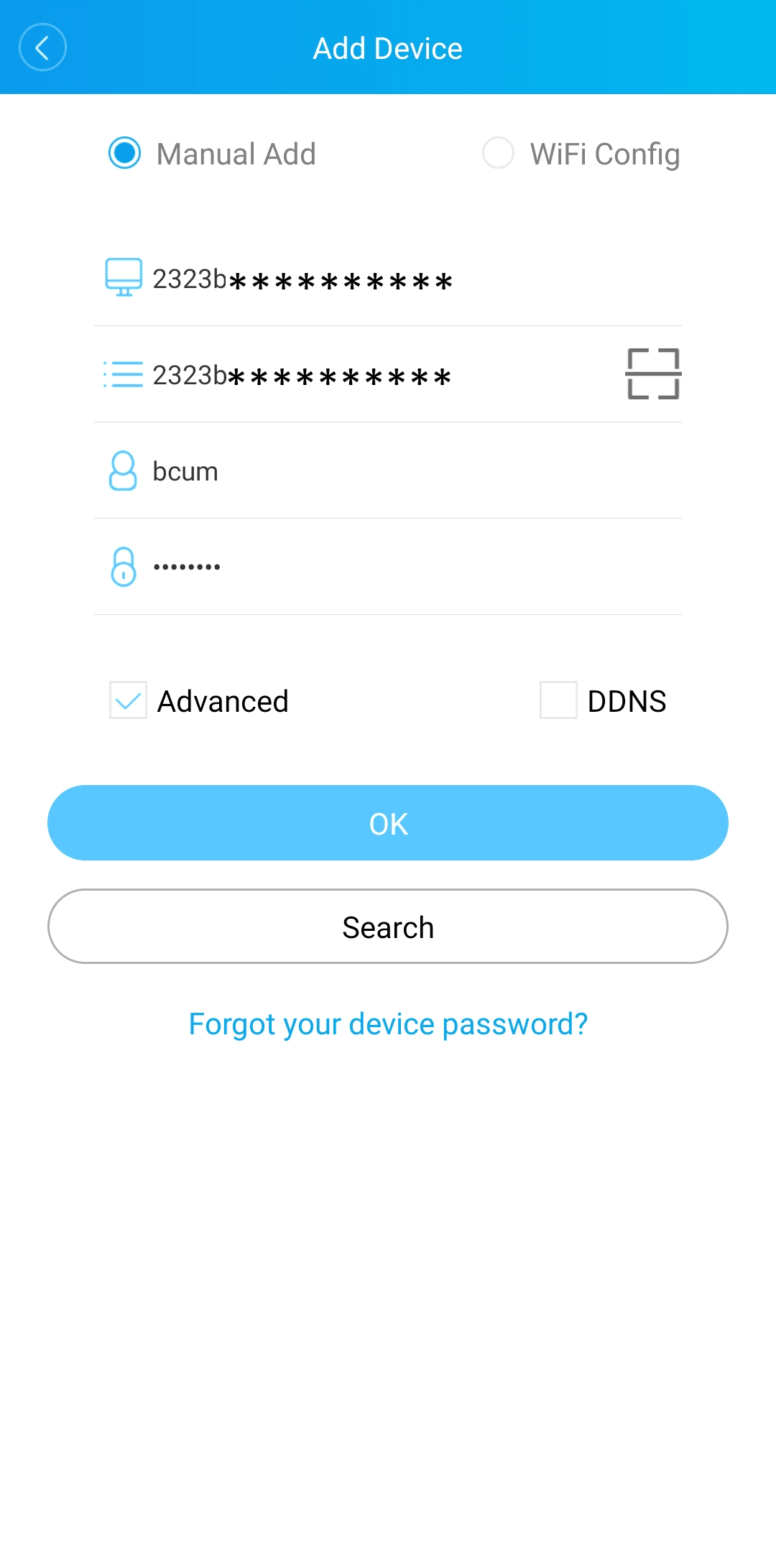
7. Device ID, Username and Password automatically filled in
- Once the Mobile camera has scanned the QR code, it will automatically fill in Device ID, Username and Password.
- Tap “OK“
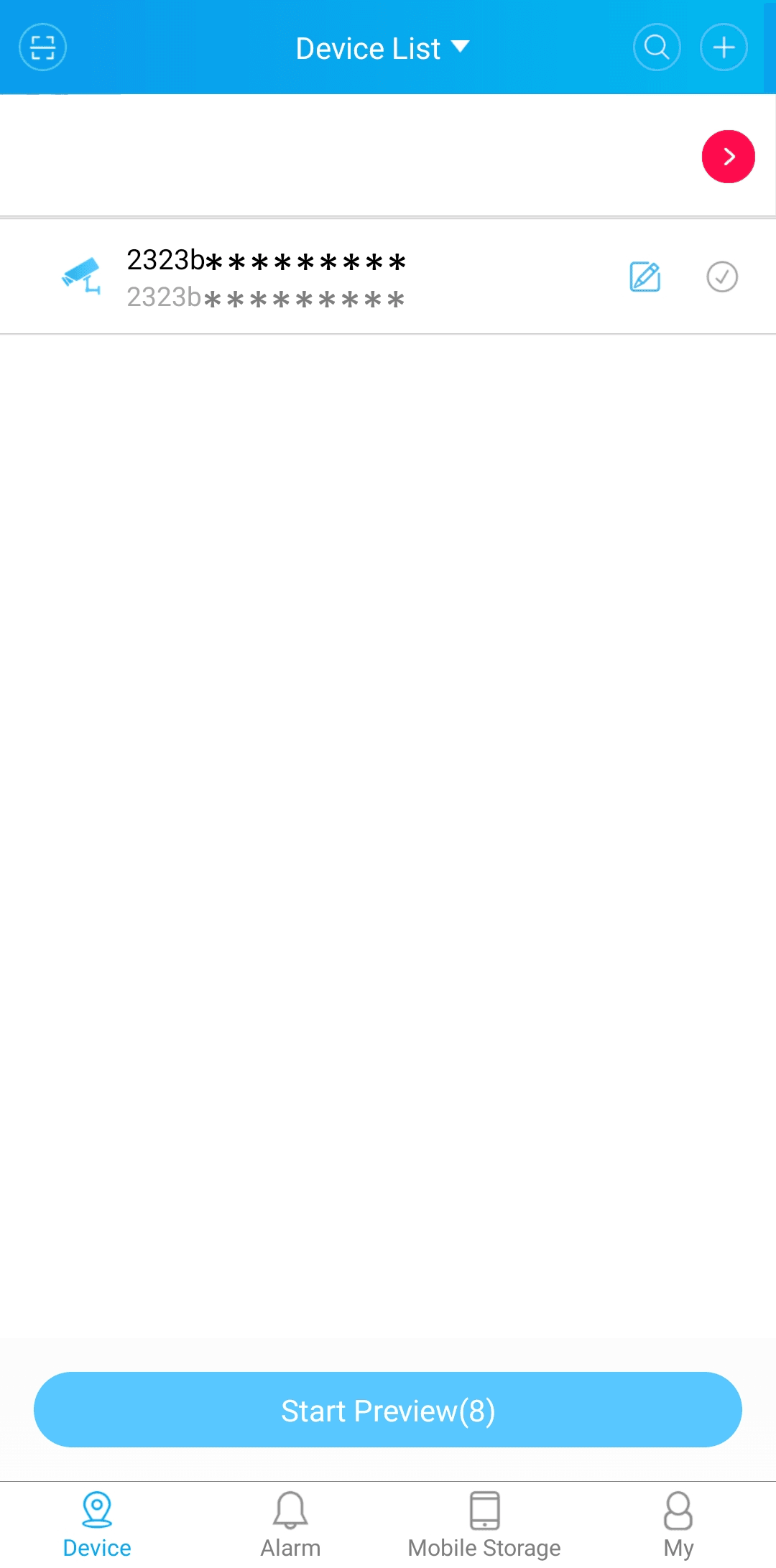
8. Device Added
- Device added to Device List screen
- Tap on the Device or
- Tap on “Start Preview” to start remote viewing
- Note – Some phones may be limited to playing a maximum of four cameras at a time.
9. Individual Camera playback
- You can Tap on the Device ID
- This will open a menu of Cameras available for remote viewing.
- You can tap an Individual camera to start remote viewing of just that camera.
