Use this as a Overview Guideline, Apps are continually being updated and app user interfaces might be updated and upgraded in the future.
1. Download xMeye App. Available on Android and IOS

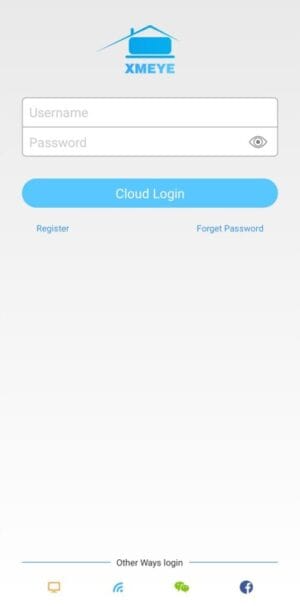
2. Main Screen
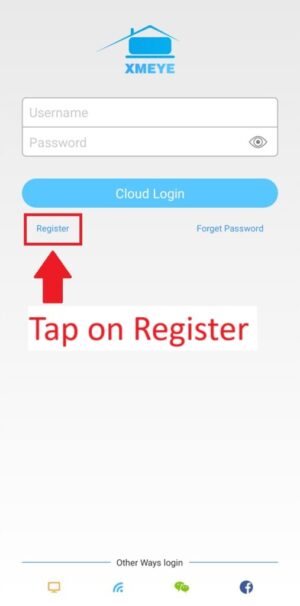
2. Tap on Register
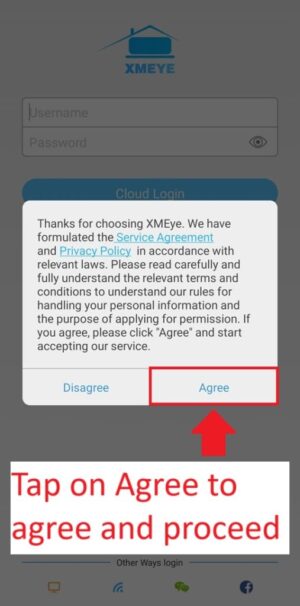
3. Tap on Agree to Agree to Terms and Conditions and proceed
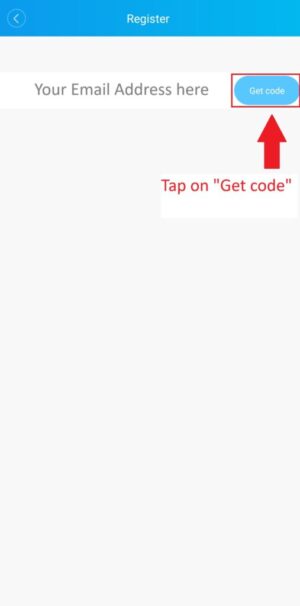
3. Enter your Email Address
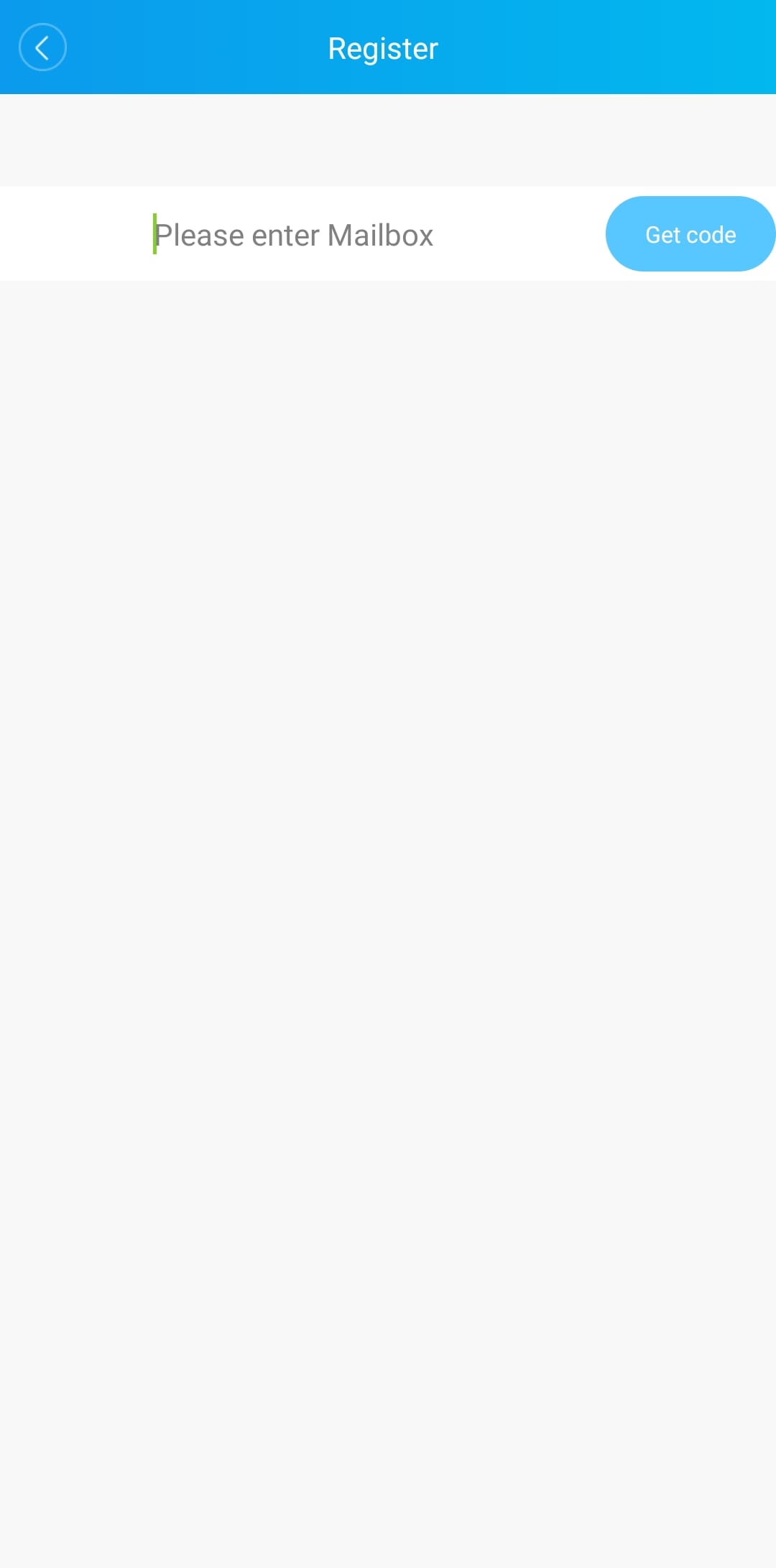
4. Once your email address is filled in, Tap on “Get Code”
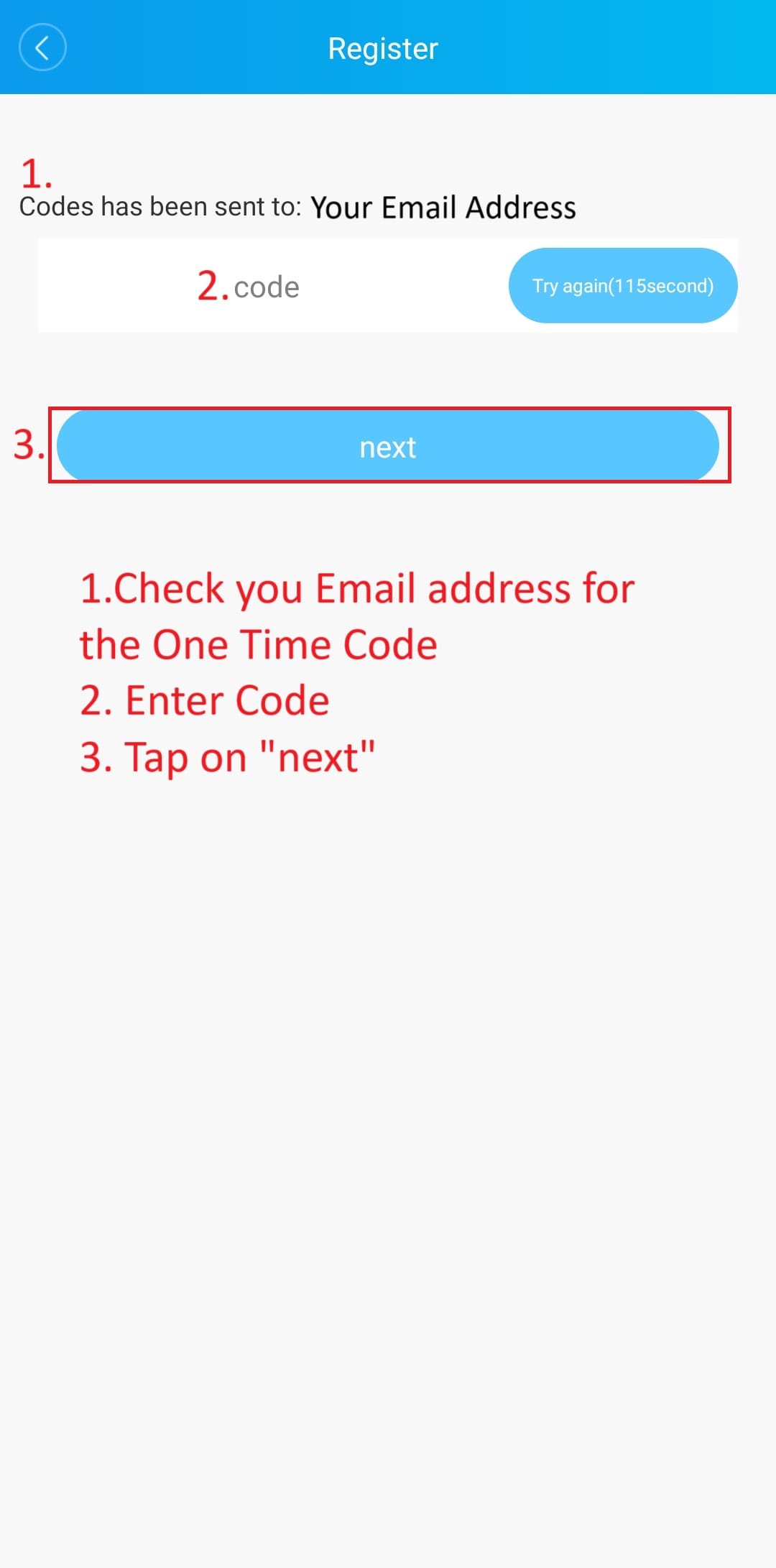
4. Check your Email for the One Time Code
- Enter Code
- Tap on “next”
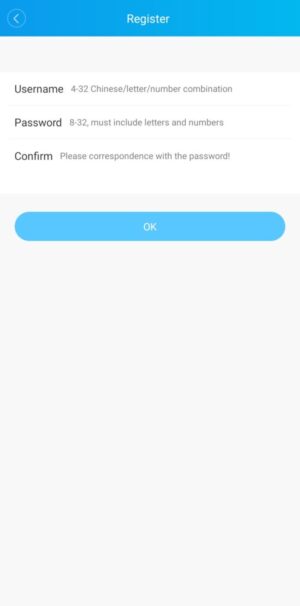
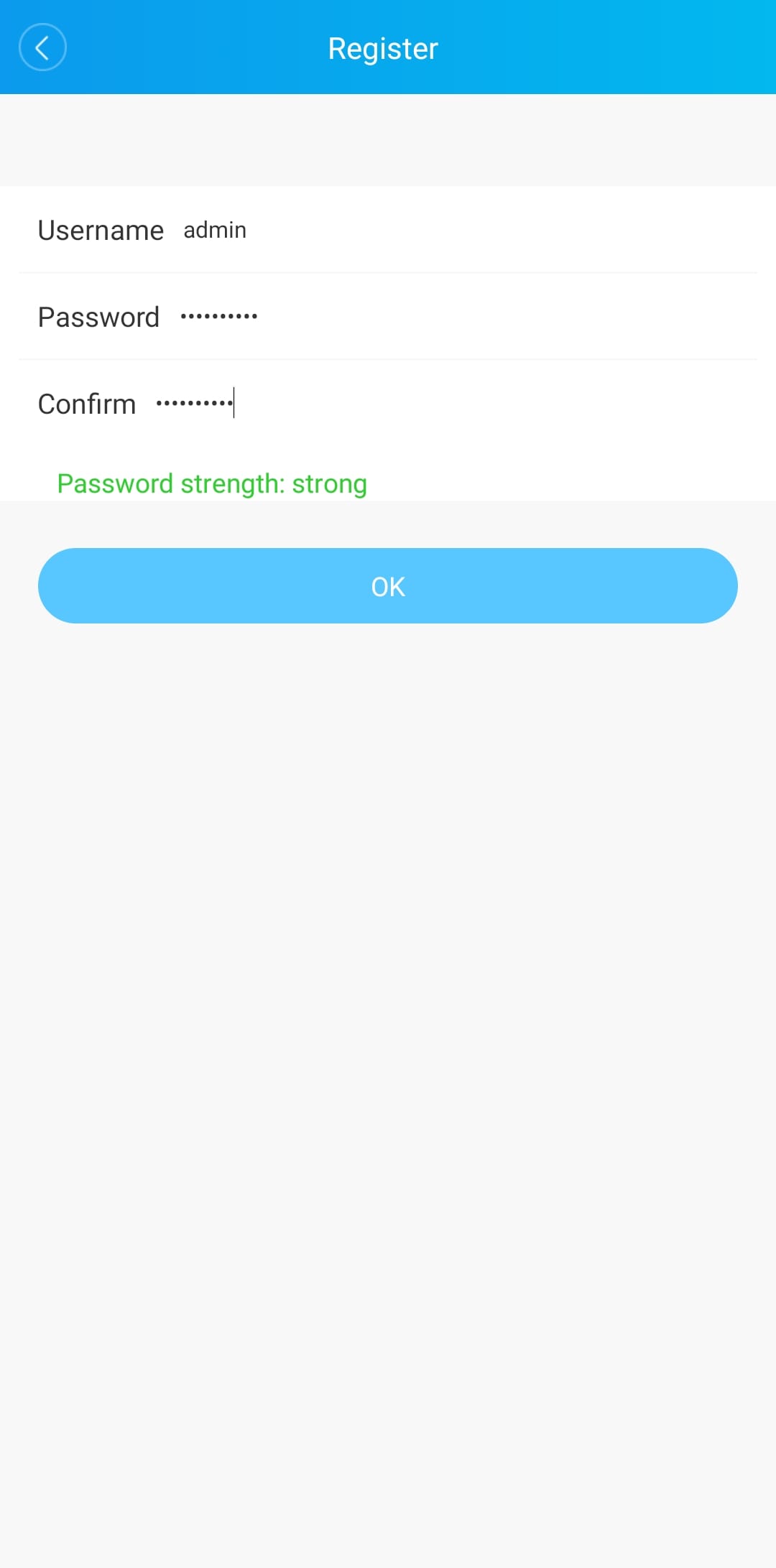
5. Create Username and Password
- Create a username e.g. admin
- Create a password, Password must use numbers and letters, Uppercase and lowercase and recommended to use special characters
- Confirm Password
- Tap OK
5. Username and Password entered correctly
- Once you have entered required username and pasword, You will receive a message “Password strength” strong”
- Tap “OK
5. Once Registered, Login
- Once you have registered, You will be returned to the Login Screen
- Enter username you just created
- Enter the password you just created
- Tap Login

6. Tap on + to add a Device
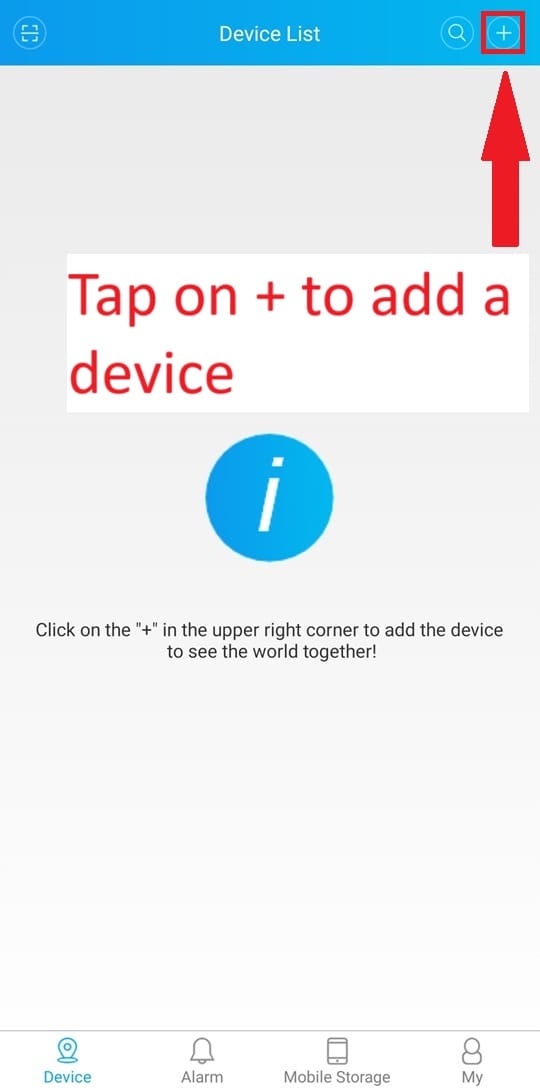
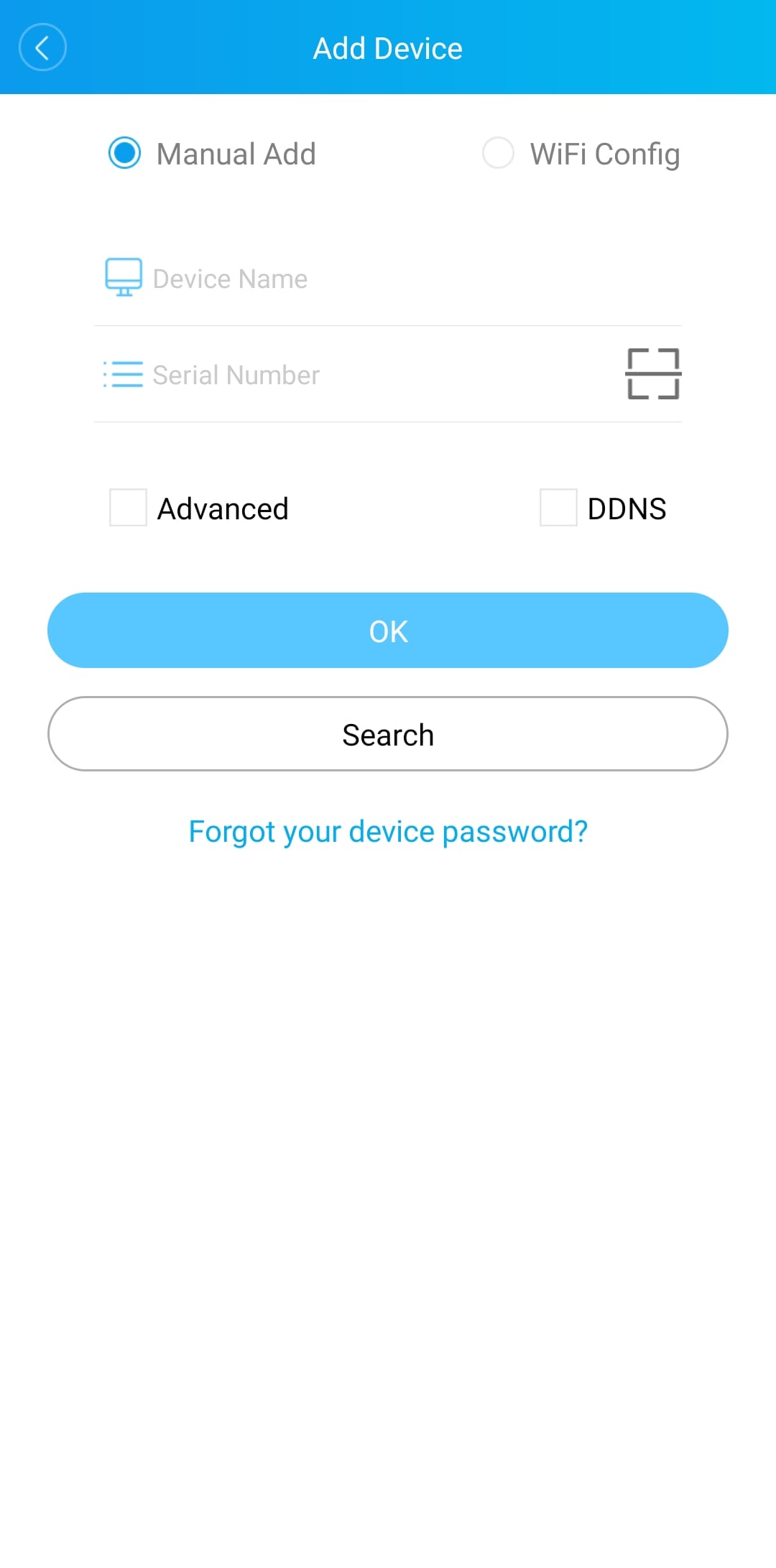
7. Add Device Screen