Skip to content

Eseecloud – Registration via Email Address

Video Tutorial

Use this as a Overview Guideline, Apps are continually being updated and app user interfaces might be updated and upgraded in the future.

1. Download Eseecloud App. Available on Android and IOS

Eseecloud-App-Icon

2. Main Screen

01

2. Main Screen

01

2. Click Register

01-1st-Screen

2. Click Register

01-1st-Screen

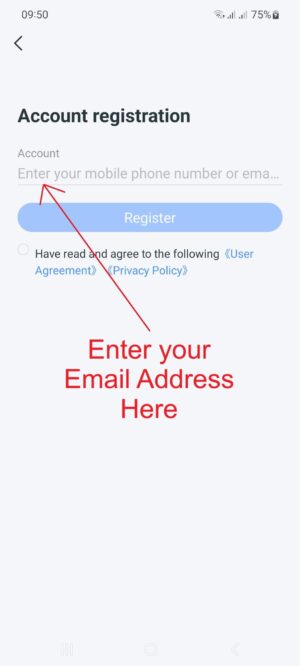
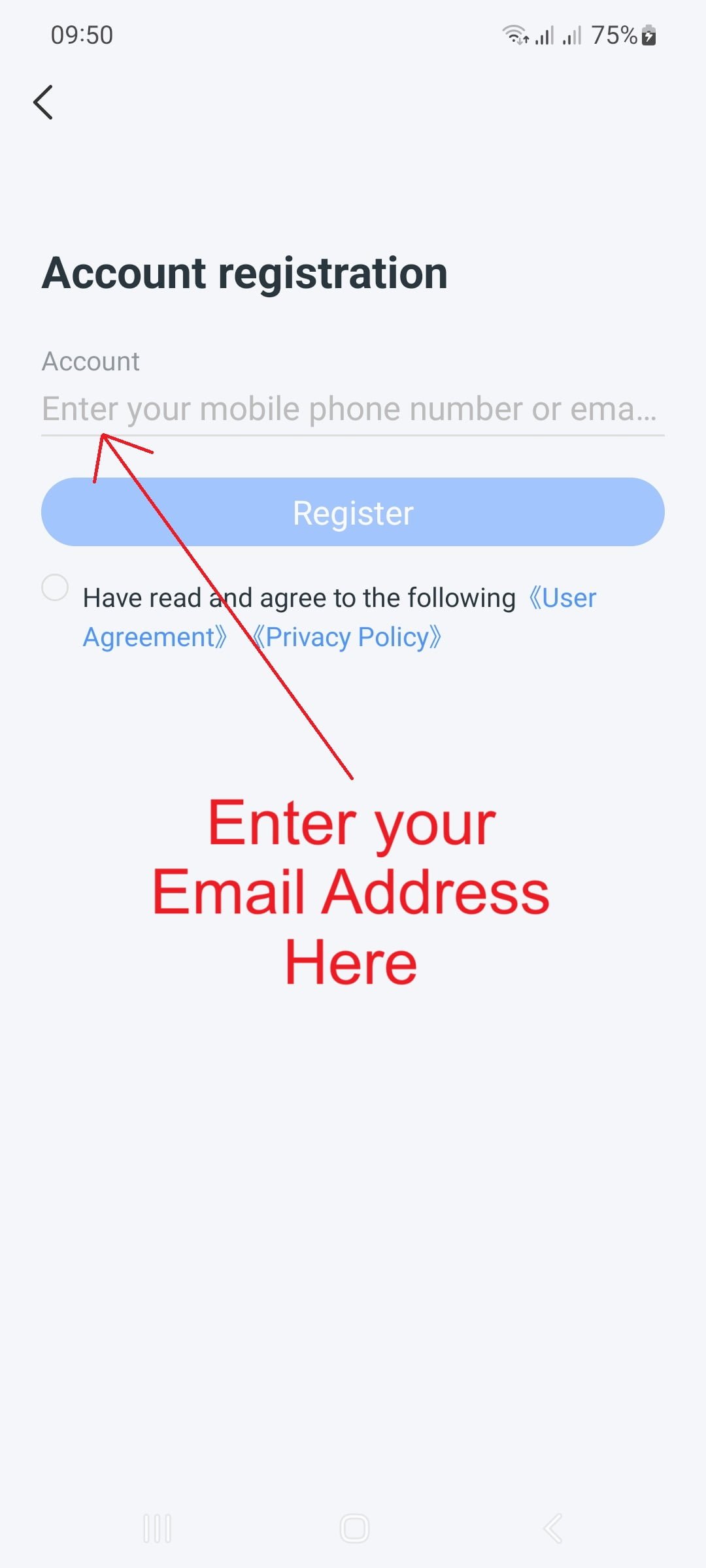
3. Enter your Email Address

02-Registration-Screen

3. Enter your Email Address

02-Registration-Screen

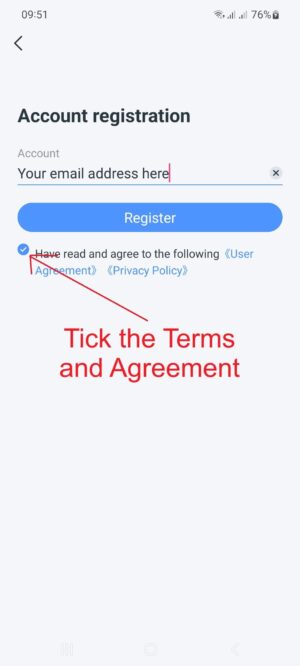
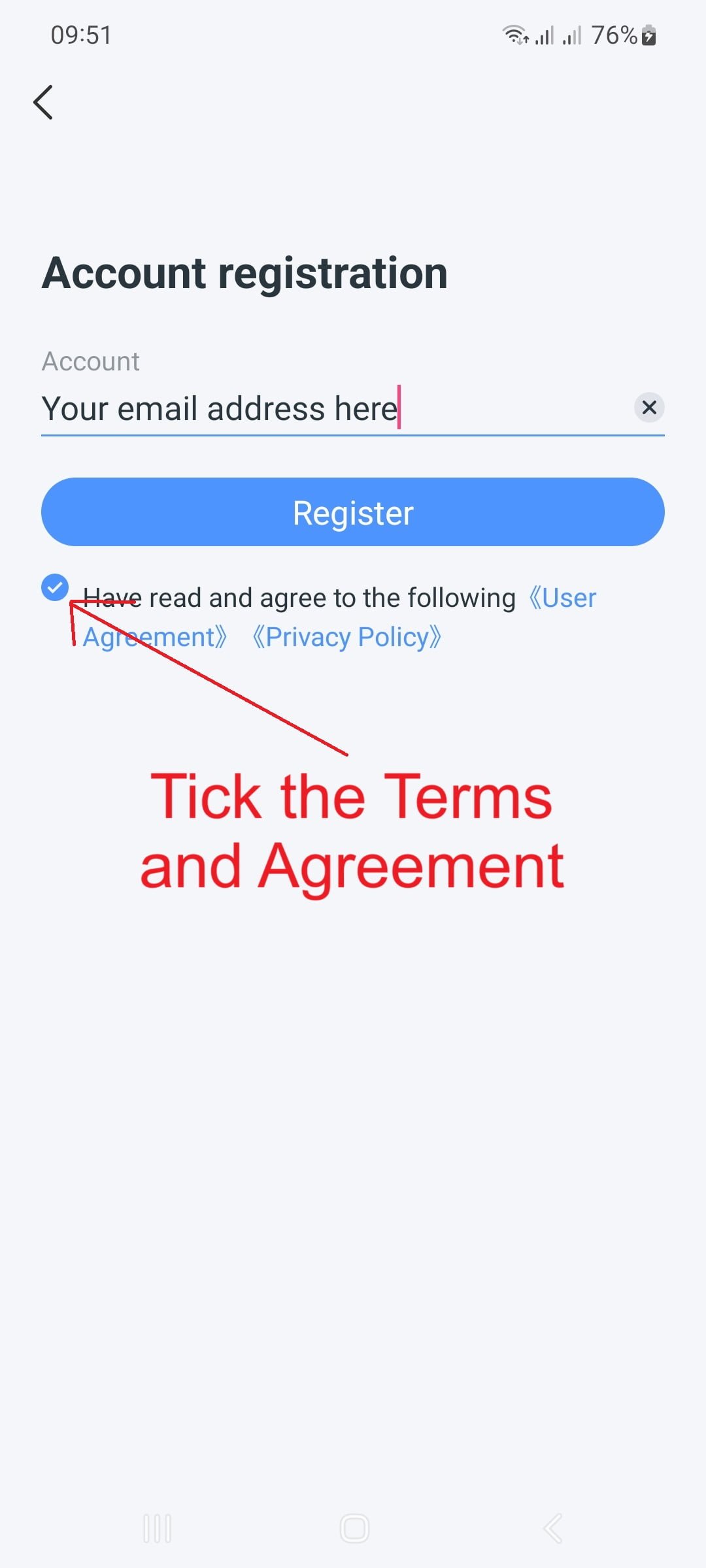
4. Tap Terms and Conditions

04-Select-the-Terms-and-Conditions-Button

4. Tap Terms and Conditions

04-Select-the-Terms-and-Conditions-Button

5. Tap Register

05-Click-Register-Button

5. Tap Register

05-Click-Register-Button

6. Verification Check

06-Drag-the-Tennis-Ball-through-the-Red-Dot-and-then-to-the-Tennis-Racket

6. Verification Check

06-Drag-the-Tennis-Ball-through-the-Red-Dot-and-then-to-the-Tennis-Racket

7. Example of One Time Password sent to Email address.

07-Email-Example-with-OTP

7. Example of One Time Password sent to Email address.

07-Email-Example-with-OTP

8. Enter One Time Password found in your email address

08-Enter-One-Time-password-Enter-Password

8. Enter One Time Password found in your email address

08-Enter-One-Time-password-Enter-Password

8. Enter your password twice. Password requirements – Minimum 6 characters, Mix of characters and numbers

Eseecloud-Set-Password

8. Enter your password twice. Password requirements – Minimum 6 characters, Mix of characters and numbers

Eseecloud-Set-Password

9. Once one time password and password entered, Tap Confirm

Eseecloud-Tap-Confirm

9. Once one time password and password entered, Tap Confirm

Eseecloud-Tap-Confirm

10. Once you have reached this screen you have successfully registered.

Eseecloud-Succesfully-Registered

10. Once you have reached this screen you have successfully registered.

Eseecloud-Succesfully-Registered
error: Content is Copyrighted