Proceed with caution!
- If you increase the resolution on the NVR to a setting higher than what your TV supports, you may experience a blank screen.
- Ensure your TV can support the selected resolution before making changes.
- Default Resolution of the NVR Output is 1024×768
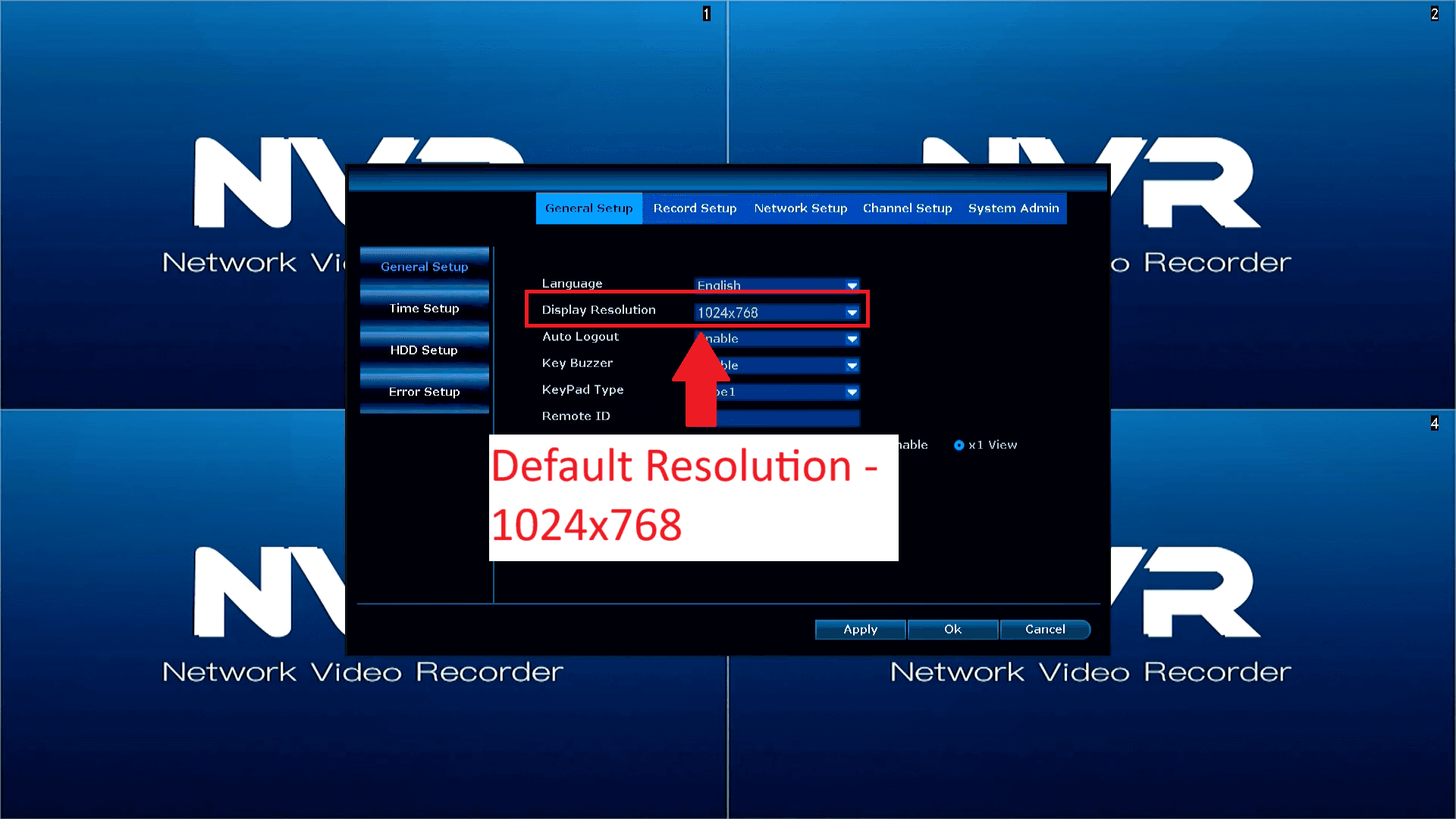
How to Change the Resolution on Your NVR
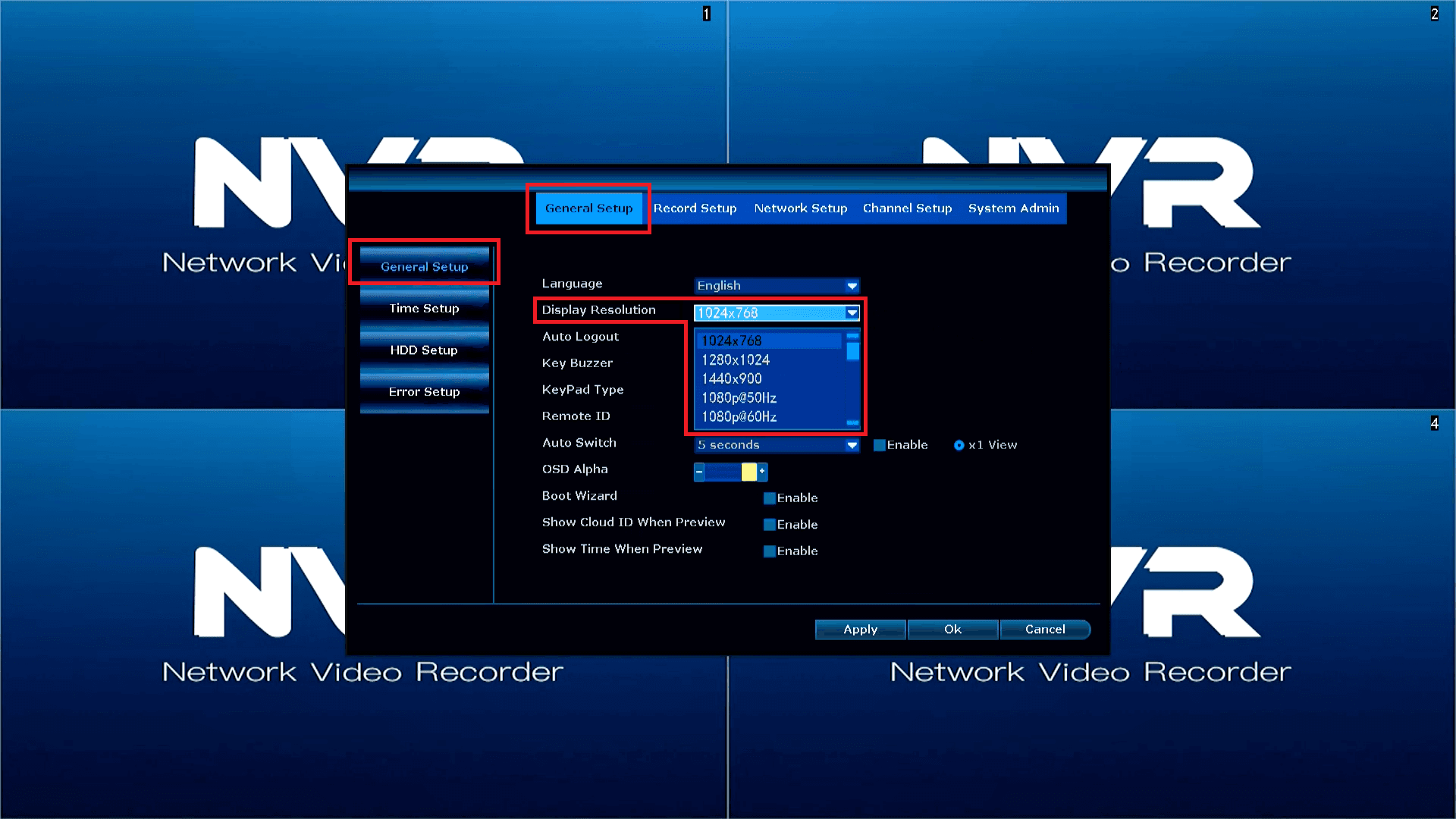
- Open the Menu and navigate to the General Tab.
- Select General Setup.
- Left-click on Display Resolution.
- A drop-down box will appear with available resolution options.
- Left-click on the desired resolution to select it.
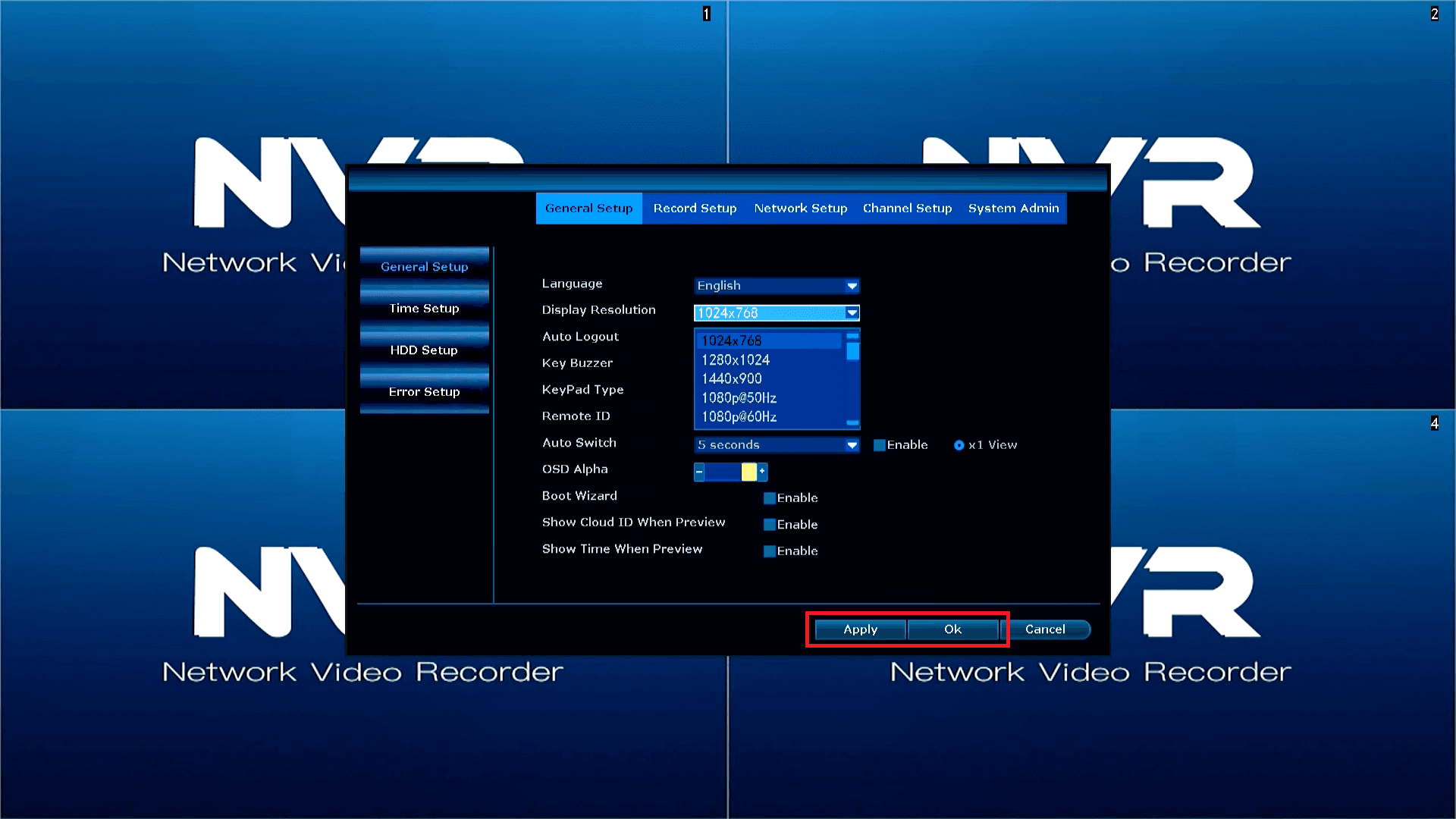
Click Apply, Click Ok
- Click Apply
- Click Ok
- NVR will reboot with new resolution
How to Fix No NVR Image After Selecting a High Resolution
- If you’ve selected a high resolution on your NVR and there is no image after rebooting, the issue may be due to your TV not supporting the higher resolution.
- To resolve this, connect your NVR to a TV with a higher resolution that supports the selected setting.
- Once connected, lower the NVR resolution to match the resolution supported by your original TV.
- Reboot the NVR again to apply the new resolution setting.
