
Default Recording Schedule
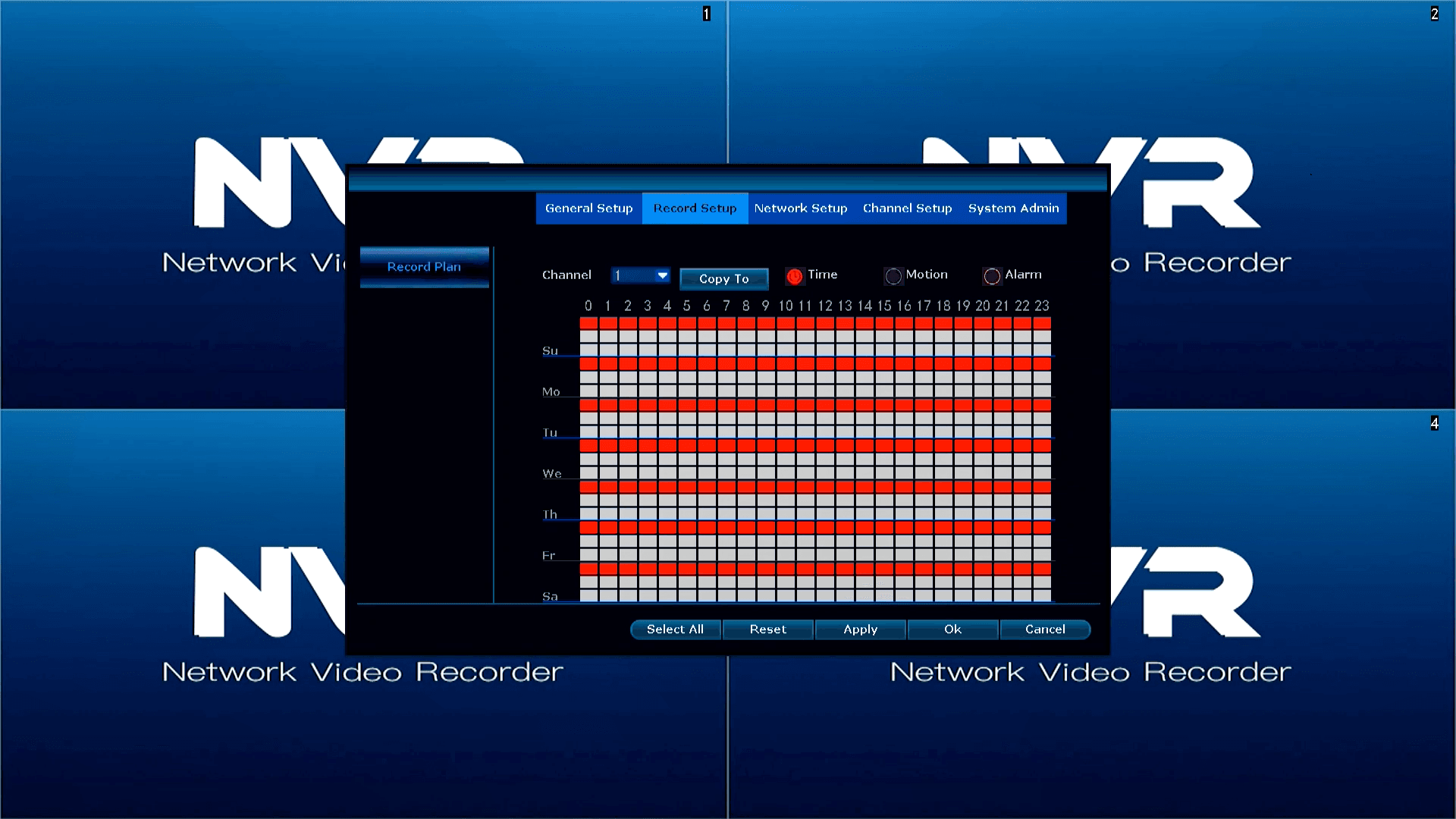
- Out of the Box the NVR is set to record daily, 24 Hours.
- Continuous Recording is represented by a Red Block
Recording Blocks Overview
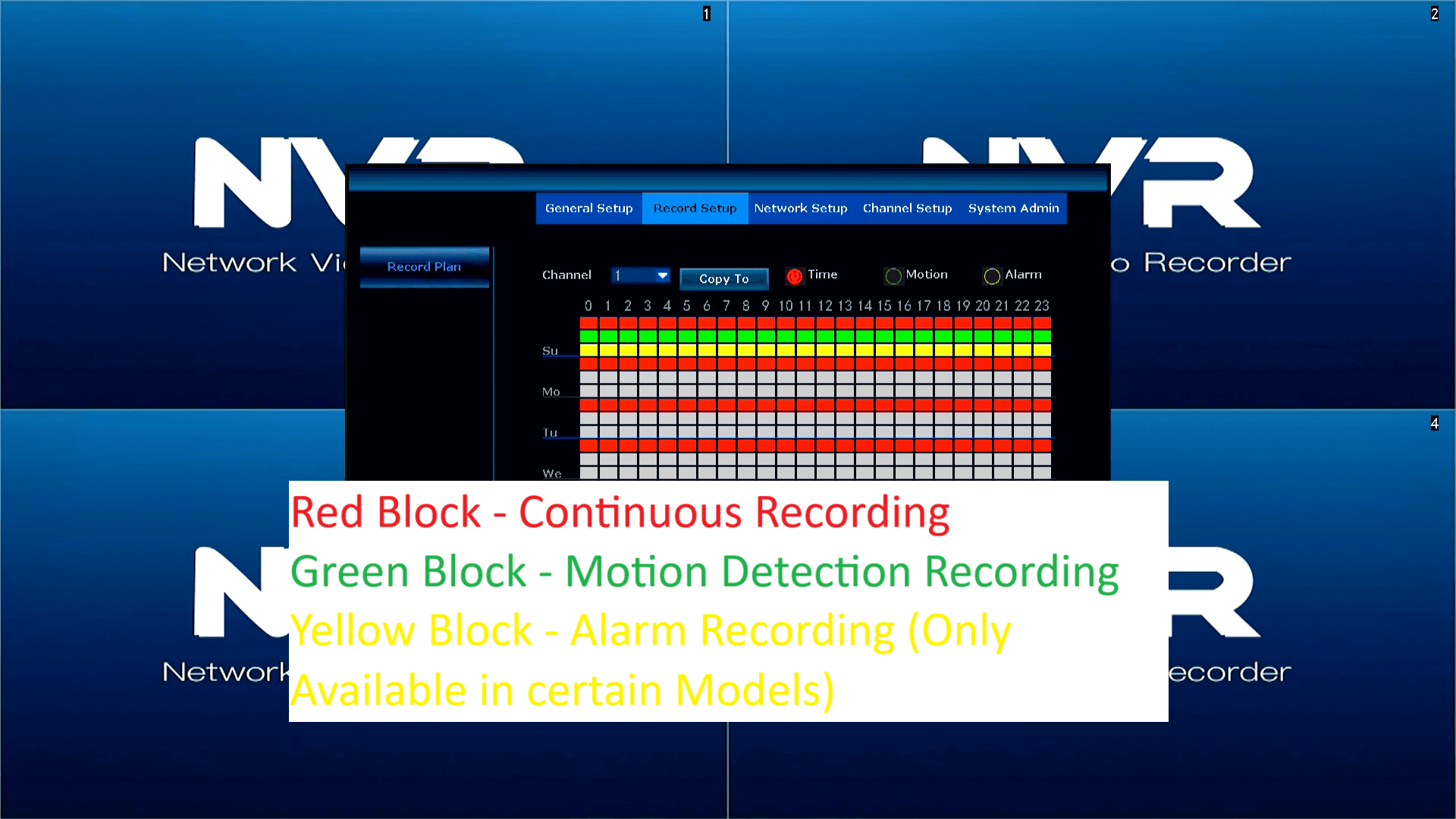
The NVR allows you to configure different recording types for each hour of the day. The table has 23 columns and 3 rows, where each column corresponds to one hour of the day (0-23). You can set different types of recordings for each hour and mix them as needed.
-
Columns (0-23): Each column represents one hour of the day. Column 0 is midnight (12:00 AM), column 1 is 1:00 AM, and so on until column 23, which is 11:00 PM.
-
Rows:
- Row 1: Continuous recording
- Red Block: Indicates that continuous recording is enabled for that hour.
- Row 2: Motion Detection recording
- Green Block: Indicates that motion detection recording is enabled for that hour.
- Row 3: Alarm recording
- Yellow Block: Indicates that alarm recording is enabled for that hour.
- Row 1: Continuous recording
You can mix and match these recording types for each hour. For example, you could set continuous recording from 8:00 AM to 12:00 PM, motion detection from 12:00 PM to 4:00 PM, and alarm recording from 4:00 PM to 8:00 PM.
Reset Button
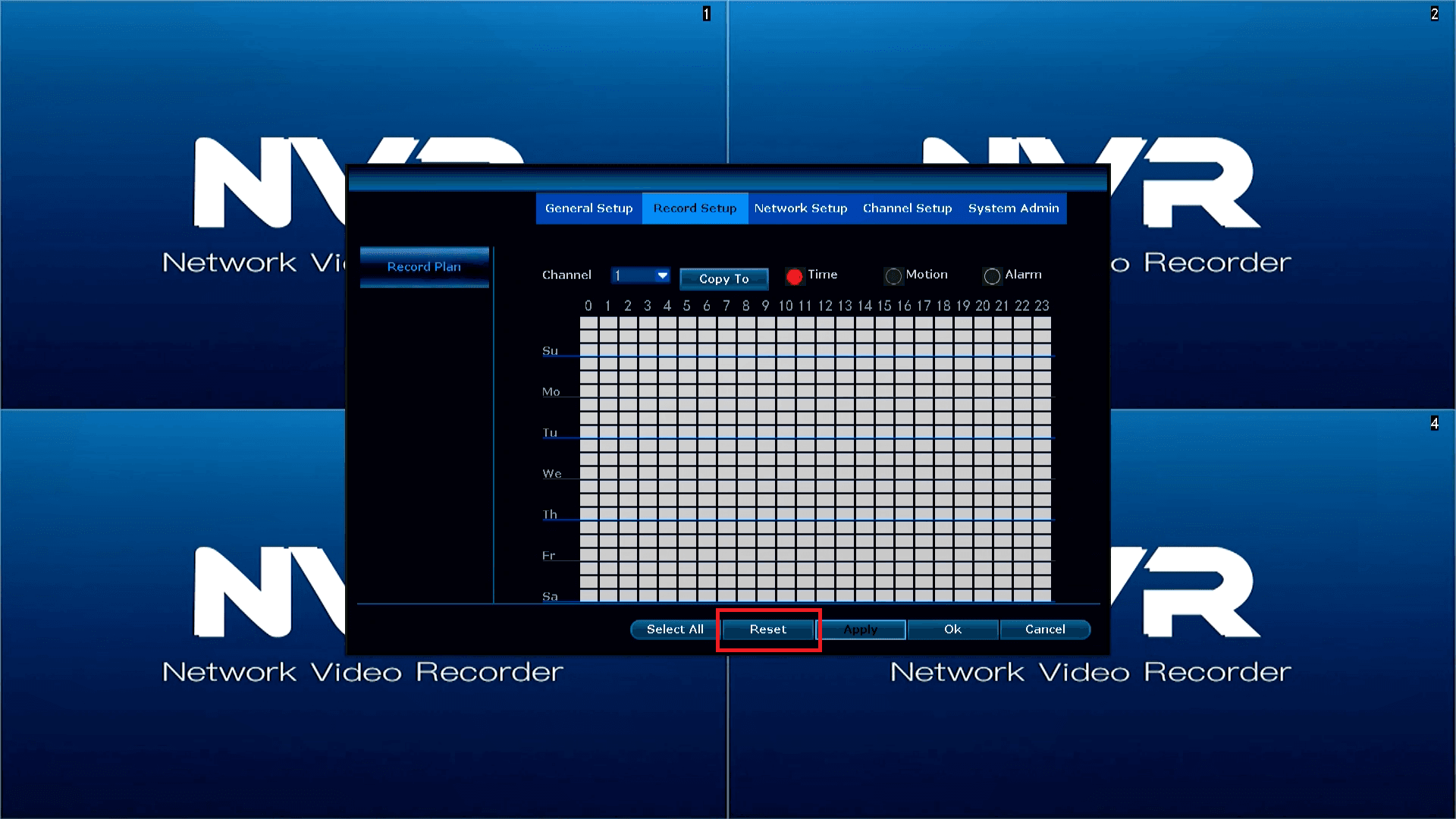
- If you have made incorrect changes, you can use the Reset Button to clear all the blocks.
Select All Button
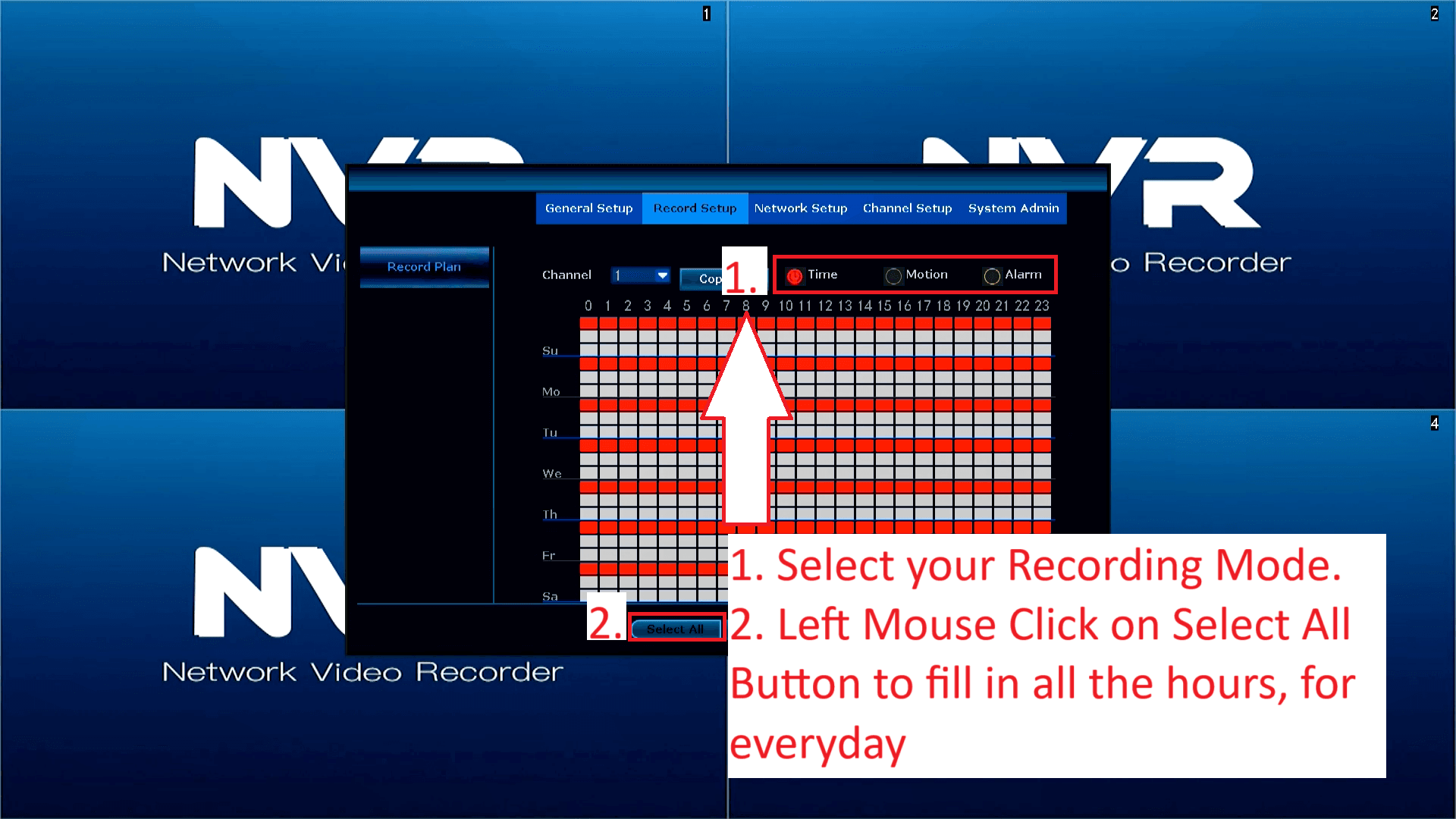
- You can fill in all the Blocks using the Select All Button.
- Select your Recording Mode e.g.
- Time
- Motion
- Alarm (available on certain models)
- Left Mouse Click on Select All Button to fill in all the hours for everyday.
Demo – Setting Motion Detection Schedule to Record between
17:00 and 00:00 for Sunday for Camera 1,
and between,
00:00 and 07:00 for Monday for Camera 1
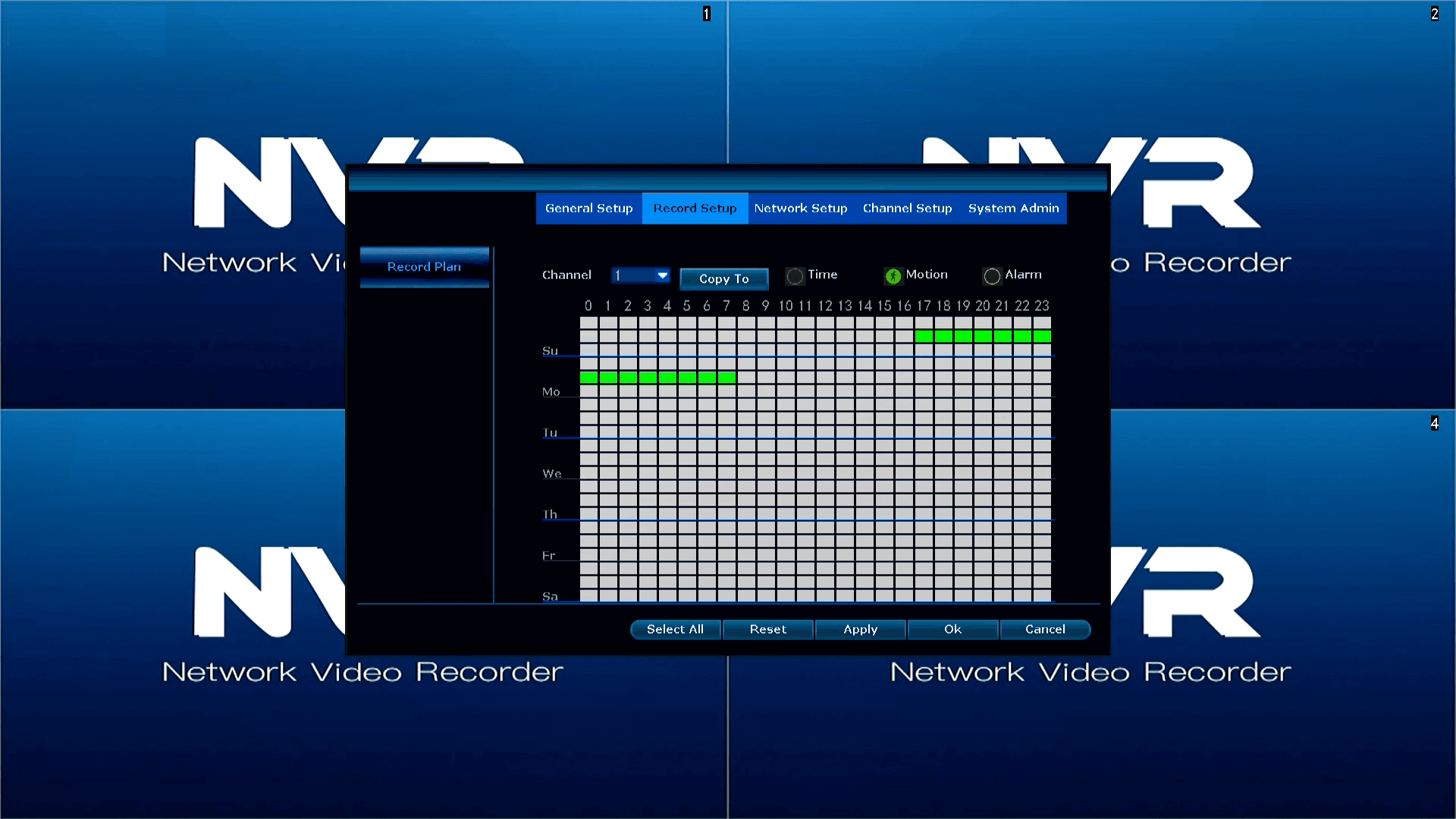
By the end of this Demo your Motion Detection Recording Schedule should look like this image.
Remove all Blocks
- Left Mouse Click on Reset to remove all blocks
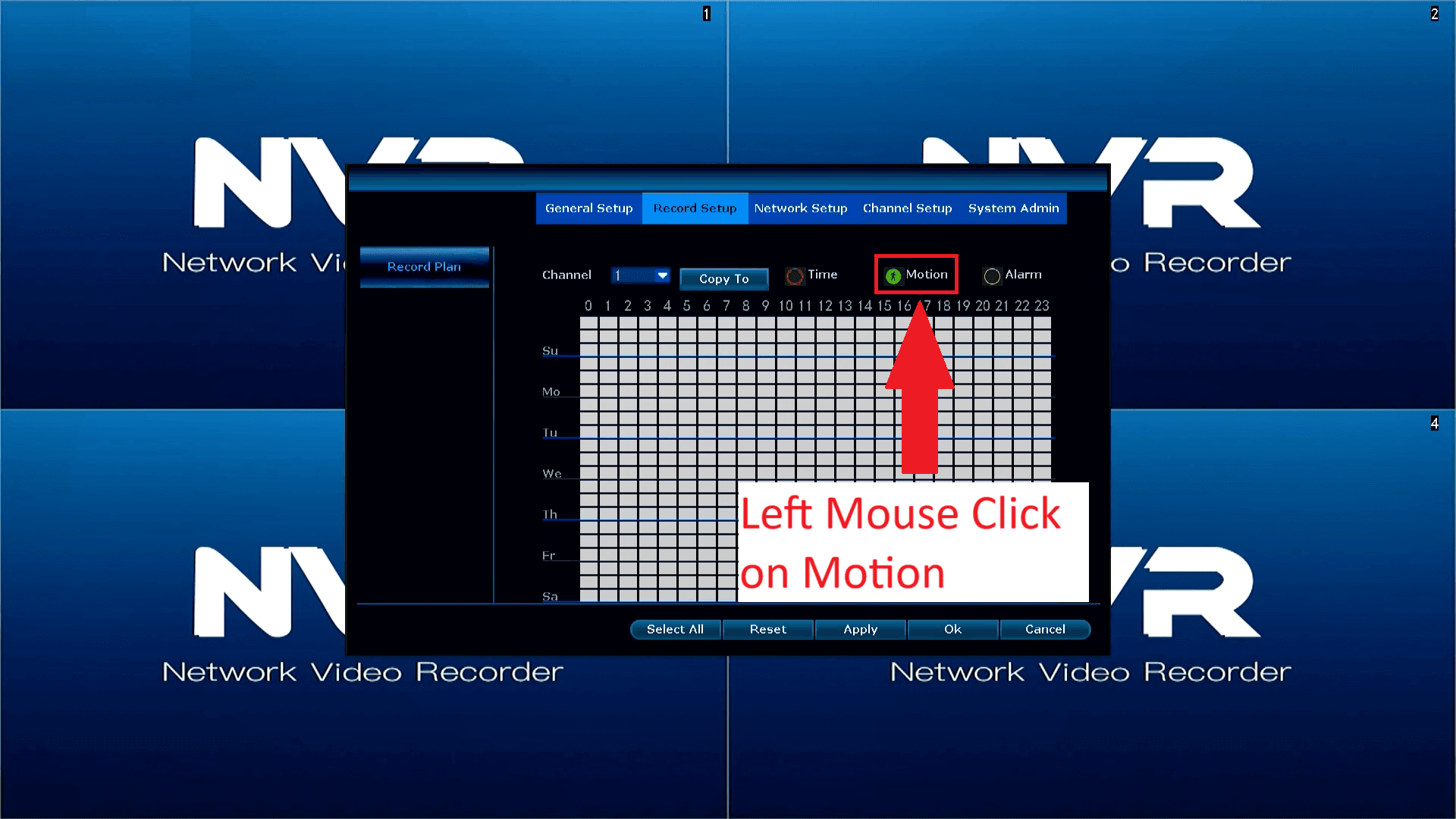
Select Motion Detection Recording Mode
- Left Mouse Click on Motion
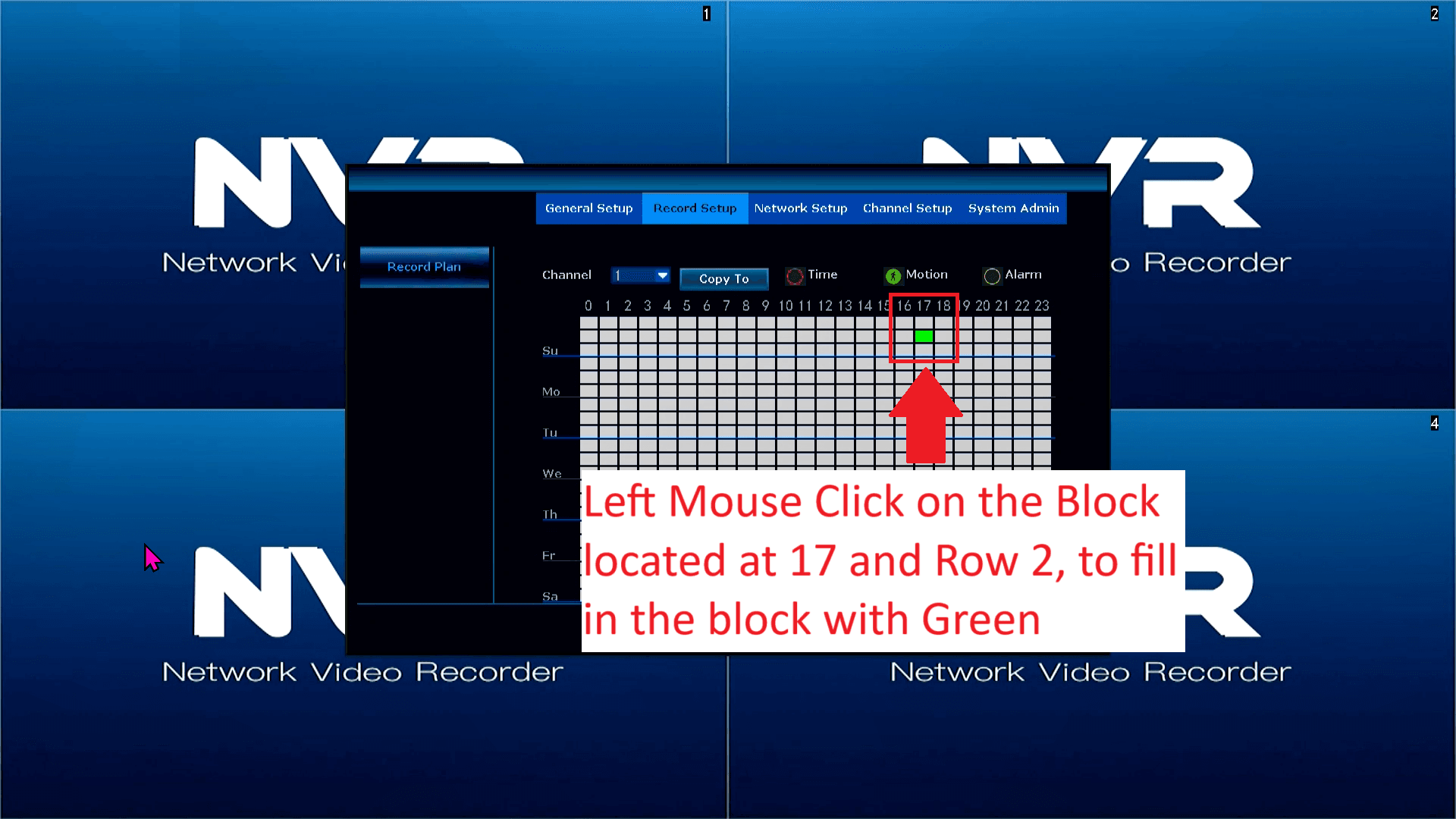
Select the hours between 17:00 and 00:00 for Sunday for Camera 1
- Left Mouse Click on the block located at 17:00 on Row 2.
- The block should now be filled in Green, indicating that the NVR will record between 17:00 and 18:00 on Sunday for Camera 1.
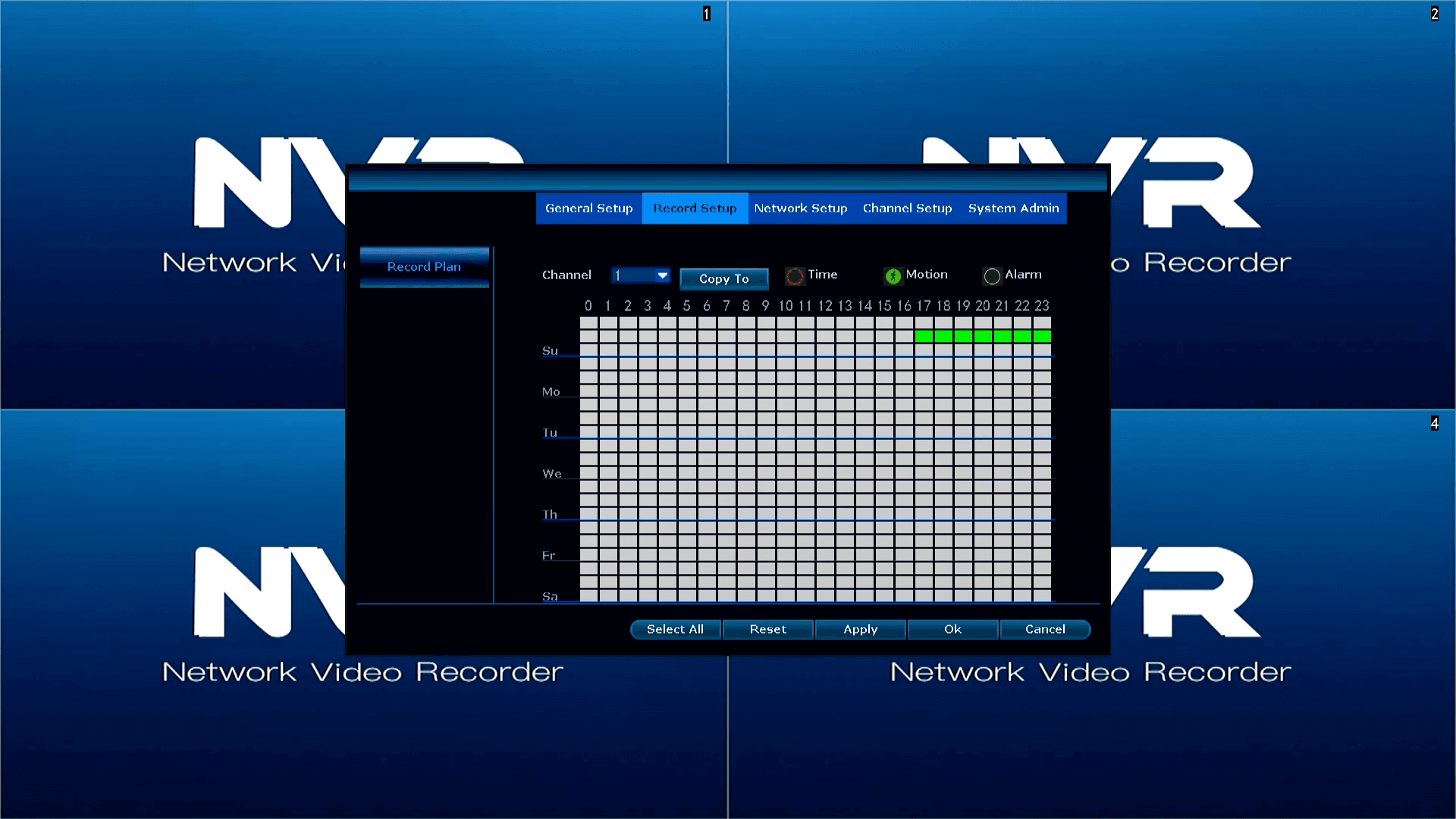
Fill in the blocks for the remaining hours i.e. 18:00 – 00:00
- Left Mouse Click on each block – 18, 19, 20, 21, 22, 23
- Your motion detection schedule should look like the following image
Fill in blocks for Monday 00:00 – 01:00
- Left Mouse Click on 0 on 2nd Row for Monday

Fill in the blocks for the remaining hours i.e. 01:00 – 07:00
- Left Mouse Click on each block – 1, 2, 3, 4, 5, 6
- Your motion detection schedule should look like the following image

Copy Motion Detection Recording Schedule to other cameras
- Left Mouse Click on Copy To

Tick Cameras you want to apply the same recording schedule to
- Left Mouse Click on All, if you want to copy the schedule to all other cameras, Or,
- Select individual cameras you want to apply the schedule to
- Left Mouse Click on OK

Save your Recording Schedule
- Left Mouse Click on Apply
- Left Mouse Click on Ok

Customize your Recording Schedule
- Using the same process above, Customize the Day and Time Recording to your own requirements.
- We recommend keeping it on the Default Recording schedule i.e. Continuous Recording everyday, 24 hours, as well as adding on a Motion Detection schedule.
Final Tips for Setting Up Your NVR Recording Schedule
-
Verify Your Recordings with Playback:
After setting up your recording schedule, always double-check by playing back recorded footage. This ensures that your NVR is capturing video according to your schedule. -
Ensure Correct Date and Time Settings:
It’s crucial to make sure that the date and time on your NVR are accurately set. Incorrect time settings can lead to missed recordings or incorrect timestamps on your footage. -
Maintain Your NVR’s Battery:
If your NVR has an onboard battery, be sure to replace it regularly. A depleted battery can cause issues with timekeeping and recording schedules. -
Enable Internet Time Synchronization (If Available):
If your NVR supports it, enable Internet Time Sync to automatically update the system’s time. This helps ensure precise recording times and prevents errors related to manual time settings.
By following these simple tips, you can optimize your NVR’s performance and ensure your recordings are always accurate and reliable.