Important!!! Ensure you have set your Time Zone, Date and Time before Formatting.
- You can go to this page for setting up your Time Zone, Date and Time – Setting up Date and Time on NVR – Model D8204-3/PE3020
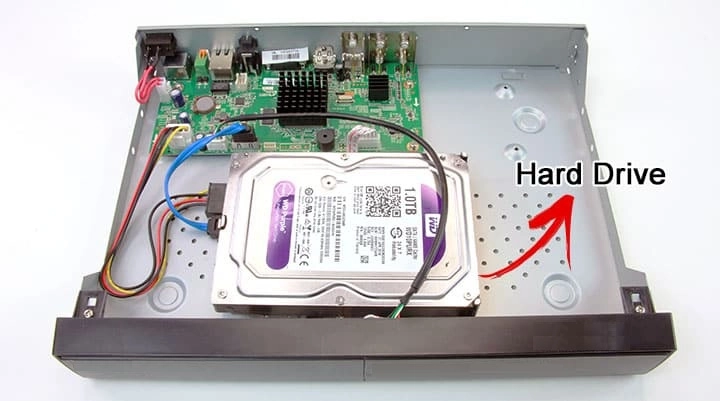
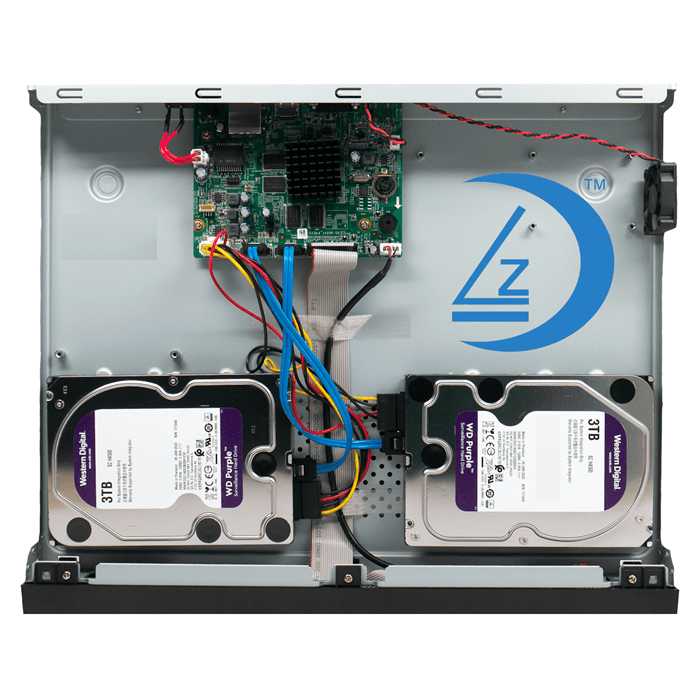
- Ensure you have installed a Hard Drive
- If you have setup your Date and Time, Continue on to the next step
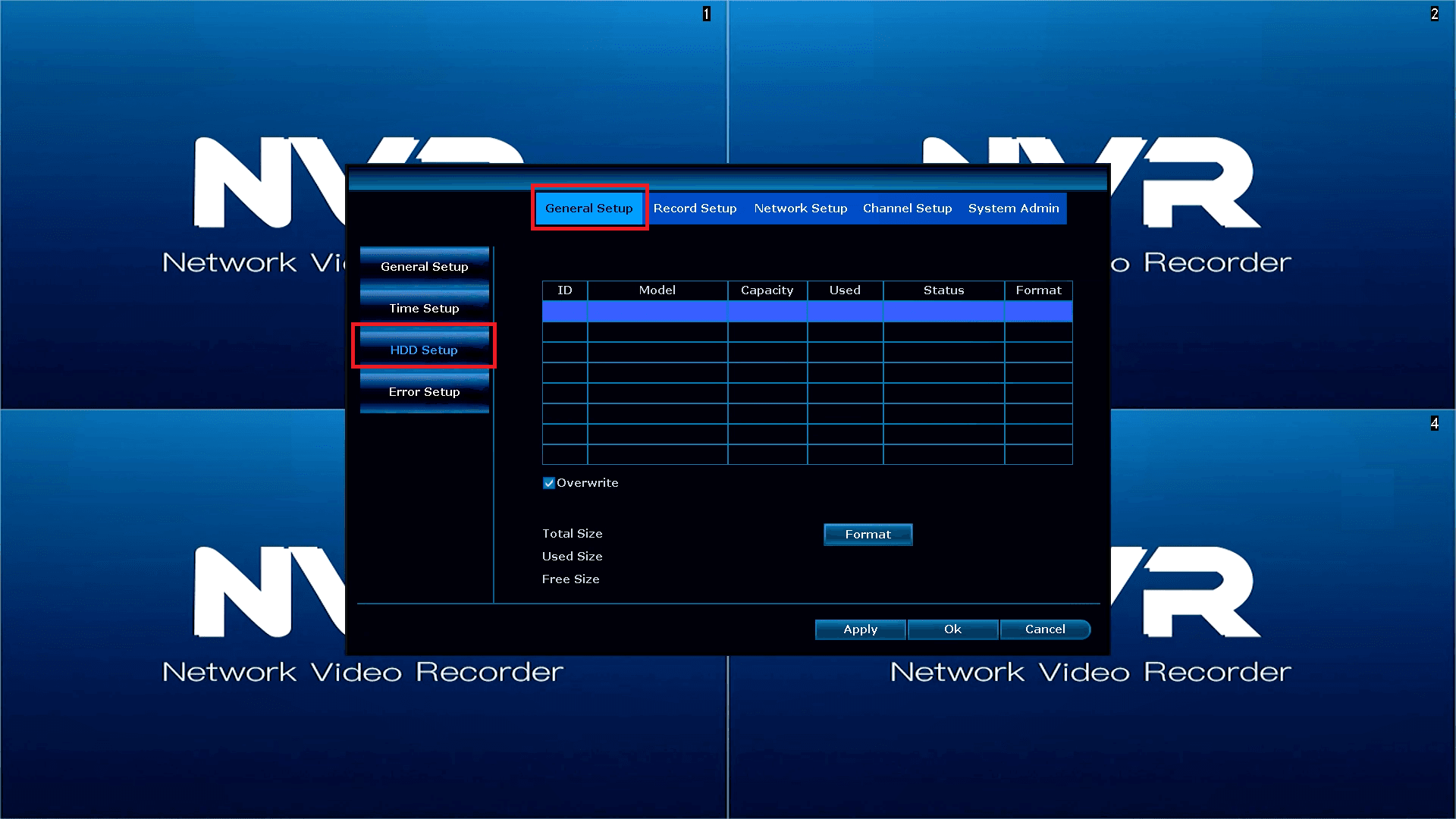
HDD Setup Menu Item
- Ensure you are on the General Setup Tab
- Left Mouse Click On HDD Setup Menu item
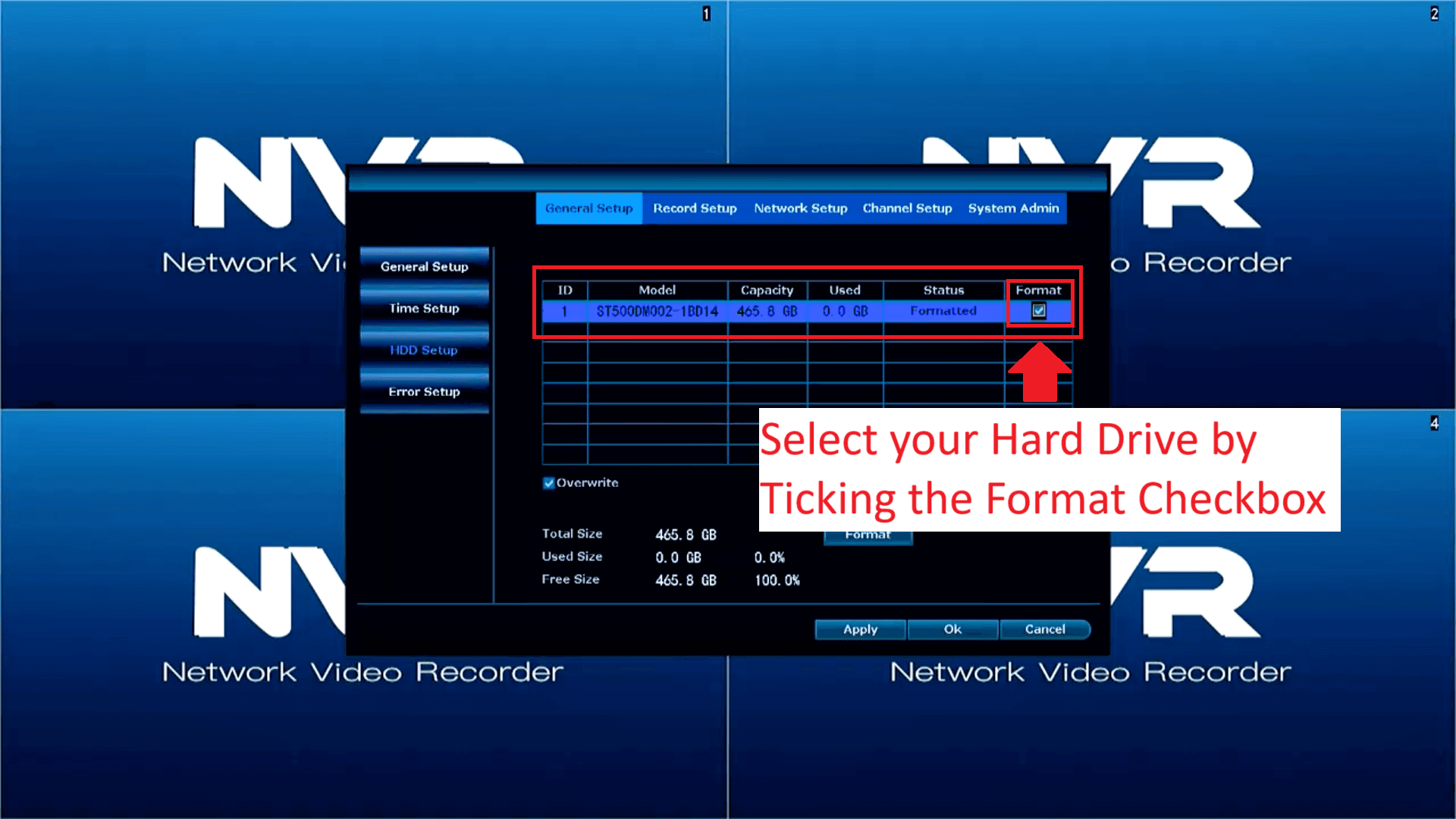
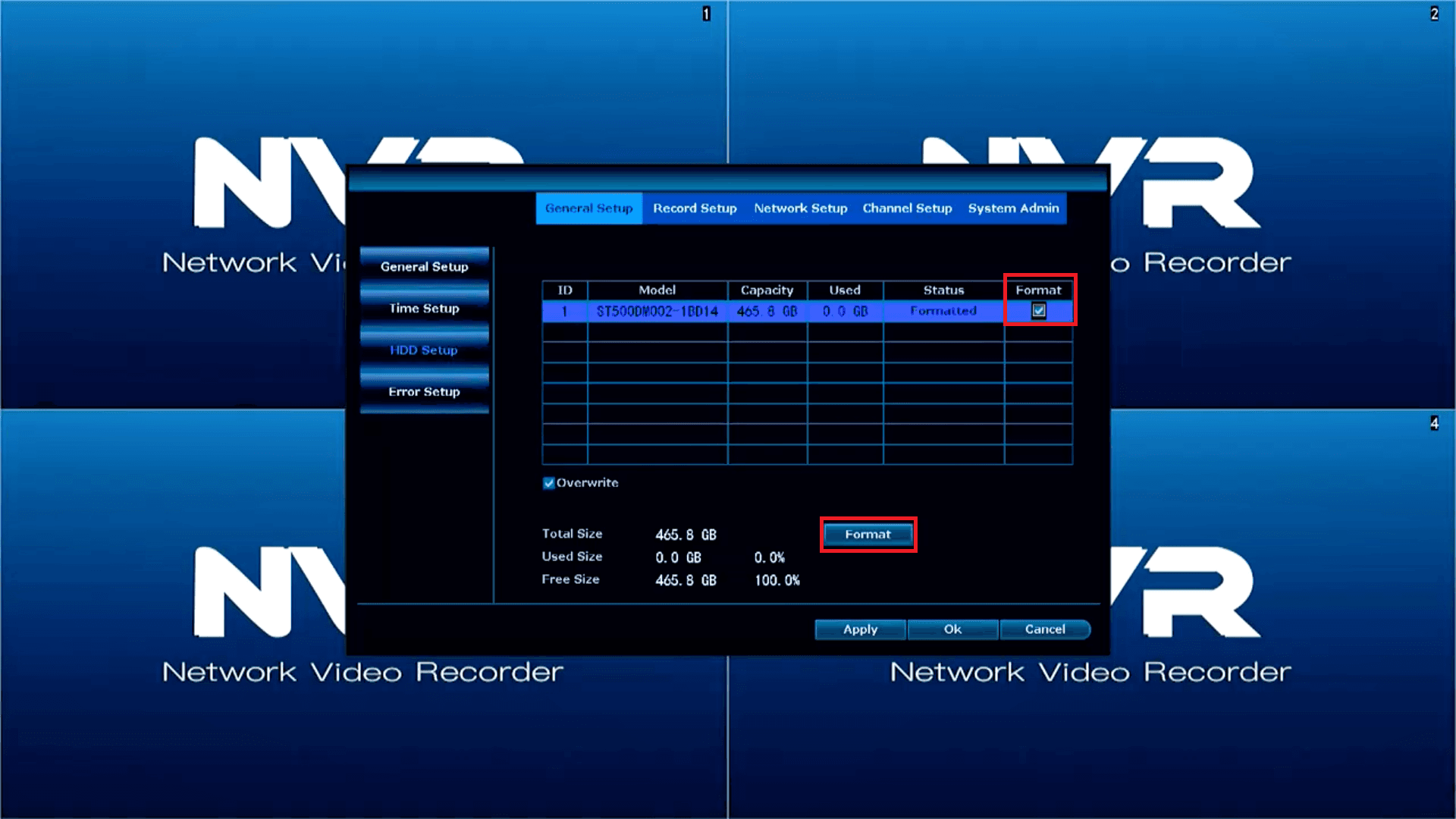
Select the Hard Drive to Format
- You may have more than one Hard Drive installed.
- Select the Hard Drive you want to Format by ticking the Format Check Box
- If you have more than one hard drive installed, you can tick both checkboxes to format all the Hard Drives.
Left Mouse Click on Format
- Left Mouse Click on Format
Confirmation of Format
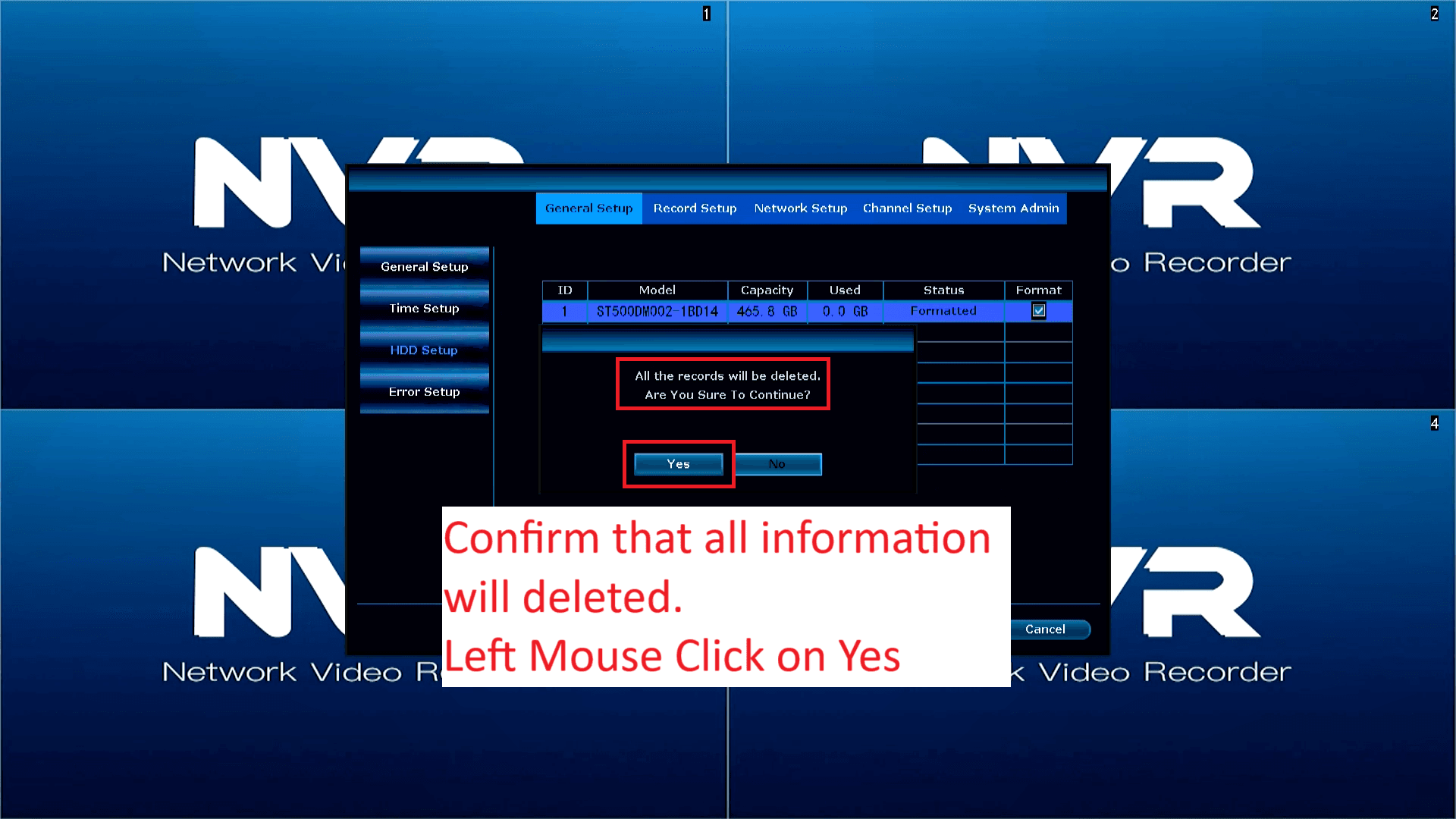
- Pop up Notification with the Message “All information will be deleted. Are you sure you wan to continue”
- Left mouse Click to Start Formatting the Hard Drive
Format Process will begin
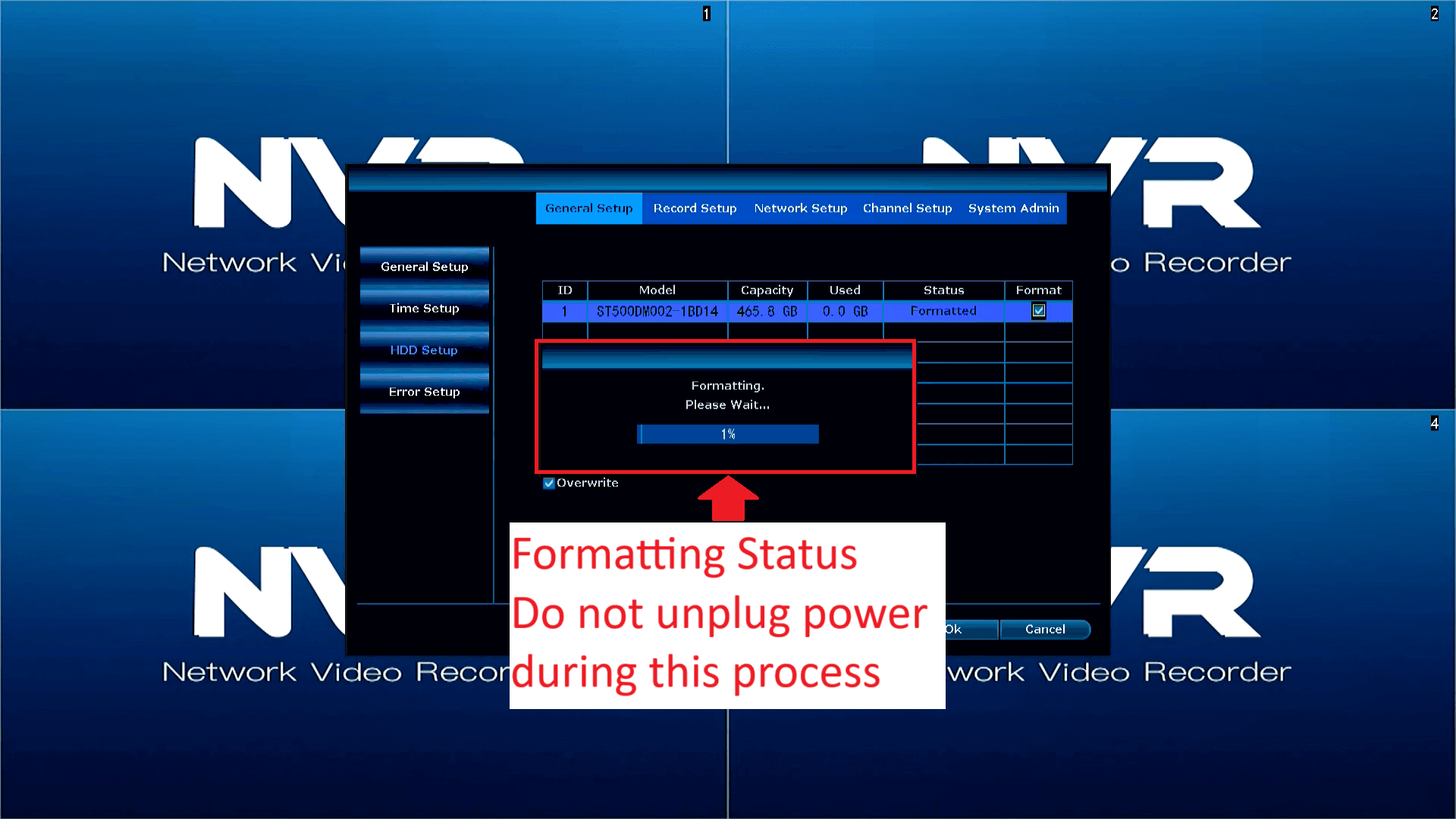
- Format process will begin.
- Status bar will display the progress.
- Do not unplug or switch of the power to the NVR during this process.
Format Successful
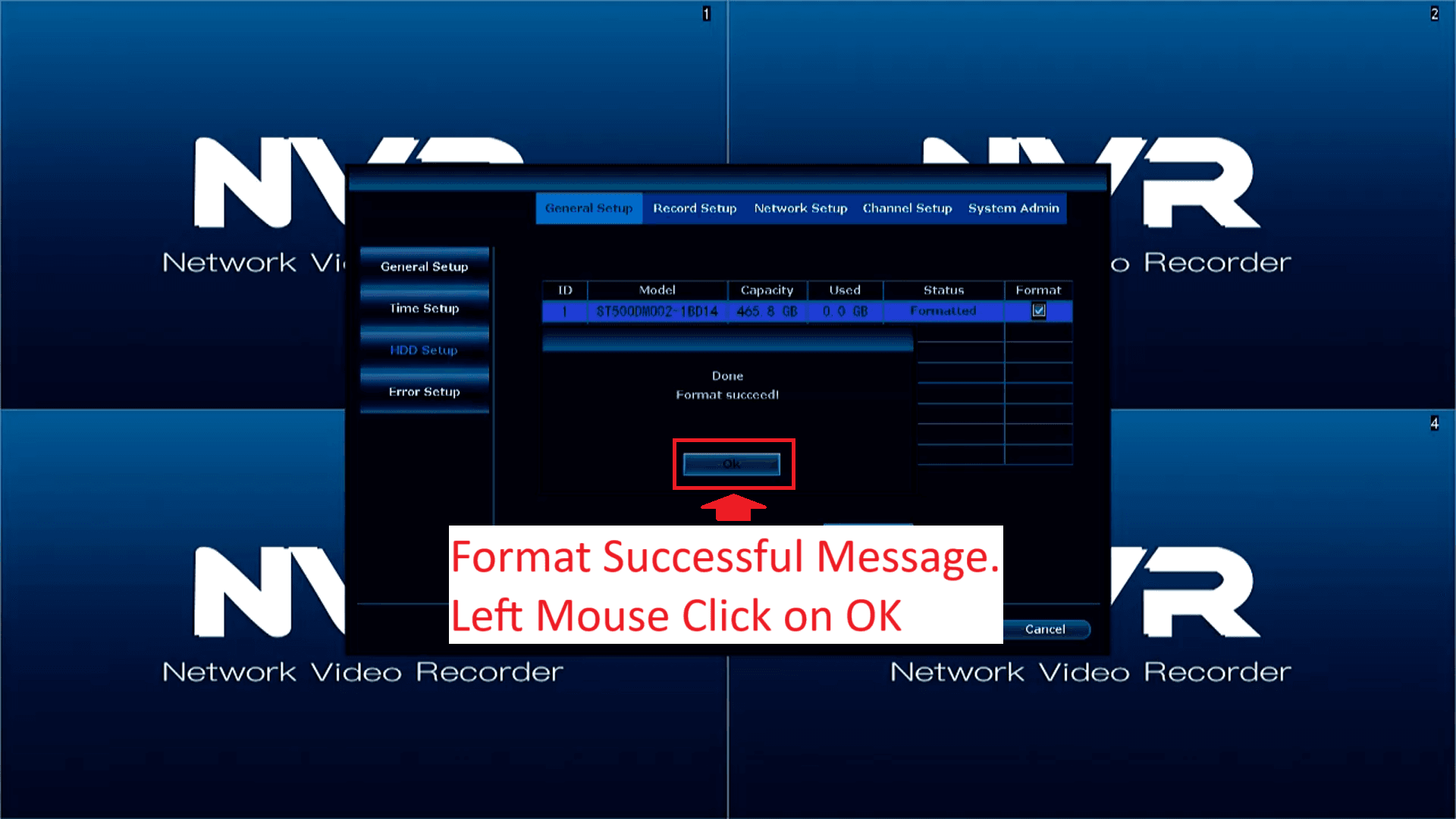
- Once Format is Complete, A pop notification will display “Done Format Succeeded!”
- Left Mouse Click on Ok.
2nd Hard Drive Installed
- If you have other Hard Drives installed, Run through the same process to Format them.
- If not, Move onto next step.
Exit to Menu
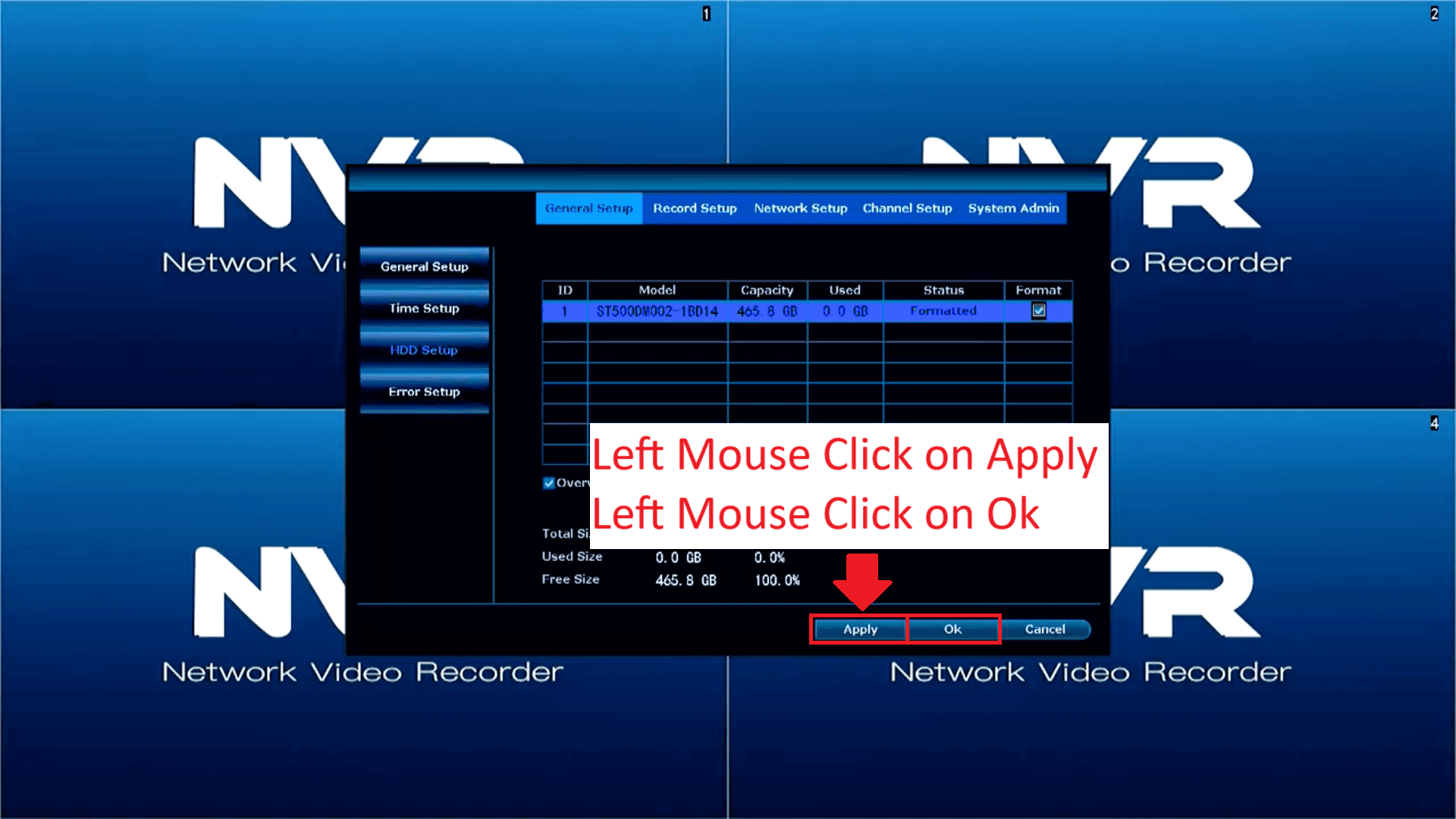
- Left Mouse Click on Apply.
- Left Mouse Click on OK.