
Troubleshooting IP Conflicts on DVR/NVR Systems: A Simple Guide
If you’re having trouble connecting your DVR/NVR (Digital Video Recorder/Network Video Recorder) to your network, or you’re seeing an “IP Conflict” error, you’re not alone. This issue often arises when two devices on your network are accidentally assigned the same IP address. Fortunately, resolving IP conflicts on DVR/NVR systems is usually quick and straightforward.
This guide will walk you through the steps to fix an IP conflict on your DVR/NVR system, explain what DHCP is, and give you easy-to-follow instructions. If you’re unable to fix the issue yourself, we also provide guidance on when to contact a professional IT technician.
What is DHCP? (Easy Explanation)
DHCP (Dynamic Host Configuration Protocol) is a network protocol that automatically assigns IP addresses to devices on your network. It eliminates the need for manual IP address configuration, making it easier for devices like DVRs and NVRs to connect to the internet and other devices.
By default, many DVR/NVR systems are set to DHCP, meaning they request an IP address from your router when powered on. However, sometimes conflicts can occur if another device has already been assigned the same IP address. This results in the dreaded “IP Conflict” error.
How to Fix an IP Conflict on Your DVR/NVR: Step-by-Step Guide
FAQs
- What causes an IP conflict on my DVR/NVR?
An IP conflict occurs when two devices on the same network are assigned the same IP address. This prevents either device from connecting to the network correctly. - How do I prevent future IP conflicts with my DVR/NVR?
To avoid future IP conflicts, either use static IP addresses for devices like DVR/NVRs or ensure your router’s DHCP range is large enough for all connected devices. - Should I contact a technician if I can’t resolve the IP conflict?
Yes, if you’re unable to resolve the issue after following these steps, it’s recommended to consult an IT or network technician for more in-depth troubleshooting.
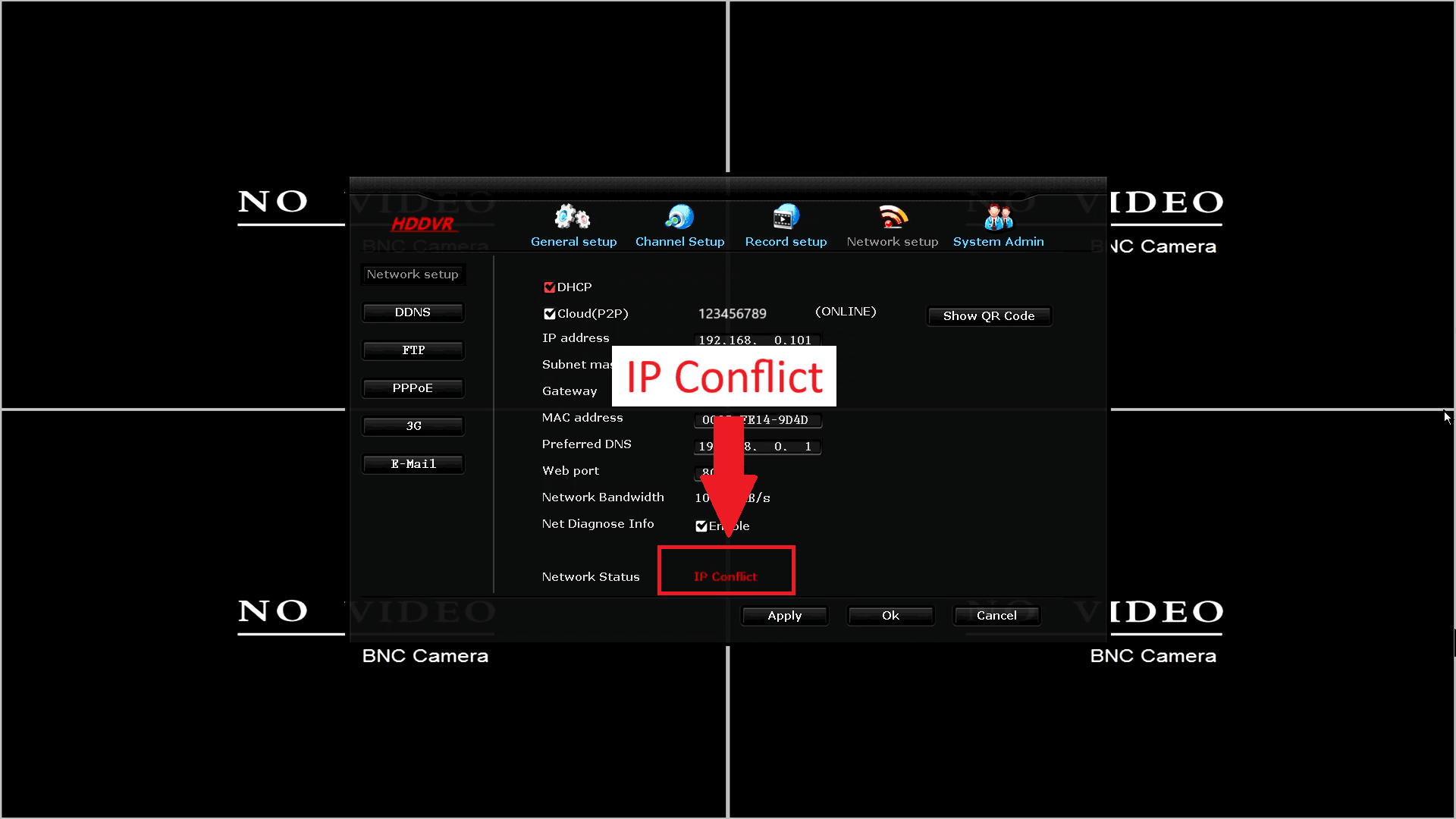
Step 1: Identify the IP Conflict Warning
– If you’re seeing an “IP Conflict” message on your screen, or if your DVR/NVR isn’t connecting to the network, this is a strong indicator of an IP conflict.
Step 2: 1st try to reboot your DVR
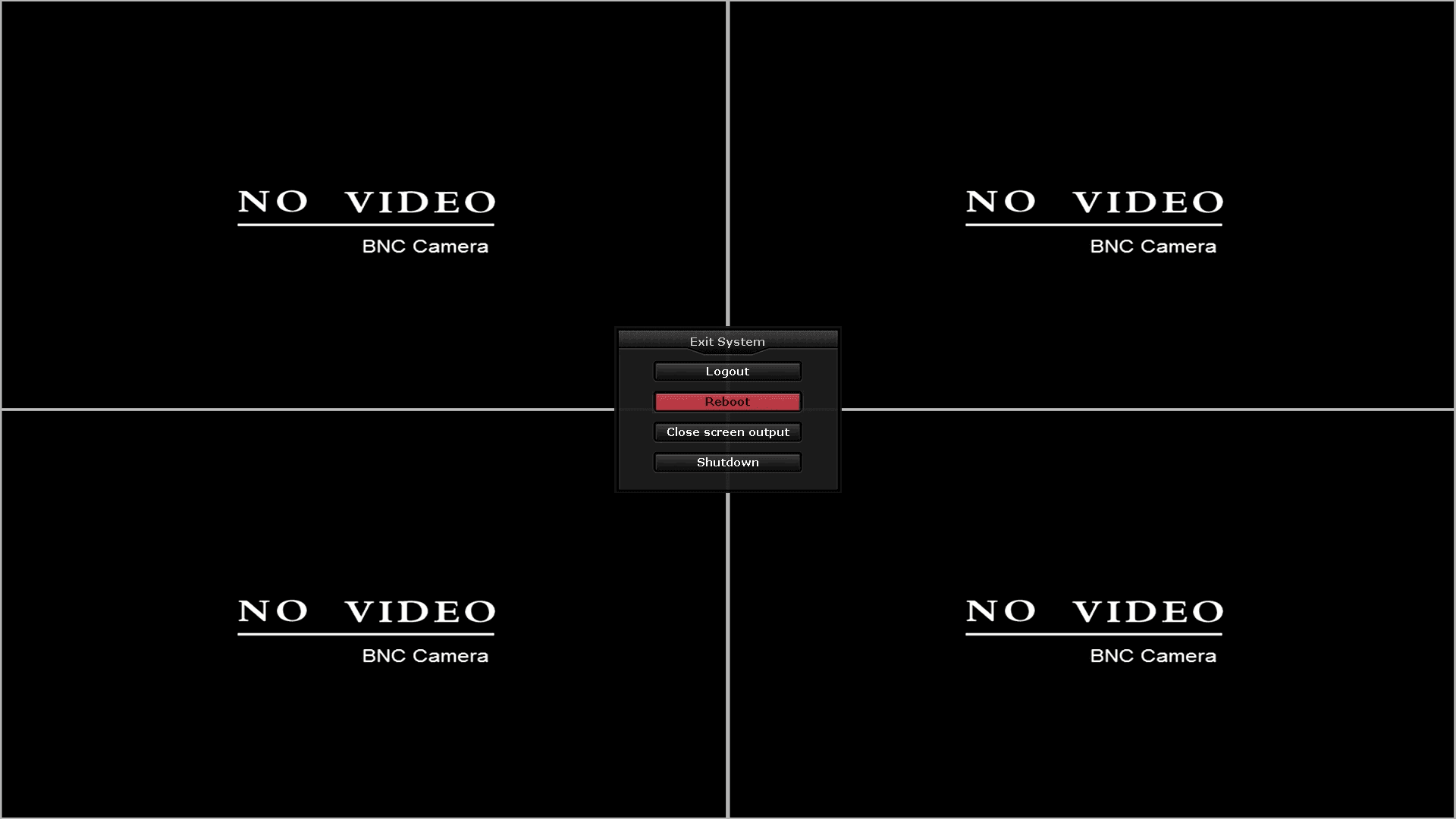
- Go to your Menu on your LZ DVR.
- Left Mouse Click on Exit menu

Step 3: Menu
- Left Mouse Click on Reboot
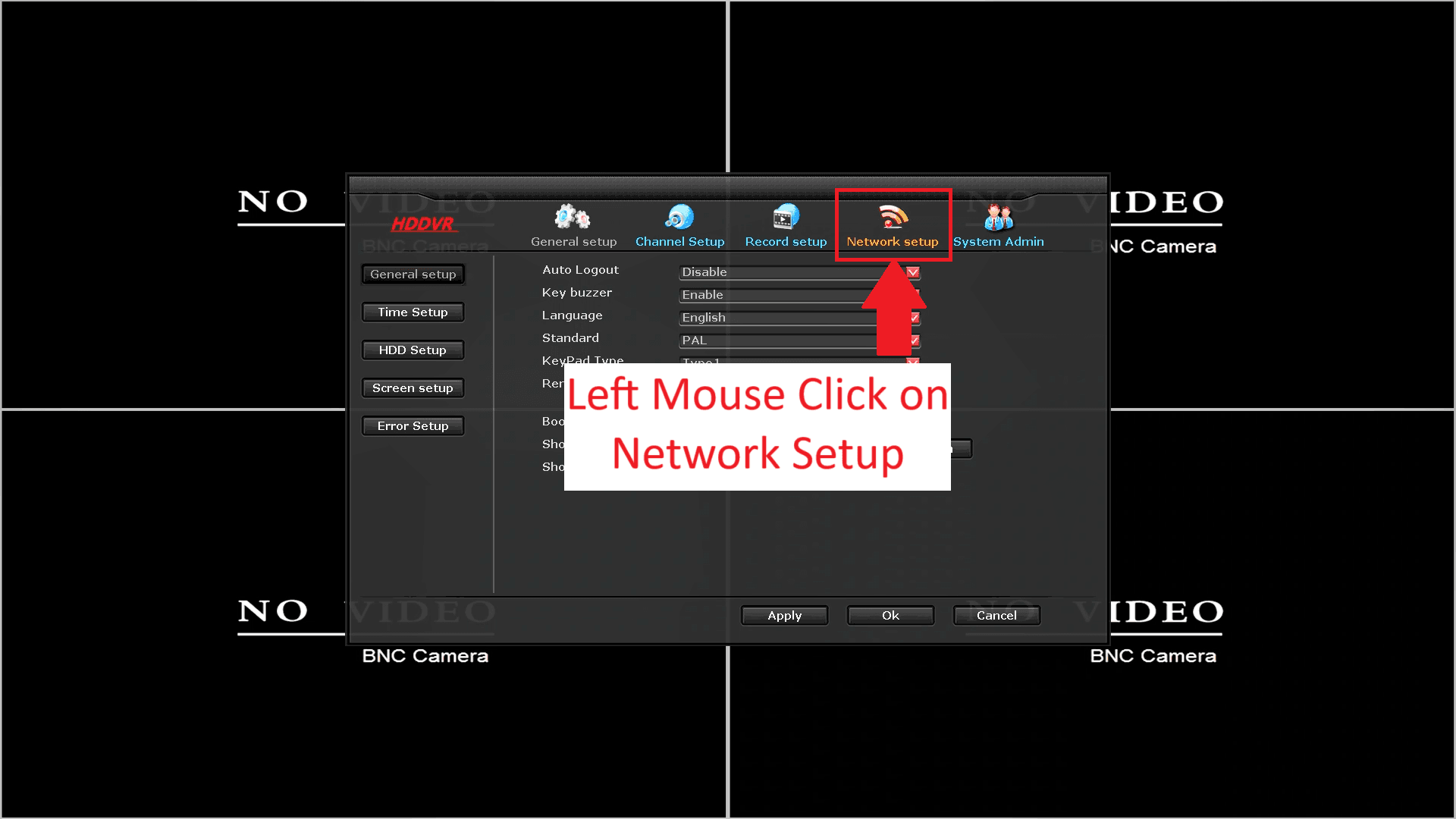
Step 4: After the Reboot, Go to your Network setup in the LZ DVR Menu
- Left Mouse Click on Network Setup
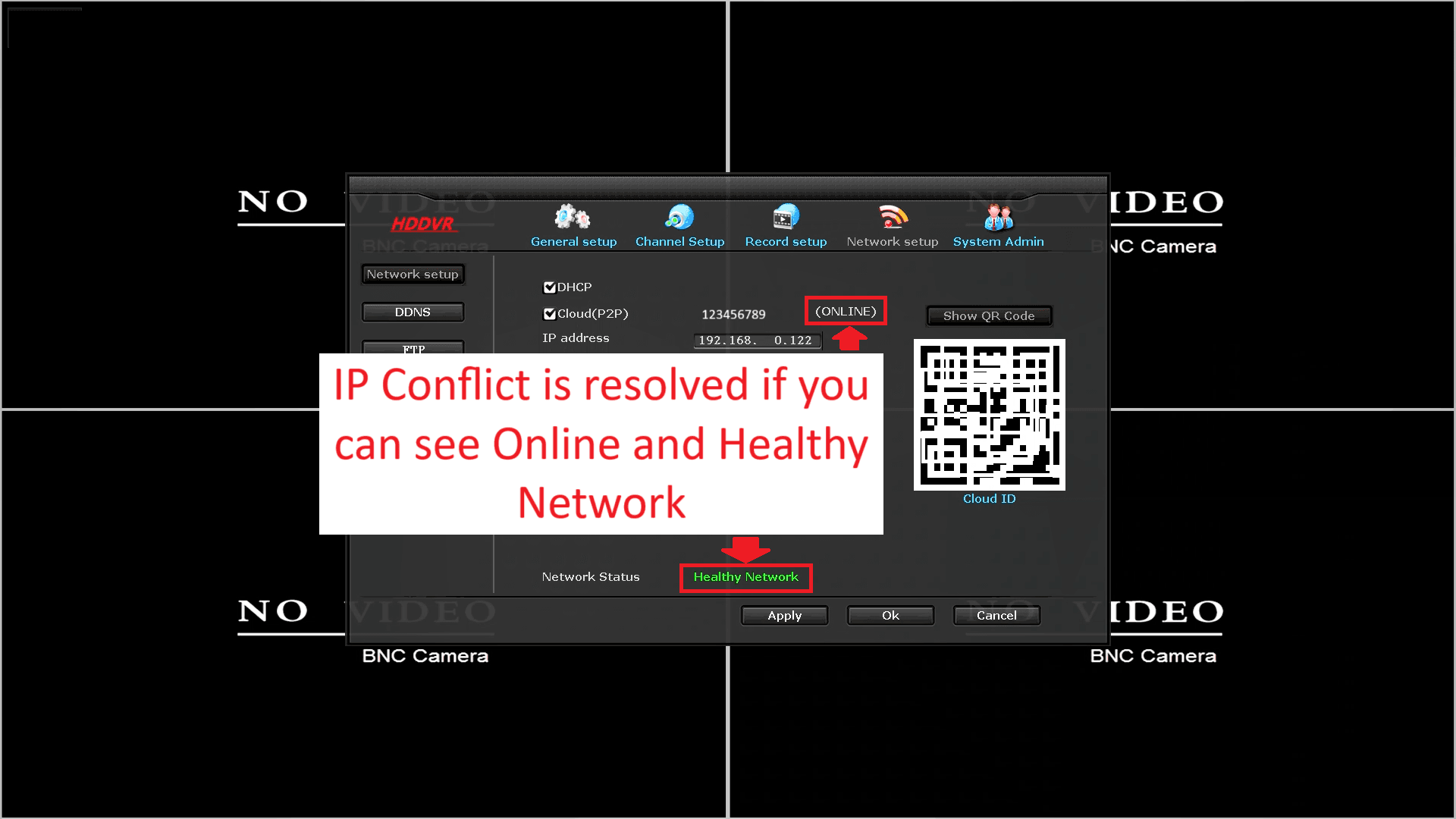
Step 5: Check for the following to see if the Reboot has resolved the IP Conflict
- Online is displaying
- Healthy Network is displaying
If it still says IP Conflict, carry on with the rest of the steps below to try and resolve.
Step 6: In the DVR Menu
- Left Mouse Click on System Admin
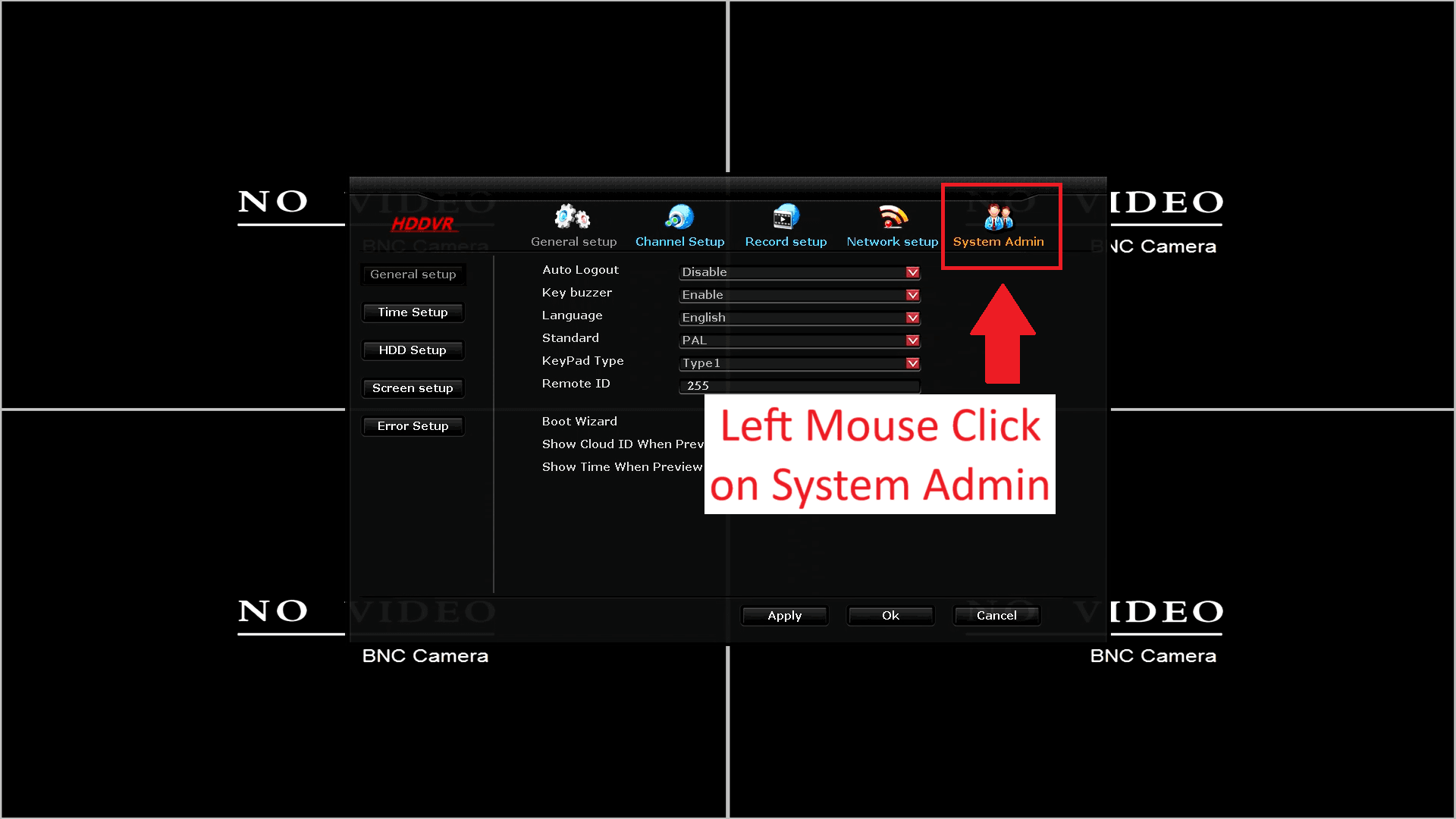
Step 7: System Admin
- Left Mouse Click on Factory Setting

Step 8: Factory Setting
- Tick Network Setup
- Important! Untick all other Settings
- Left Mouse Click on Apply
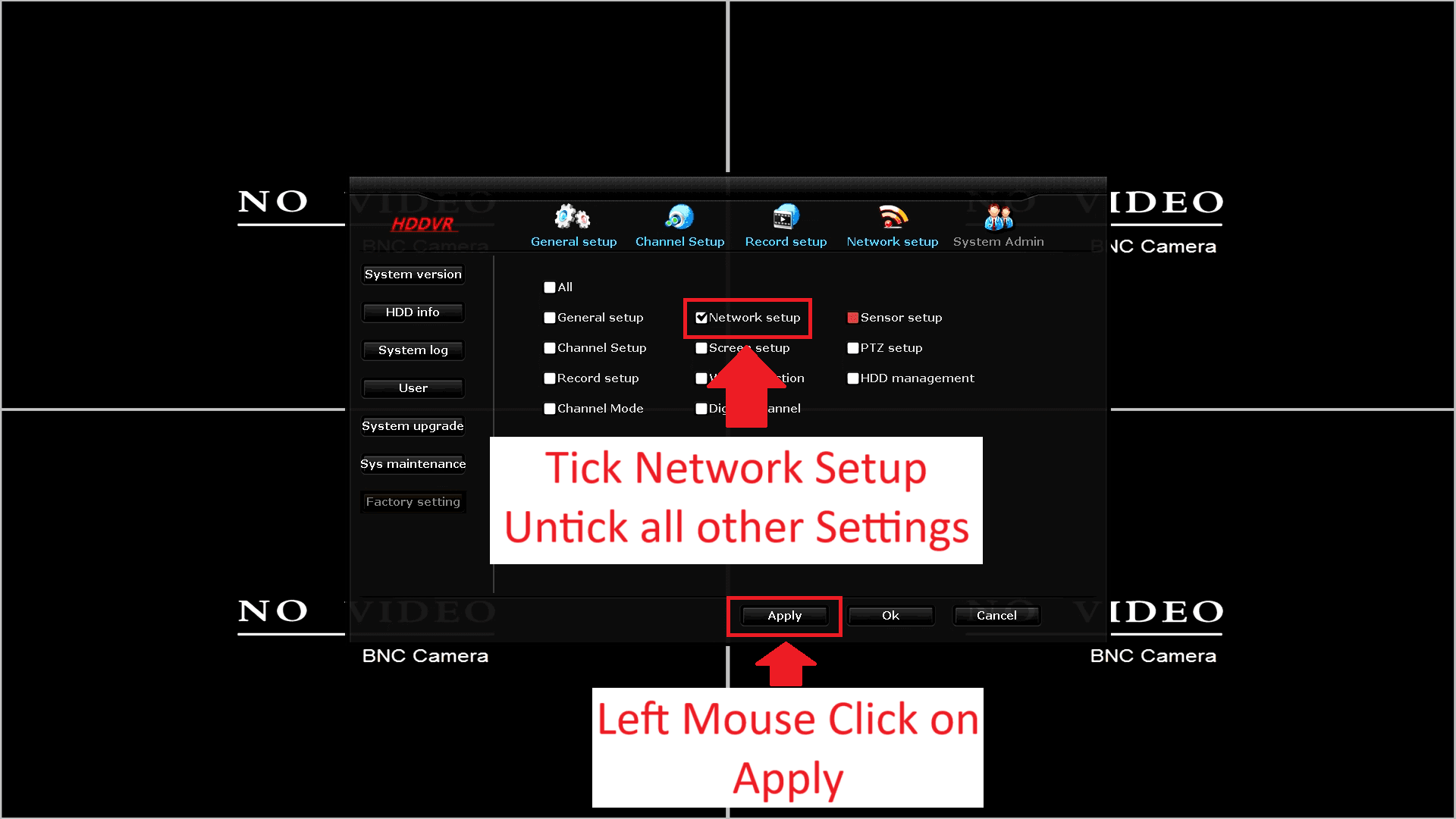
Step 9: Reset Network Settings
- Left Mouse Click on Yes
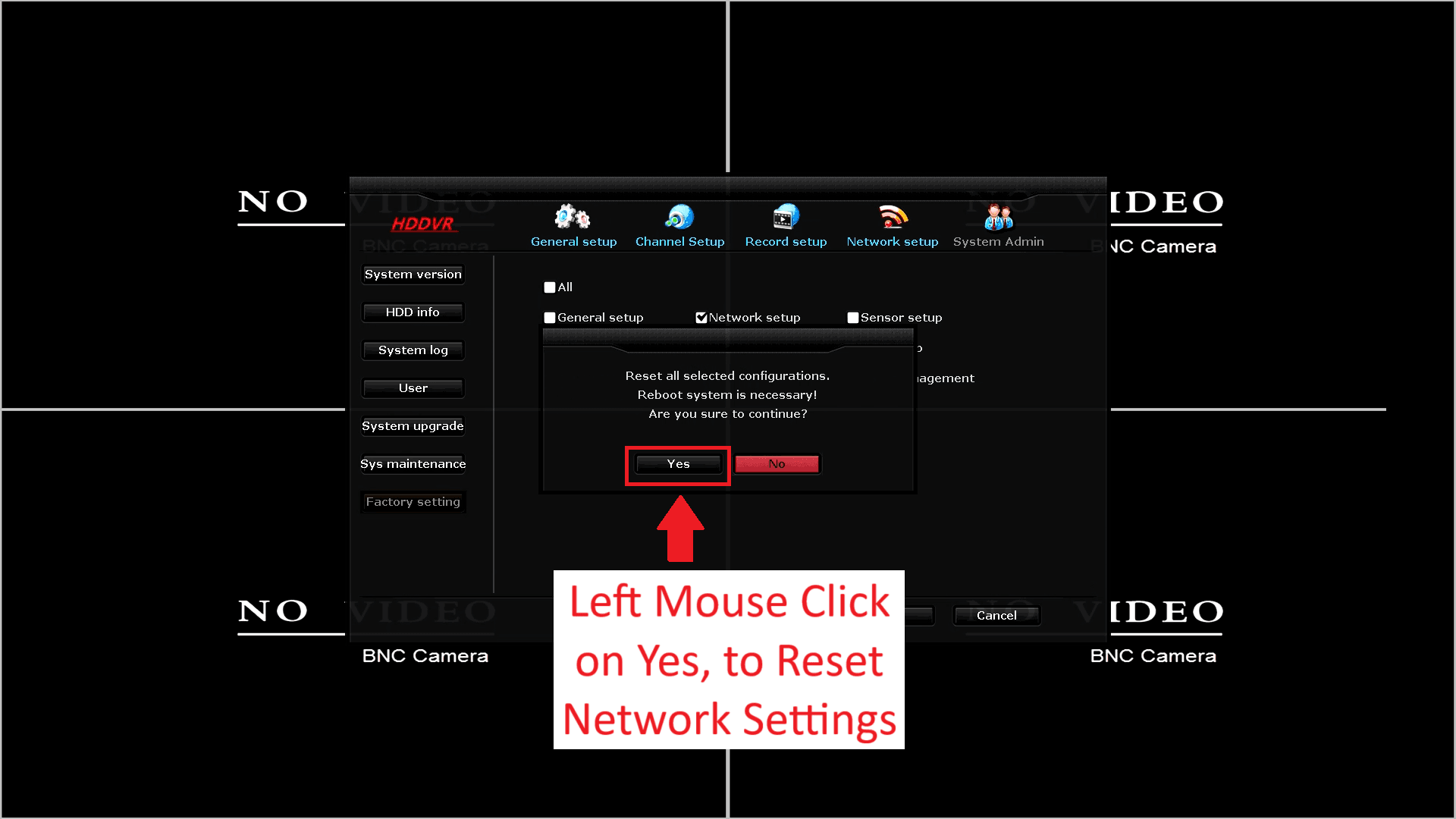
Step 10: Reboot
- Left Mouse Click on OK

Step 11: Check for the following to see if the reset of Network settings has resolved the network issues.
- Online is displaying
- Healthy Network is displaying
If it still says IP Conflict or does not display Online, carry on with the rest of the steps below to try and resolve.
Step 12: Reboot Your DVR/NVR
– Power cycle your DVR/NVR to allow it to request a new IP address from your router:
1. Unplug your DVR/NVR from the power source.
2. Wait 10-20 seconds.
3. Plug it back in.
– This will prompt the device to request a new IP address from the router, which might resolve the conflict.
Step 13: Check for the following to see if the unplugging of power has resolved the network issues.
- Online is displaying
- Healthy Network is displaying
If it still says IP Conflict or does not display Online, carry on with the rest of the steps below to try and resolve.
Step 14: Proceed with Caution!!! Check Your Router’s DHCP Settings (Requires Networking experience, Any incorrect changes made here can cause network connectivity issues, contact an IT technician if this is required)
Sometimes, the issue may lie with your router’s settings. Log in to your router’s admin panel and verify the following:
– DHCP Range: Check if the DHCP range is too narrow, and make sure it has enough IP addresses to assign to all devices on your network.
– Device List: In your router’s admin panel, check the list of connected devices. Ensure no other device is assigned the same IP address as your DVR/NVR.

Step 15: Check for the following to see if the DHCP settings has resolved the network issues.
- Online is displaying
- Healthy Network is displaying
If it still says IP Conflict or does not display Online, carry on with the rest of the steps below to try and resolve.
Step 16: Proceed with Caution!!! Manually Assign a Static IP Address (Requires Networking experience, Any incorrect changes made here can cause network connectivity issues, contact an IT technician if this is required)
- Log in to your DVR/NVR settings via the on-screen menu or the web interface.
- Navigate to the Network Settings section.
- Untick DHCP
- Select the option to set a Static IP or Manual IP.
- Assign an IP address that is outside the range of your router’s DHCP pool.
- Save your changes and restart the DVR/NVR.

Step 17: Check for the following to see if the setting of a Static IP address has resolved the network issues.
- Online is displaying
- Healthy Network is displaying
If it still says IP Conflict or does not display Online, carry on with the rest of the steps below to try and resolve.
Step 18: Disconnect Other Devices
The conflict could be caused by another device on the network (such as a PC, printer, or another DVR/NVR) that’s using the same IP address. To troubleshoot:
1. Disconnect other devices from the network.
2. Reboot the DVR/NVR and check if it now connects successfully.

Step 19: Check for the following to see if the disconnection of devices has resolved the network issues.
- Online is displaying
- Healthy Network is displaying
If it still says IP Conflict or does not display Online, carry on with the rest of the steps below to try and resolve.
Step 20: Proceed with Extreme Caution!!! If you have specific network settings, they will be reset to default, you may lose connectivity to all your network devicese. Contact a Network technician if unsure.
Restart Your Router
If the problem persists after checking your router settings, restart your router to refresh the DHCP assignments. This can resolve any temporary issues with IP address allocation.

Step 21: Check for the following to see if the reset of the router has resolved the network issues.
- Online is displaying
- Healthy Network is displaying
If it still says IP Conflict or does not display Online, recommend to contact a Network technician.
When to Contact an IT or Network Technician
If none of these troubleshooting steps resolve the issue, the problem may be more complex. It’s time to contact a professional IT or network technician who can assist with advanced troubleshooting.
An IT technician can:
– Check your network for misconfigurations.
– Ensure that there are no conflicting devices or IP range issues.
– Diagnose any other network-related issues that could be preventing your DVR/NVR from connecting.
Conclusion: Solving IP Conflicts for Your DVR/NVR System
By following this step-by-step guide, you can easily troubleshoot and fix most IP conflicts with your DVR/NVR system. Make sure to use DHCP correctly, manually assign static IPs if needed, and check your router’s settings. If all else fails, don’t hesitate to reach out to an IT or network professional to help resolve the issue.