
Technology, Apps and Software are continually being updated. Please use this as an overview guideline. User interfaces may change from when this page was published.
Text Instructions
1. Ensure you have Registered and Logged in, You can only add devices once you have logged in.
- If you need to Register, You can use one of the links below for a guide on registering on the Eseecloud app
- Register via Google – Quickest and Easiest method
- Register via Cellphone Number
- Register via Email Address
If the other methods like scanning the QR Code did not work, you can manually add the Cloud ID using the process below.
2. Main Screen

3. Tap “Add Camera”

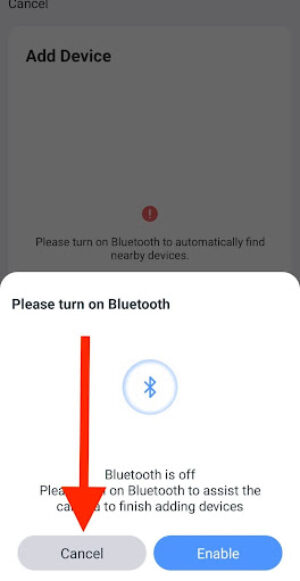
4. If Bluetooth Screen Comes up, Tap “Cancel”
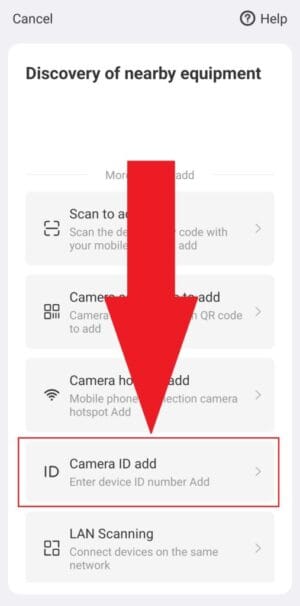
5. Various ways to add the Device Cloud ID to the App

6. Select Camera ID add
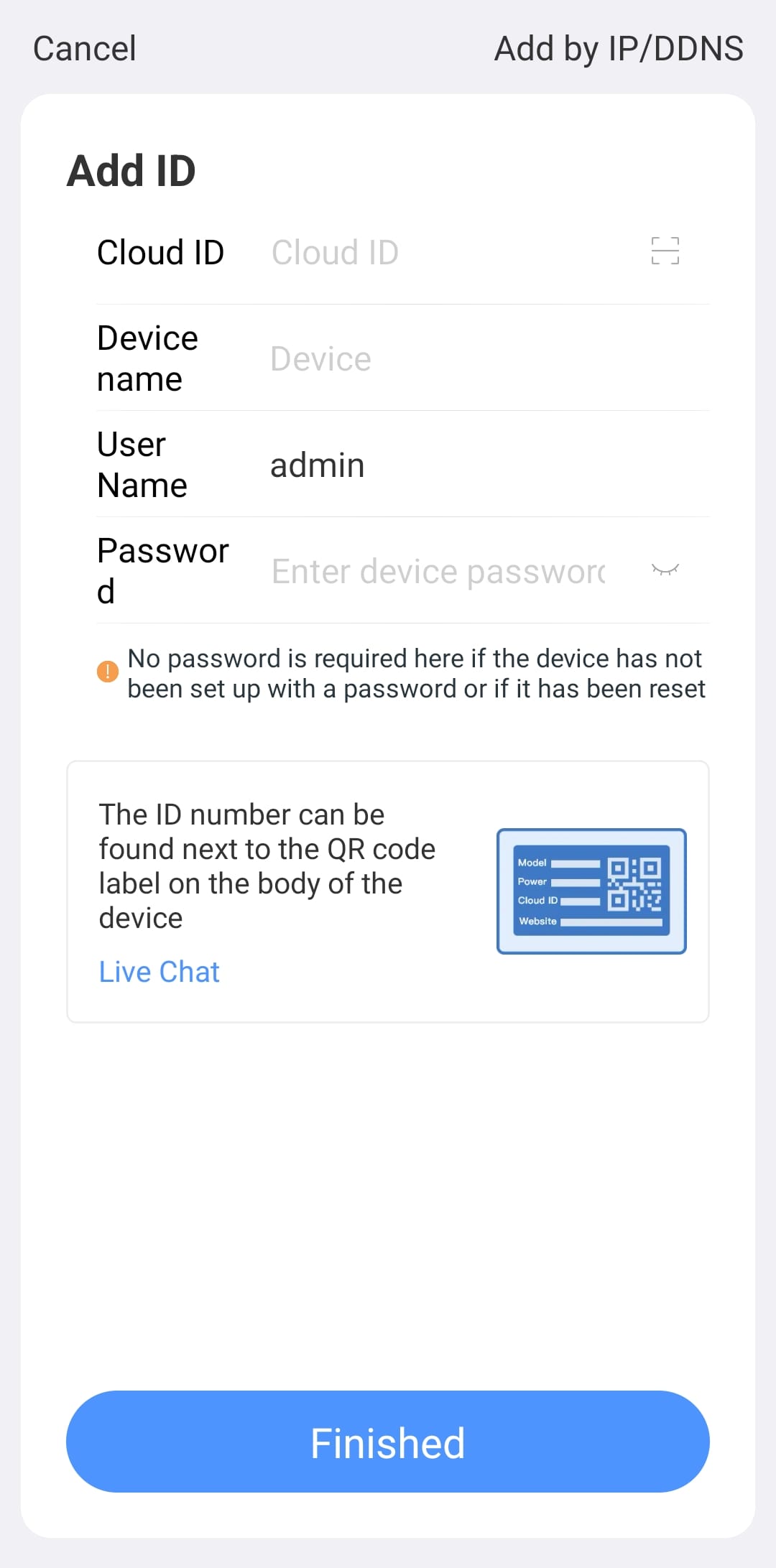
7. You should now be at the Screen Add by IP/DDNS screen
8. Look at your DVR Display on the Monitor/TV
- The DVR Cloud ID can be found at the bottom right hand corner of your DVR Display on the Monitor/TV
- If it is not displaying on the bottom right hand corner, Go to step 13, to find the Cloud ID in Network Settings
- If you are adding a different device to that of a DVR, Your Cloud ID can be found on the device.

9. Add Cloud ID
- Enter your Cloud ID, In this example we have added 123456789 as an example.
- Type in your unique Cloud ID of your device.

10. Type in Location of Device
- Type in the location of your Device e.g. Home, Office, Lounge, Kitchen
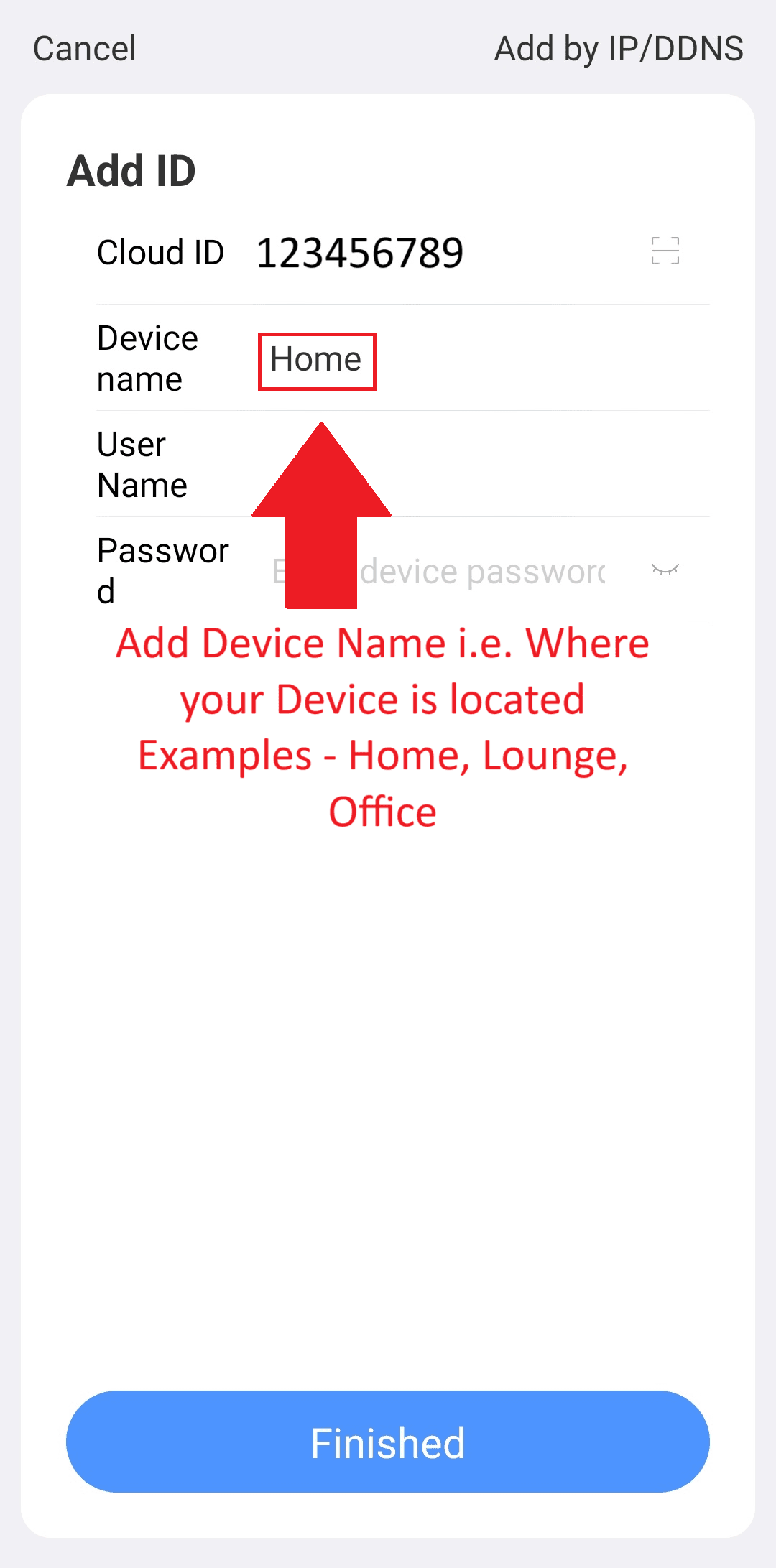
11. Tap Finished

12. Device Added
- Tap Play

13. If you located your Cloud ID in step 8, You can skip this step and move onto step 16. If you did not locate your Cloud ID, follow the steps below –
- Right Mouse Click to bring up the DVR Menu
- Left Mouse Click on System Setup

14. Left Mouse Click on Network Setup

15. Ensure the following is enabled
- DHCP
- Cloud (P2P)
- Net Diagnose Info
- Healthy Network is displaying
- !!! Must be displaying (ONLINE), this indicates that your DVR is connected to the Internet.
- Cloud ID can be found next to Cloud(P2P). Example of Cloud ID used in this example 123456789

16. Add Cloud ID
- Enter your Cloud ID, In this example we have added 123456789 as an example.
- Type in your unique Cloud ID of your device.
- Here we are using the Cloud ID found in Network settings on the DVR Display, If you are adding an LZ WIFI Device, the ID is usually located on the device.

16. Device Added
- Tap Play