
Enhance nighttime visibility with your Hikvision DS-2CE16D0T-EXLPF camera by enabling Hybrid Light Color Night mode. This guide will help you configure your DVR settings step-by-step.
This guide may also apply to other Hybrid Light or Full Colour Cameras.
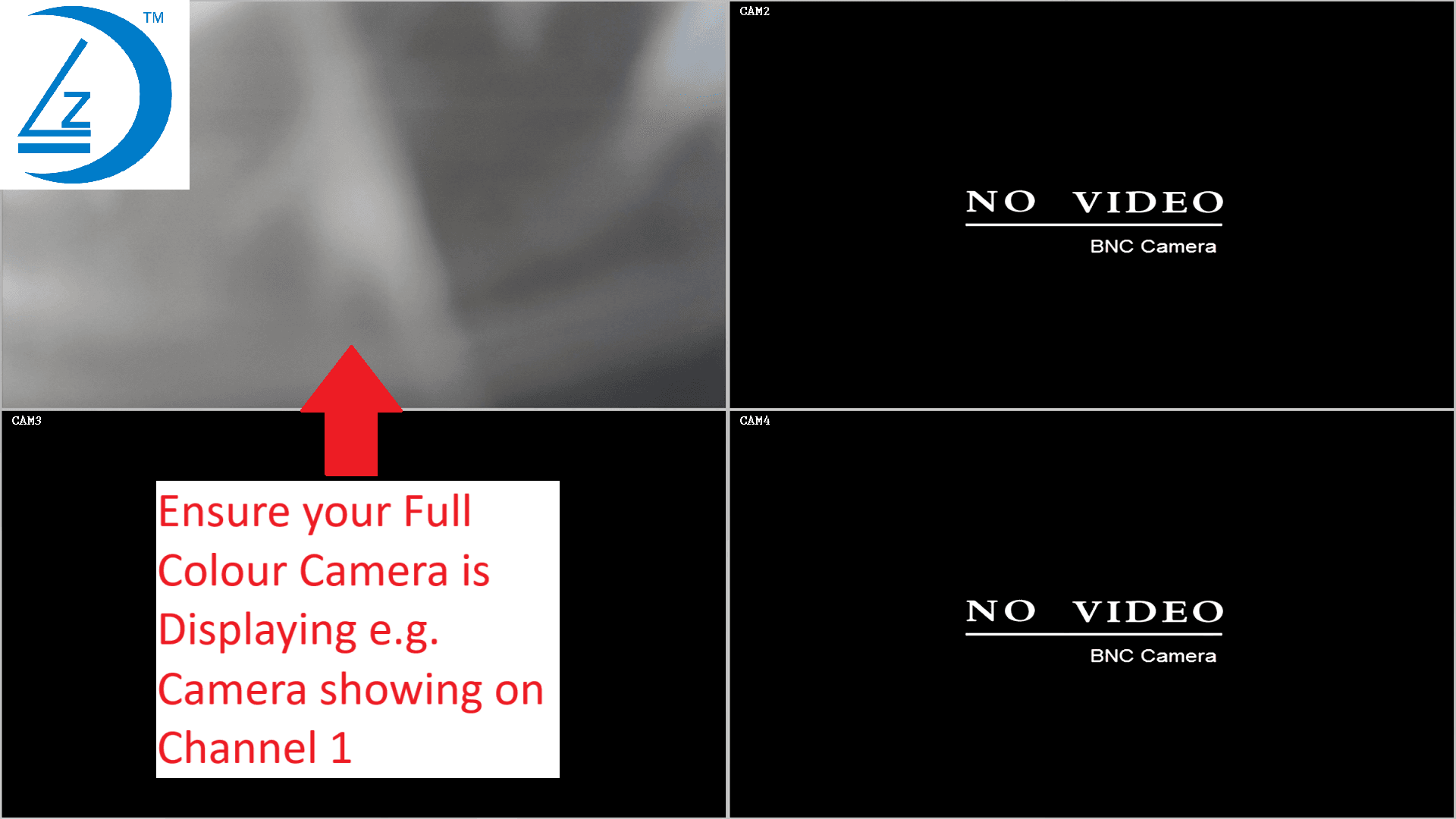
Step 1 – Ensure Camera is Connected
- Check Power: Make sure the camera is plugged in and turned on.
- Display: Ensure the camera image is displaying on the screen.
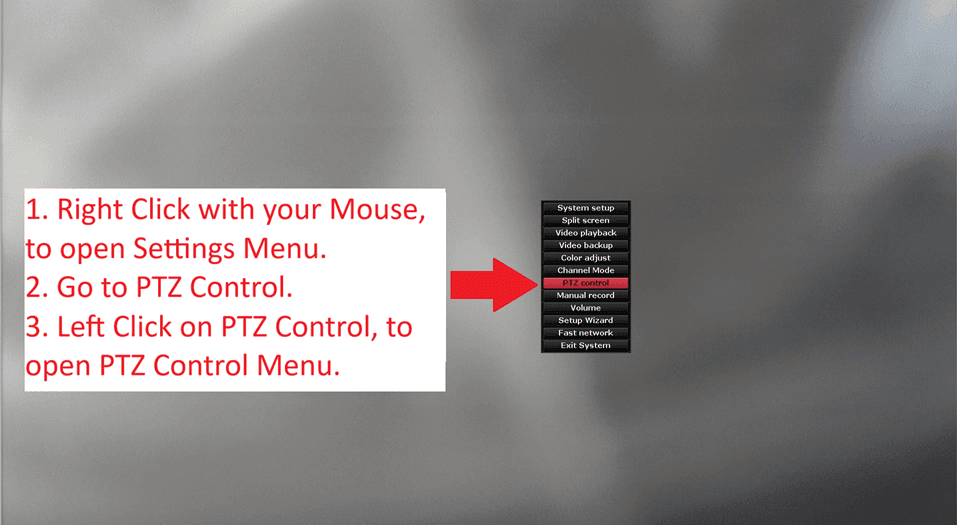
Step 2 – Open Full-Screen View, Go to Settings Menu, Select PTZ Control
- Full Screen: Click on the channel for your camera to view it in full screen.
- Right click with your mouse, To open Settings Menu
- Select PTZ Control
- Left click on PTZ control to open PTZ Menu
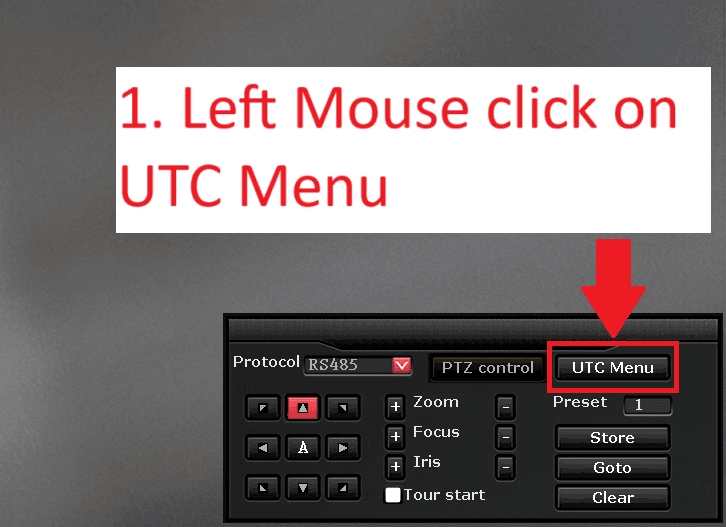
Step 3 – Left Mouse click on UTC menu
- PTZ menu will now open.
- Left mouse click on UTC menu,
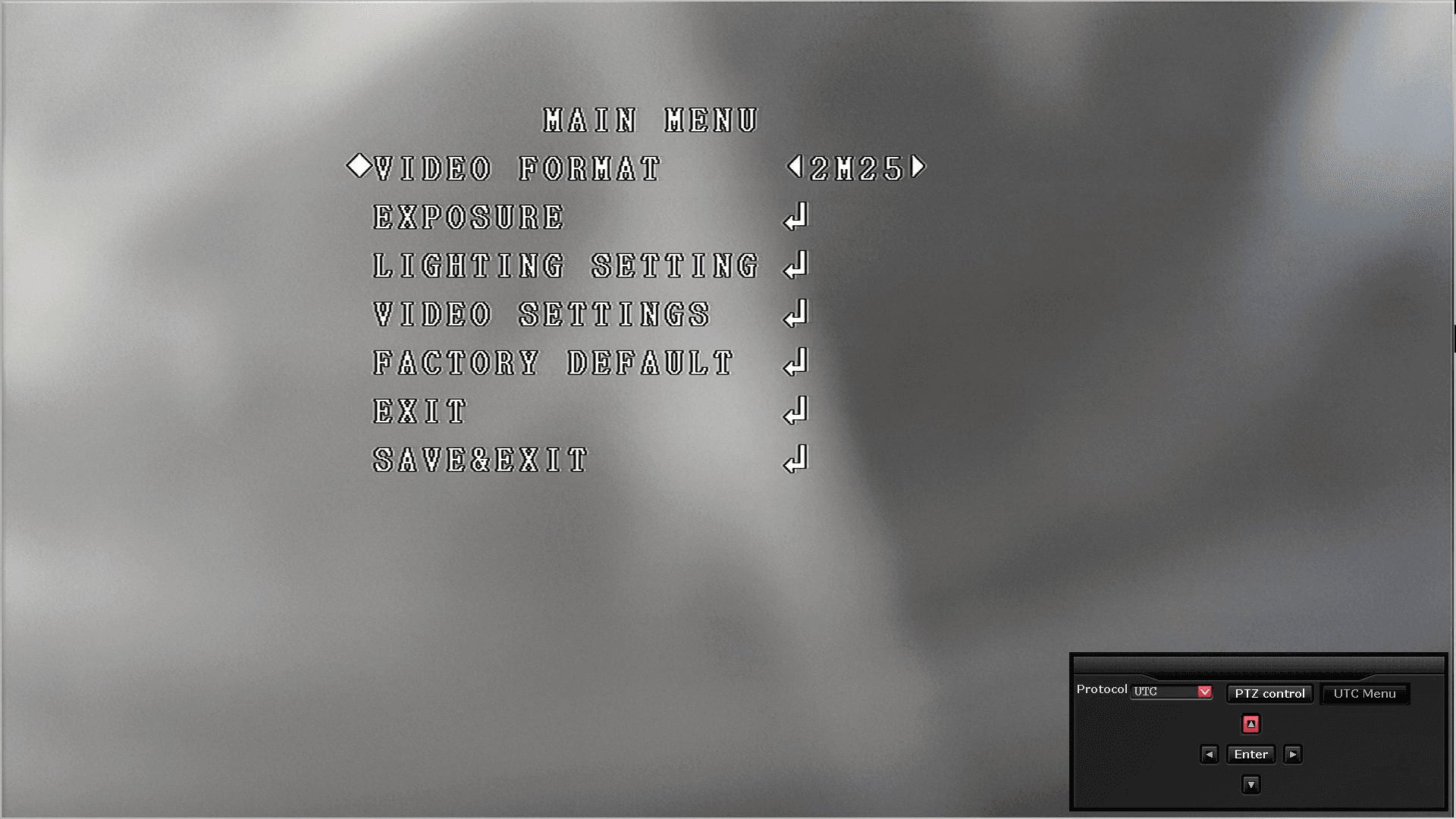
Step 4 – Camera Main Menu
- The Camera Main Menu will now open.
- You can use the Arrows and Enter button to navigate the Camera Main Menu.
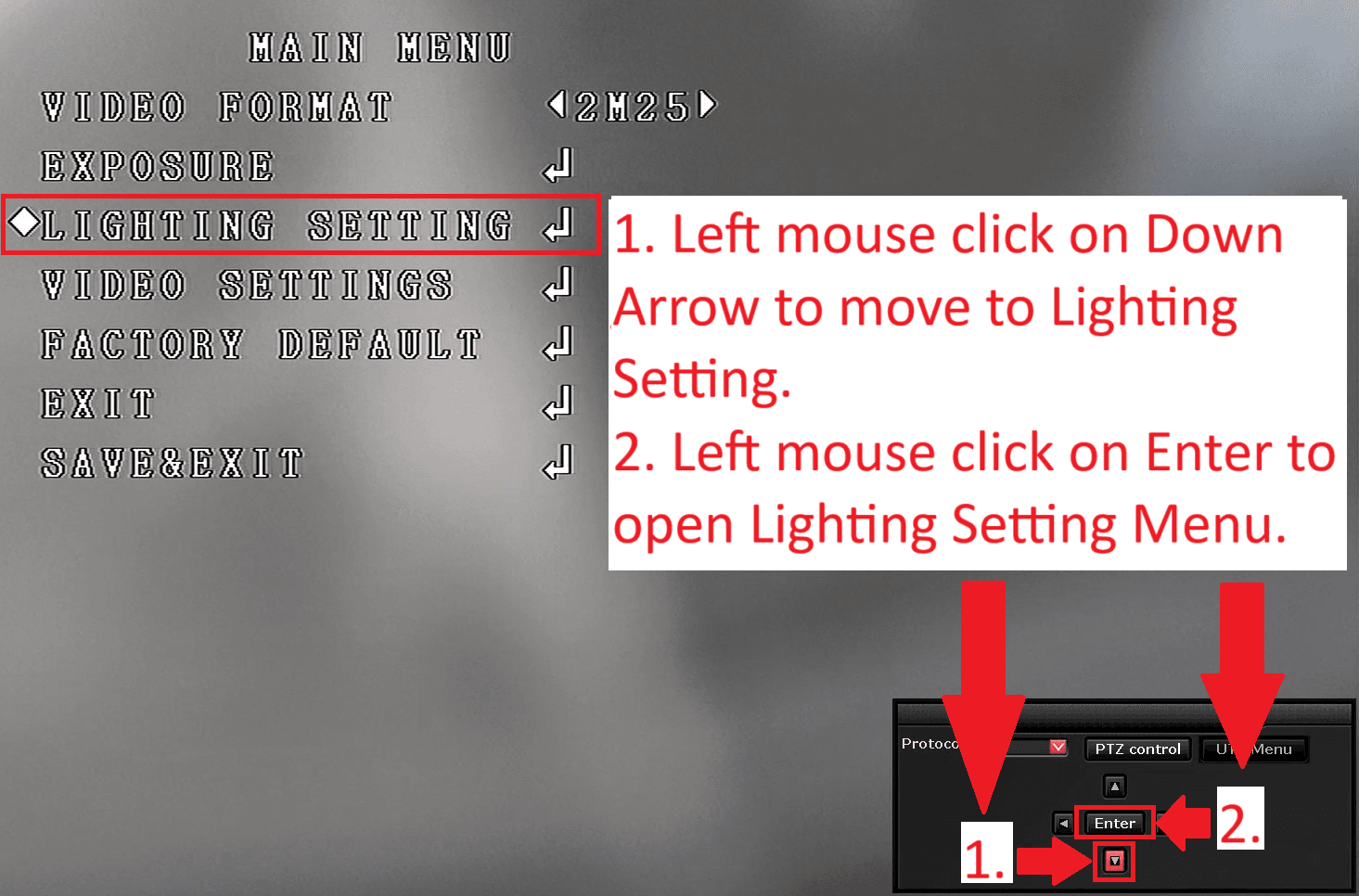
Step 5 – Open Lighting Setting Menu
- Left mouse click on Down Arrow to move to Lighting Setting.
- Left mouse click on Enter to open Lighting Setting Menu
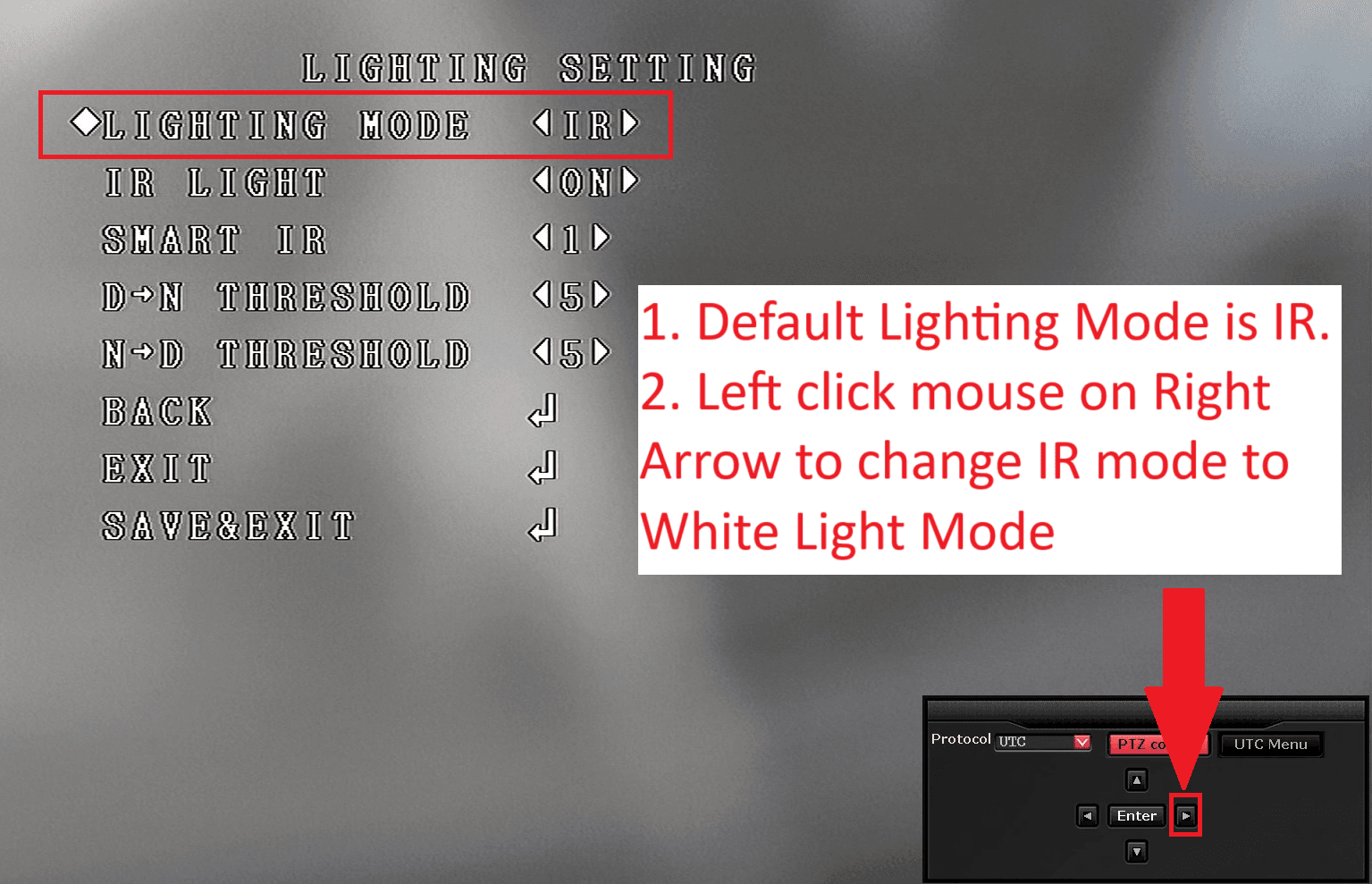
Step 6 – Change IR mode to White Light Mode
- Left mouse click on Right Arrow, to change IR to White Light.
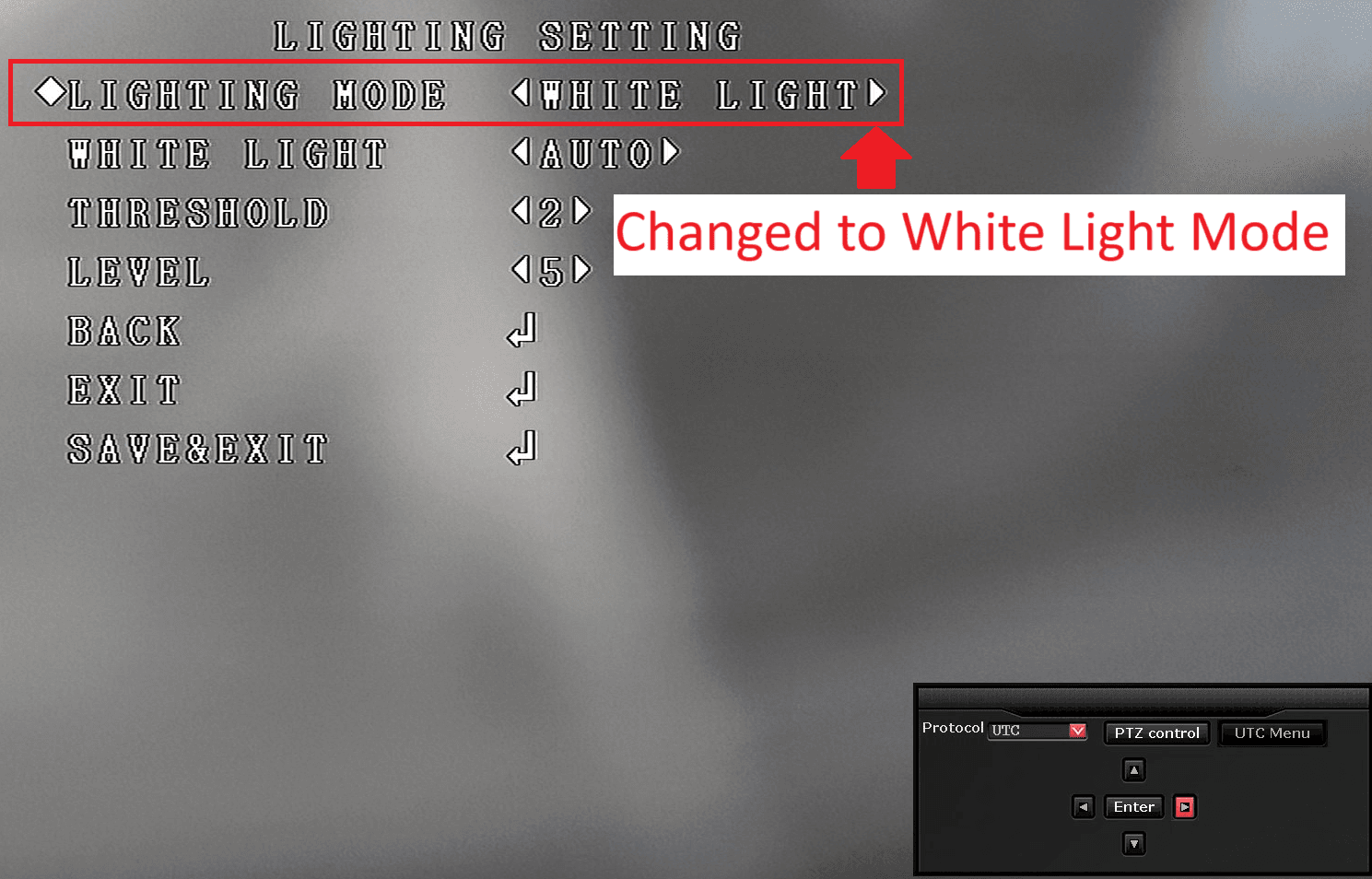
Step 7 – Lighting mode set to White Light Mode
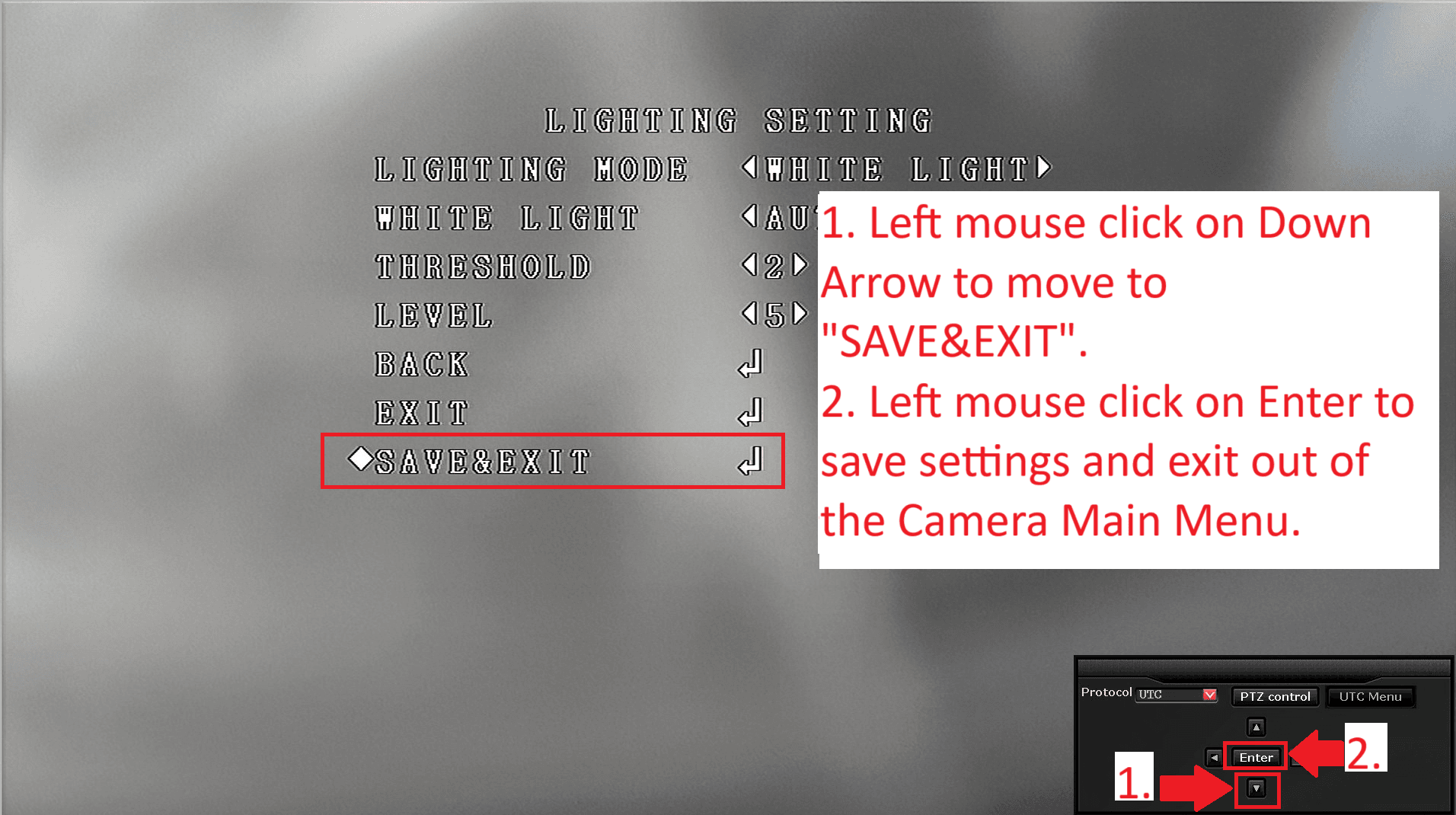
Step 8 – Save Settings
- Left mouse click on Down Arrow to move to “SAVE&EXIT”.
- Left mouse click on Enter, to save settings and exit out of Camera Main Menu.
Step 9 – Test your Night Time Colour Camera
- Test your camera at night to ensure night time colours have been set.